

![4K AI Image Upscaler: Upscale Any Photo to 4K Quality [2026]](https://xqysaylskffsfwunczbd.supabase.co/storage/v1/object/public/blog-images/2026/02/1771452275821-featured-4k-upscaler.webp)
4K AI Image Upscaler: Upscale Any Photo to 4K Quality
You took a great photo — but it came out too small, too blurry, or too low-res to actually use. That happens constantly with phone screenshots, older camera files, and downloaded images. A 4K AI image upscaler fixes this without guessing or stretching pixels.
Here's how to get sharp, 4K-quality results from any image.
What "4K" Actually Means for Photos
"4K" usually refers to 3840×2160 pixels — roughly 8.3 megapixels. That sounds like a lot, but most modern phone cameras shoot at 12–50 MP. The problem isn't just resolution — it's sharpness, detail, and usability.
A photo can technically be 4K in pixel count but still look soft if the original was compressed, blurry at the source, or captured with a low-quality sensor. That's where AI upscaling steps in.
How 4K AI Upscaling Works
Old-school upscaling (like Photoshop bicubic) just stretches existing pixels and adds blurring to hide the seams. The result? Big file, same quality.
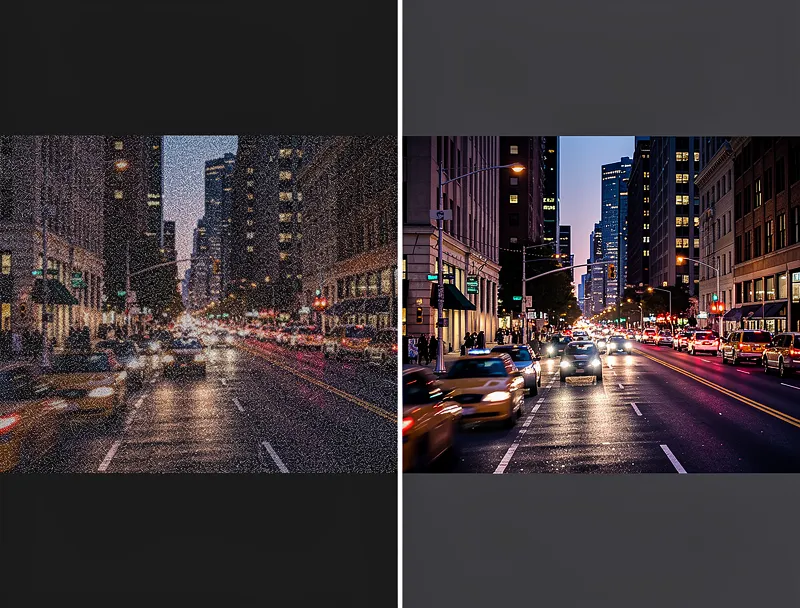
AI upscaling is completely different. It uses neural networks trained on millions of images to predict what missing detail should look like. The model doesn't copy pixels — it generates new ones based on patterns it learned from real high-resolution photos.
The result is sharper edges, smoother gradients, and visible texture detail that wasn't there before. It's the difference between zooming in and actually having more detail.
What the AI looks for:
- Edge patterns (where light meets shadow)
- Texture structure (skin pores, fabric weave, foliage)
- Color gradients and transitions
- Fine details like text, hair, and object borders
When You Actually Need 4K Upscaling
Not every image needs 4K. But here's when it makes a real difference:
Printing large format. A 4×6 print needs around 1200×1800 pixels at 300 DPI. A 16×20 poster needs 4800×6000 pixels. If you're starting with a 1MP phone screenshot, you need upscaling — or a blurry print.
TV and display backgrounds. Desktop wallpapers and TV screensavers look best at 3840×2160. Most downloaded images max out at 1920×1080.
Social media without cropping. Instagram, YouTube thumbnails, and LinkedIn banners each have specific size requirements. Upscaling lets you resize without cropping or losing context.
Old photos and scans. Film-era photos scanned at 300 DPI often come in at 1–2 MP. AI upscaling adds detail that film grain would have captured.
E-commerce and product shots. Zoom features on product pages require 2000+ px images. A 4K upscaler gets you there from phone snapshots.
How to Upscale Photos to 4K Quality — Step by Step
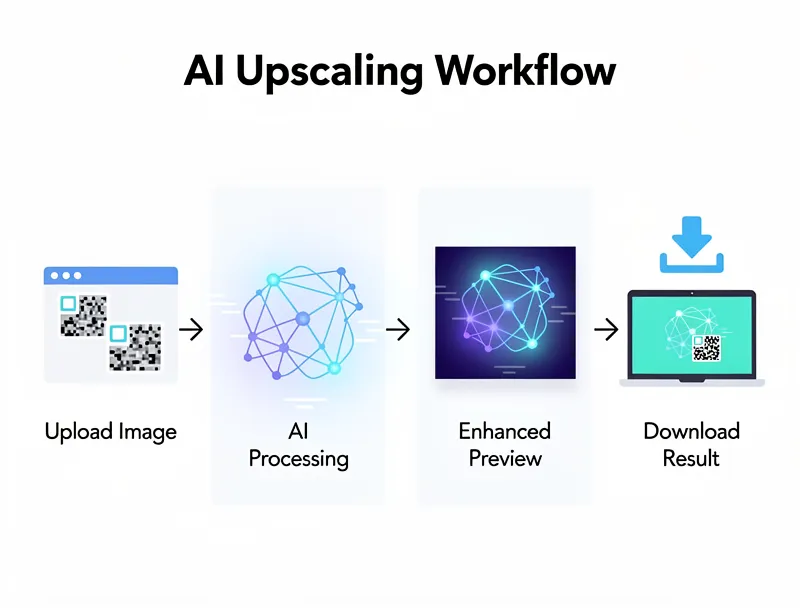
Using MyImageUpscaler, the process takes under 30 seconds:
- Go to myimageupscaler.com — no account needed.
- Upload your image — drag and drop or click to browse. Supports JPG, PNG, WEBP, AVIF, and more.
- Select your upscale factor — 2x doubles the resolution; 4x quadruples it.
- Click Upscale — the AI processes your image in the cloud (no CPU strain on your device).
- Download the result — you get a full-resolution WebP or PNG ready for printing or publishing.
The whole process runs in your browser. No software to install, no account to create, and no watermarks on the result.
What Resolution Do You Actually Get?
Here's a quick reference for common starting sizes:
| Starting Size | After 2x Upscale | After 4x Upscale |
|---|---|---|
| 480×270 (SD) | 960×540 | 1920×1080 (Full HD) |
| 1280×720 (HD) | 2560×1440 (2K) | 5120×2880 (5K) |
| 1920×1080 (Full HD) | 3840×2160 (4K) | 7680×4320 (8K) |
| 2048×1536 (phone) | 4096×3072 | 8192×6144 |
So if you start with a standard 1080p image, a 2x AI upscale gets you to true 4K. And because the AI adds real detail — not just more pixels — the 4K result actually looks better, not just bigger.
4K Upscaling vs. Just Resizing in Photoshop
This comparison comes up a lot. Here's the honest answer:
Photoshop bicubic resize: Fast, predictable, and makes large files. But edges get soft, fine details smear, and the result looks like it was zoomed in. There's no new information — just interpolated blur.
AI 4K upscaler: Slower (seconds, not instant), but the output has real sharpness. Edges stay crisp. Text remains readable. Skin texture looks natural. You're not just getting more pixels — you're getting better ones.
For casual resizing where no one will zoom in, Photoshop is fine. For prints, product photos, or anything people will examine closely, AI upscaling wins every time.
Tips for the Best 4K Results
The AI is powerful, but starting quality still matters. A few things that help:
Use the highest quality source you have. Even if it's small, a clean, sharp original upscales better than a compressed or heavily filtered one.
Avoid double-compressing. If your image is already a low-quality JPEG (lots of artifacts), run it through a denoising step first if possible. Upscaling a noisy image makes the noise bigger too.
Match your output to your use case. For web use, 2x is usually enough. For large-format printing, go 4x and aim for 300 DPI at final print size.
Check the result at 100%. Zoom in after upscaling to verify edges are sharp and there's no weird texture in flat areas like skies or walls.
Common Questions About 4K Upscaling
Is free 4K upscaling as good as paid tools? For most use cases, yes. MyImageUpscaler uses the same class of AI models as many paid tools. You'd only notice a difference in highly specialized cases like medical imaging or satellite photos.
Can I upscale a 4K image to 8K? Yes. A 4x upscale of a 4K image gives you 8K. Whether that's useful depends entirely on your display or print size — there's no point going above your output resolution.
Does AI upscaling work on every image type? Best results come from photos with natural textures (portraits, landscapes, product shots). Vector art and flat illustrations sometimes look over-processed. For those, stick to 2x.
Will the file size increase a lot? Yes — a 4x upscale increases pixel count by 16x, so file sizes grow significantly. Use WebP format for the best balance of quality and file size.
Conclusion
If you need sharper, larger images — for printing, publishing, or display — a 4K AI upscaler is the fastest way to get there. No Photoshop skills required, no blurry resizing workarounds.
Upload your photo and upscale it to 4K now — free, no signup, instant results.
Frequently Asked Questions
Quick answers for this guide
How do I choose the right 4K AI image upscaler upscale any photo to 4K quality []?+
Upscale any photo to stunning 4K quality with free AI. No signup needed — enhance sharpness, restore lost detail, and get print-ready results in seconds. Compare tools by output sharpness, watermark policy, signup requirements, file limits, export quality, and whether the result holds up when inspected at 100%.
When should I use AI upscaling for this workflow?+
Use AI upscaling when the original image is too small for the target use case but still has enough detail to guide the model. For guides work, pay closest attention to source image quality, upscale settings, output dimensions, and final visual inspection, especially upscale, AI, 4K.
How do I avoid losing quality after upscaling?+
Upscale once from the best original, avoid repeated compression, keep important text and edges sharp, and export in a format that matches the final use. If the output shows halos, smeared texture, or distorted text, reduce the upscale factor or use a cleaner source image.

Reviewed byJoao Furtado
AI Image Upscaling Specialist
Joao is the founder of MyImageUpscaler and an AI image upscaling specialist. He tests every guide against real upscaling workflows — comparing model outputs, evaluating sharpness and artifact tradeoffs, and validating tool recommendations before publication.
- AI image upscaling
- Model comparison
- Photo restoration
- E-commerce image prep
![Upscale Image Online Free — No Sign Up, No Watermarks [2026]](https://xqysaylskffsfwunczbd.supabase.co/storage/v1/object/public/blog-images/2026/02/1771797822106-featured-online-upscaler.webp)