

![5 Signs Your Images Need Upscaling (And How to Fix Them) [2026]](https://xqysaylskffsfwunczbd.supabase.co/storage/v1/object/public/blog-images/2026/02/1771098999028-featured-5-signs.webp)
5 Signs Your Images Need Upscaling
You've got a great photo, but something feels off. It looked fine on your phone, but now it's on your website and... yikes. Pixelated edges, muddy details, and that unmistakable blur that screams "low resolution."
Here's how to tell if your images need upscaling — and what to do about it.
1. Visible Pixels When You Zoom In
This is the most obvious red flag. Open your image at 100% zoom. If you see tiny colored squares instead of smooth gradients, your image resolution is too low for its display size.
This happens constantly with screenshots, cropped photos, and images downloaded from messaging apps (WhatsApp compresses everything aggressively).
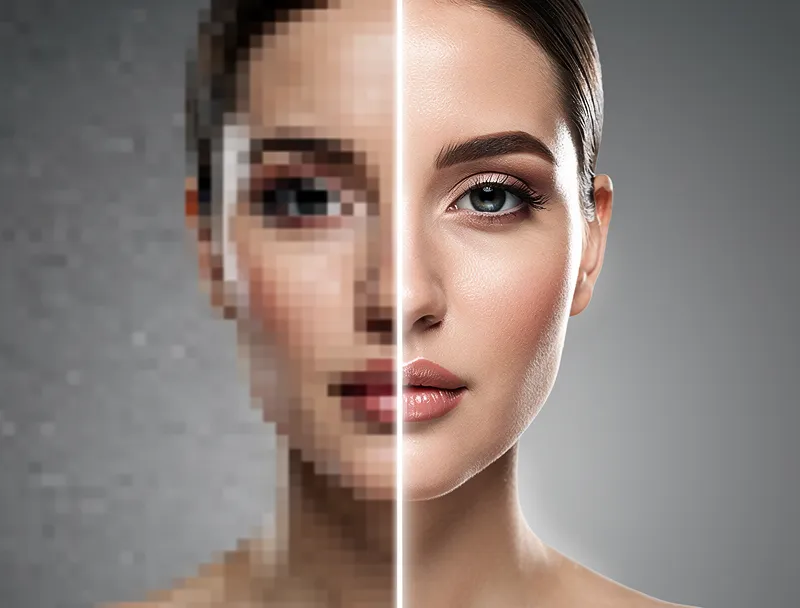
The fix is straightforward: upload your image to our AI upscaler and let it reconstruct the missing detail. The difference is dramatic.
2. Blurry Text or Edges in Your Photos
When text in your images looks slightly fuzzy, or object edges blend into the background, your resolution can't keep up. This is especially problematic for:
- Product photos on ecommerce sites
- Screenshots in documentation
- Infographics shared on social media
- Logo usage at larger sizes
AI upscaling doesn't just make images bigger — it sharpens edges and reconstructs fine detail that simple resizing destroys.
3. Your Print Shop Rejected Your File
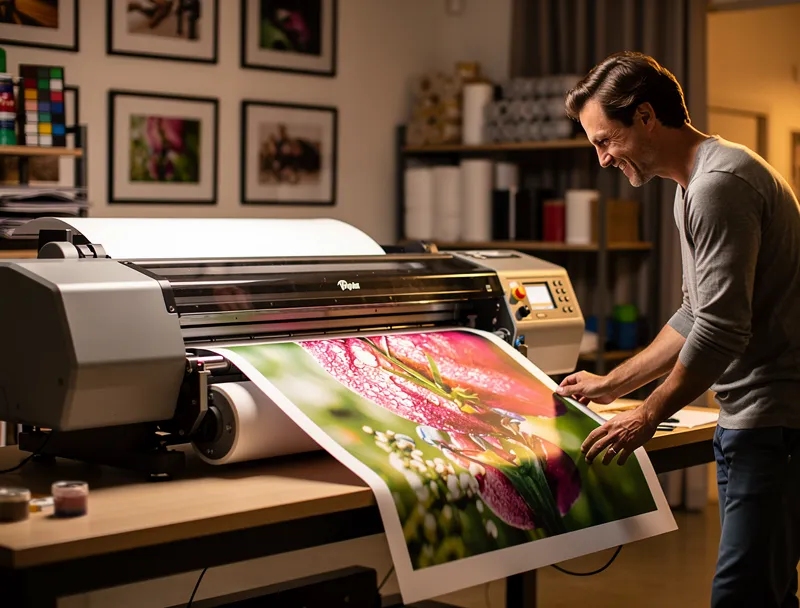
Printing demands way more resolution than screens. A photo that looks fine on Instagram (1080px wide) becomes a pixelated mess on a 24x36 poster. Print shops typically require 300 DPI, which means a poster-sized print needs images around 7200x10800 pixels.
I've seen photographers lose clients over this. The shot was perfect, but the original file was too small for the client's print size. AI upscaling to 4x can turn a 1080p photo into a print-ready file without the artificial smoothness you get from basic interpolation.
4. Social Media Platforms Are Compressing Your Images Further
Every platform compresses uploads. If you start with a barely-adequate resolution, the platform's compression makes it noticeably worse. The result: your carefully crafted content looks amateur.
The solution? Start with a higher resolution than you need. Upscale first, then let the platform compress. You'll retain far more detail.
5. Old Photos Look Terrible on Modern Displays
Retina and 4K displays expose low-resolution images ruthlessly. That 640x480 photo from 2005 looked fine on a CRT monitor. On a modern 4K screen, it's a blurry thumbnail.
This applies to entire photo archives. If you're building a portfolio, updating a family photo collection, or restoring old product images — AI upscaling handles batch processing efficiently.
The Quick Fix
All five problems share one solution: increase your image resolution with AI upscaling. Unlike traditional resizing (which just copies pixels), AI upscaling generates new detail based on what it "understands" about the image.
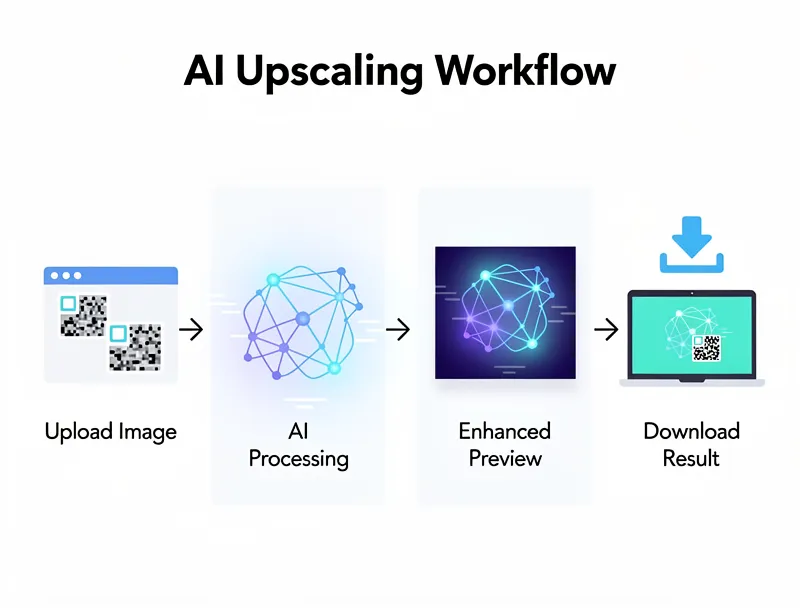
The process takes seconds:
- Upload your image
- Choose your scale (2x or 4x)
- Download the enhanced version
No account needed. No watermarks. No quality loss.
Start upscaling your images now — it's free and takes under 10 seconds.
Frequently Asked Questions
Quick answers for this guide
What should I know about 5 signs your images need upscaling (and how to fix them) []?+
Blurry photos killing your content? Here are 5 telltale signs your images need AI upscaling, plus a free tool to fix them instantly. Start with the highest-quality source file available, choose the smallest upscale factor that meets your target size, and inspect the result at 100% before publishing or printing.
When should I use AI upscaling for this workflow?+
Use AI upscaling when the original image is too small for the target use case but still has enough detail to guide the model. For tips work, pay closest attention to quick quality fixes, platform requirements, and practical image preparation choices, especially upscale, image, photo.
How do I avoid losing quality after upscaling?+
Upscale once from the best original, avoid repeated compression, keep important text and edges sharp, and export in a format that matches the final use. If the output shows halos, smeared texture, or distorted text, reduce the upscale factor or use a cleaner source image.

Reviewed byJoao Furtado
AI Image Upscaling Specialist
Joao is the founder of MyImageUpscaler and an AI image upscaling specialist. He tests every guide against real upscaling workflows — comparing model outputs, evaluating sharpness and artifact tradeoffs, and validating tool recommendations before publication.
- AI image upscaling
- Model comparison
- Photo restoration
- E-commerce image prep


