![How to Fix Blurry Photos with AI: 5 Methods That Work [2026]](https://xqysaylskffsfwunczbd.supabase.co/storage/v1/object/public/blog-images/2026/02/1771367544764-featured-blurry-fix.webp)
How to Fix Blurry Photos with AI
Not all blurry photos can be fixed the same way — motion blur, focus blur, and low resolution each need a different approach. Using the wrong method makes things worse. This guide covers 5 AI methods ranked by blur type, so you pick the right fix on the first try.
Why Photos Get Blurry in the First Place
Before fixing blurry photos, it helps to understand what caused the problem. Different types of blur respond to different fixes.
Motion blur happens when the camera or subject moves during the shot. The image shows streaks or ghosting. This is common in low-light conditions where the shutter stays open longer.
Out-of-focus blur is the most frustrating kind. The camera focused on the wrong area, and the subject is soft while the background is sharp (or everything is soft).
Compression blur comes from file compression. Every time you send a photo through WhatsApp, Messenger, or email, the platform shrinks the file. After a few rounds of sharing, faces look like paintings and text becomes unreadable.
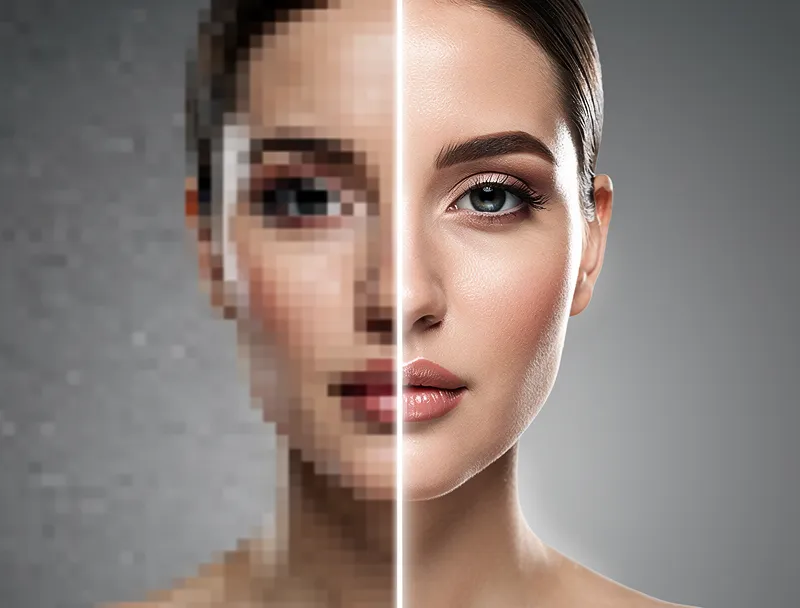
Low-resolution blur happens when you try to enlarge a small image. A 200x300 pixel thumbnail stretched to fill a screen or printed on paper will look blocky and pixelated.
Method 1: AI Image Upscaling (Best for Most Cases)
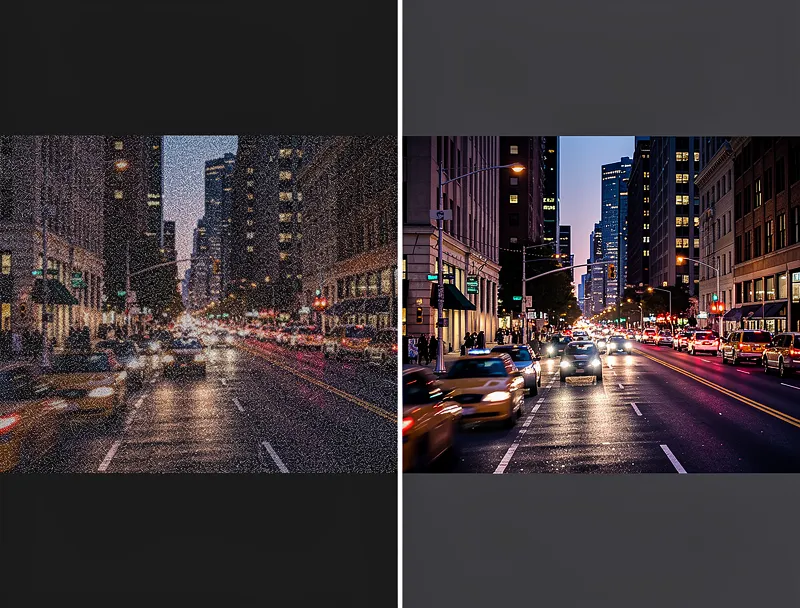
AI upscaling is the single most effective way to fix blurry photos. Unlike old-school sharpening filters that just increase contrast along edges, AI upscaling generates new pixel data based on what the image should look like.
Modern AI models have been trained on millions of photo pairs: blurry originals and their sharp counterparts. The model learned patterns — how hair strands should look, how text edges should be crisp, how skin texture differs from fabric texture. When you feed it your blurry photo, it applies that learned knowledge to reconstruct detail.
When it works best:
- Compressed photos from messaging apps
- Low-resolution images that need enlarging
- Old photos scanned at low quality
- Screenshots and web images
How to do it:
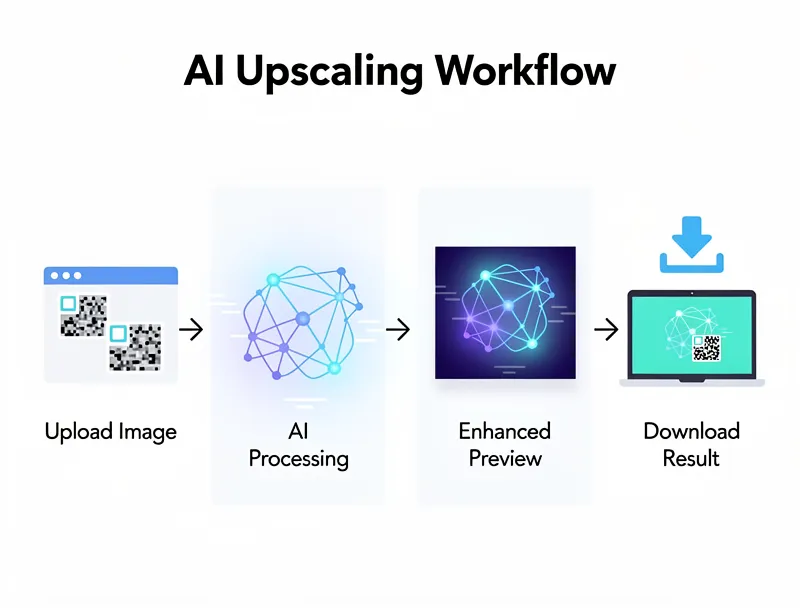
- Go to MyImageUpscaler
- Upload your blurry photo
- Select 2x or 4x enhancement
- Download the sharp result
The entire process takes under 10 seconds. No account required.
Method 2: Dedicated Deblurring Tools
Some AI tools specialize specifically in removing motion blur or focus blur. These work differently from upscalers — they try to reverse the specific type of distortion that caused the blur.
Deblurring tools analyze the blur pattern in your image and attempt to mathematically reverse it. Think of it like unscrambling an egg, except AI has gotten surprisingly good at it.
When it works best:
- Motion blur from camera shake
- Slight out-of-focus shots
- Photos where the subject moved
Limitations:
- Severe motion blur is harder to fix
- Completely out-of-focus shots rarely recover well
- Works best when the blur is uniform across the image
Method 3: Smart Sharpening in Photo Editors
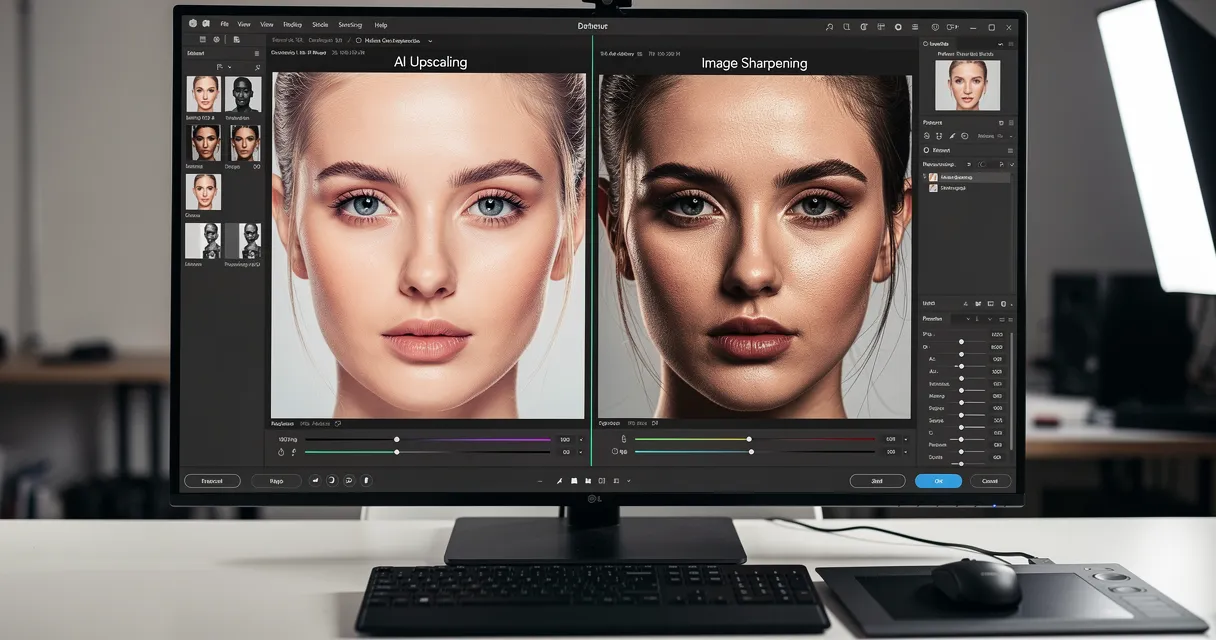
Traditional photo editors like Photoshop, GIMP, and Lightroom include sharpening tools. These are not AI-based (though newer versions are adding AI features), but they can help with mild blur.
Unsharp Mask is the classic approach. Despite the confusing name, it increases the contrast along edges in your image, making it appear sharper. It does not add new detail — it just makes existing edges more visible.
High Pass sharpening is a more controlled technique. You duplicate the layer, apply a High Pass filter, and blend it with the original. This gives you fine control over how much sharpening to apply.
When it works best:
- Photos that are almost sharp but need a slight boost
- RAW files that need output sharpening
- Images where you need selective sharpening (only certain areas)
Limitations:
- Cannot recover missing detail
- Over-sharpening creates ugly halos around edges
- Requires manual skill and judgment
For most people, AI upscaling delivers better results with zero effort. Try it free and compare the output with manual sharpening — the difference is obvious.
Method 4: Combine Upscaling with Manual Editing
The best results often come from combining methods. Start with AI upscaling to recover detail, then fine-tune in a photo editor.
Here is a practical workflow:
- Upload your blurry photo to MyImageUpscaler and run a 2x or 4x enhancement
- Download the upscaled result
- Open the result in your preferred editor (Photoshop, Lightroom, even free tools like Photopea)
- Apply mild sharpening — just enough to add crispness without halos
- Adjust contrast slightly to make details pop
- Export at the final size you need
This two-step process gives you the AI-generated detail recovery plus the fine control of manual editing.
Method 5: Prevent Blur in the First Place
The best fix for blurry photos is not needing one. These habits dramatically reduce the number of blurry shots you take:
Hold your phone steady. Use both hands. Brace your elbows against your body. Lean against a wall if you can. These simple adjustments cut motion blur significantly.
Tap to focus. On both iPhone and Android, tapping the screen tells the camera where to focus. Do not rely on autofocus for important shots — tap your subject directly.
Clean your lens. This sounds obvious, but a smudged phone lens is responsible for more soft photos than people realize. Wipe it with a soft cloth before important shots.
Use burst mode. Take 10 shots instead of 1. At least one will be sharp. Delete the rest.
Send originals. When sharing photos, use "Send as document" in WhatsApp or use cloud sharing (Google Drive, iCloud) instead of letting the platform compress your images.
Which Method Should You Choose?
Here is a quick decision guide:
| Situation | Best Method | Expected Result |
|---|---|---|
| Compressed/pixelated photo | AI Upscaling | Excellent |
| Motion blur (mild) | AI Deblurring | Good |
| Motion blur (severe) | AI Deblurring + Upscaling | Fair |
| Slightly soft focus | Smart Sharpening | Good |
| Old scanned photo | AI Upscaling | Excellent |
| Tiny thumbnail/screenshot | AI Upscaling (4x) | Excellent |
| Photo for large print | AI Upscaling + Manual editing | Excellent |
For 90% of cases, AI upscaling alone is enough. It handles compression artifacts, low resolution, and mild blur in a single step.
Real Results: What AI Can and Cannot Fix
AI photo enhancement is powerful, but it is not magic. Setting honest expectations helps you pick the right approach.
AI excels at:
- Adding detail to low-resolution images
- Removing compression artifacts (JPEG blocks, color banding)
- Sharpening slightly soft photos
- Enhancing textures (skin, fabric, hair, foliage)
- Making text readable in screenshots
AI struggles with:
- Completely out-of-focus shots where the subject is unrecognizable
- Extreme motion blur that smears the entire image
- Photos taken in near-darkness with massive noise
- Recovering faces that are just a few pixels wide
The key insight: the more information the original photo contains, the better the AI result. A slightly blurry photo with decent resolution will produce excellent results. A heavily blurred 50x50 pixel crop will not.
Frequently Asked Questions
Can AI actually fix blurry photos?
Yes — AI upscaling can fix blurry photos caused by low resolution or compression. It cannot reverse motion blur or severe focus blur, but it significantly sharpens and recovers detail in most cases.
What is the best free AI tool to fix blurry photos?
MyImageUpscaler is free and requires no account. Upload your photo, choose 2x or 4x upscaling, and download the sharpened result in seconds.
Why does my photo look blurry after upscaling?
This happens when the original blur is from motion or focus miss — not low resolution. AI upscaling adds pixels but cannot invent detail that was never captured. For motion blur, a dedicated deblur tool is more effective.
How do I fix a blurry photo on my phone?
Upload the photo to MyImageUpscaler from your phone's browser. No app needed — works on iOS and Android. Select 2x upscaling and download the improved version.
Is there a way to fix blurry photos for free without software?
Yes. MyImageUpscaler is free and runs entirely in your browser — no downloads, no account required. Upload and enhance up to 10 photos free.
Fix Your Blurry Photos Now
Stop keeping blurry photos that you wish were sharper. AI has made photo enhancement accessible to everyone — no technical skills, no expensive software, no waiting.
Upload your blurry photo to MyImageUpscaler and see the difference in seconds. It is free, works in your browser, and requires no signup.
Your photos deserve to look as good as the moments they captured.

Reviewed byJoao Furtado
AI Image Upscaling Specialist
Joao is the founder of MyImageUpscaler and an AI image upscaling specialist. He tests every guide against real upscaling workflows — comparing model outputs, evaluating sharpness and artifact tradeoffs, and validating tool recommendations before publication.
- AI image upscaling
- Model comparison
- Photo restoration
- E-commerce image prep