How to Upscale YouTube Thumbnails: Get More Clicks with Sharper Images [2026]
Your thumbnail is the first thing anyone sees. Before the title, before the description, before anything else — it's the image. And if it looks blurry or pixelated, viewers scroll past.
The problem is real: you design a thumbnail that looks great on your screen, upload it, and suddenly it looks washed out in the YouTube feed. Low source resolution, heavy compression from YouTube's servers, and small display sizes all chip away at quality. The fix is simpler than you think — a youtube thumbnail upscaler can restore sharpness before you upload, giving you a clean, click-worthy image.
This guide covers everything you need to know: why thumbnails lose quality, how AI upscaling fixes it, and a step-by-step process you can complete in under two minutes.
Why YouTube Thumbnails Look Blurry
YouTube recommends uploading thumbnails at 1280x720 pixels in JPG, PNG, or GIF format, with a file size limit of 2MB. Sounds straightforward. But several things can go wrong between your design software and what viewers actually see.
Common causes of blurry thumbnails:
- Starting with a low-res source — If your original photo or graphic is 640x360 or smaller, scaling it up inside your design tool (Canva, Photoshop, etc.) just copies pixels. The result looks fine at small sizes but falls apart in a featured or recommended placement.
- Screenshot grabs — Screenshots from phones or compressed video frames often land at 72 DPI, well below what looks sharp on retina displays.
- YouTube's own compression — YouTube re-compresses your thumbnail after upload. A thumbnail that was borderline sharp can become noticeably blurry after this step.
- Template resizing — Downloading a thumbnail template in the wrong size then stretching it to fit introduces blur that design tools cannot recover.
The solution is to give YouTube the sharpest possible source image. That means upscaling before you upload, not after.
Low-Quality YouTube Thumbnail Troubleshooting
Use this quick check before you rebuild the thumbnail from scratch:
| Symptom | Likely Cause | Fix |
|---|---|---|
| Whole thumbnail looks soft | Source image below 1280x720 | Upscale 2x or 4x before adding text |
| Text looks fuzzy | Text was rasterized, then resized | Upscale the background first, then add fresh text |
| Face looks smeared | Compressed video frame or motion blur | Recapture a sharper frame, then upscale |
| Upload looks worse than export | YouTube compression | Upload a clean 2560x1440 PNG or lightly compressed JPG |
If the source is merely small, AI upscaling helps. If it is motion-blurred or over-compressed, recapture the frame first, then upscale.
What a YouTube Thumbnail Upscaler Actually Does
A youtube thumbnail upscaler uses AI to analyze your image and add real detail — not just make the file bigger. Traditional bicubic or bilinear scaling (what Photoshop and most design tools use by default) essentially blurs edges to hide the fact that it is guessing at new pixels. AI-based upscaling is different.
Modern upscaling models are trained on millions of images. When you feed them a low-resolution thumbnail, they recognize patterns — the curve of a face, the edge of text, the grain of a background texture — and reconstruct those details at higher resolution. The output is an informed reconstruction, not a guess.
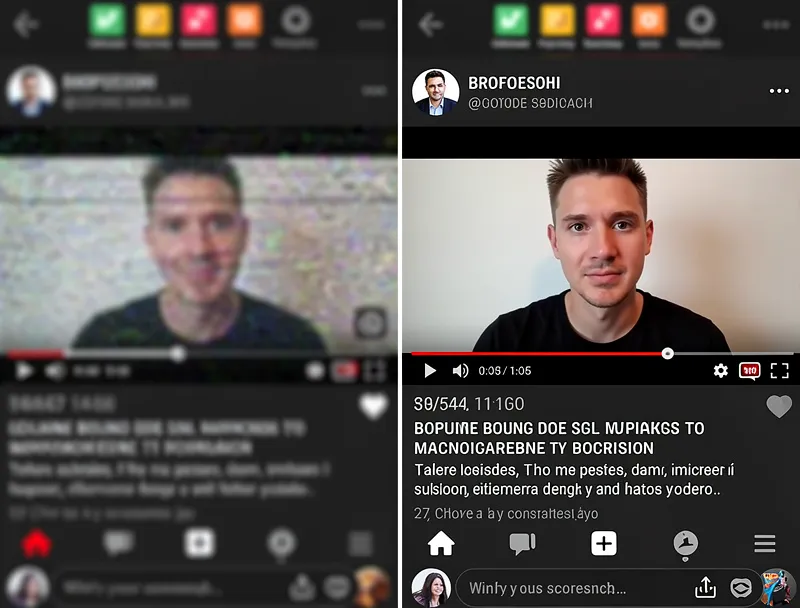
What changes when you use AI upscaling on a thumbnail:
- Text edges become crisp instead of feathered
- Faces and skin tones look clean rather than smeary
- Background gradients render smoothly instead of banding
- The image handles YouTube's re-compression better, because there is more detail to survive the process
The practical result: thumbnails that look sharp in every placement — search results, homepage recommendations, sidebar, mobile feed.
Try our AI upscaler on your thumbnail — results in seconds, no account required.
How to Upscale a YouTube Thumbnail: Step-by-Step
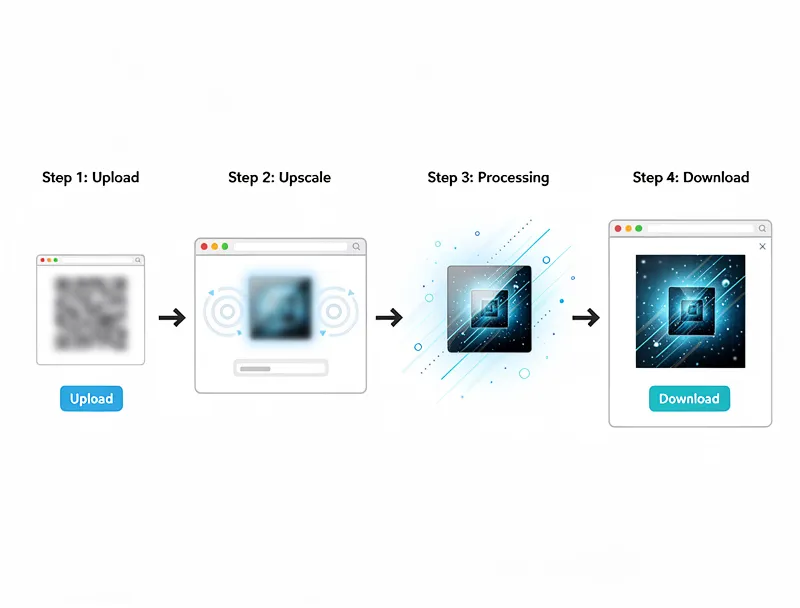
The whole process takes about 90 seconds.
Step 1: Export your thumbnail from your design tool
Before upscaling, make sure you are exporting from the highest quality source you have. In Canva, use Download then PNG at the full 1280x720. In Photoshop, use Export As rather than Save for Web (Save for Web applies extra compression). In Figma, export at 2x.
Step 2: Upload to the upscaler
Go to myimageupscaler.com/tools/ai-image-upscaler and drag your thumbnail onto the upload area. The tool accepts PNG, JPG, and WebP files up to 10MB.
Step 3: Choose your scale
For most thumbnails starting at 1280x720, choose 2x upscaling. This brings you to 2560x1440 — well above YouTube's minimum and with enough extra detail to survive their compression. If you are starting from a very small source (640x360 or below), use 4x.
Step 4: Download and upload to YouTube
Download the upscaled file and upload it directly as your thumbnail.
[!CTA_TRY] YouTube will resize it for display, but you are now giving it a high-quality source to work from.
Pro tip: If you use text overlays in your thumbnail design, upscale the background photo first, then add the text layer on top in your design tool. Upscaling text that has already been rasterized can soften it slightly; crisp text added to an upscaled background always looks sharper.

See the Difference
Experience crystal-clear upscaling that preserves text, logos, and fine details.
When to Upscale vs. When to Redesign
Not every thumbnail problem is a resolution problem. Before you upscale, it is worth understanding what you are actually dealing with.
Upscaling helps when:
- Your source image is sharp but too small (e.g., 640x360 from a phone screenshot)
- The thumbnail looks fine at 100% zoom but pixelated when stretched
- You need to meet YouTube's 1280x720 minimum and your image falls short
- You want extra detail to survive YouTube's compression algorithm
Upscaling will not fully fix:
- Motion blur from a poorly captured frame
- Heavy JPEG artifacts (blocky compression from over-compression)
- Images that were never sharp to begin with
For blurred or heavily compressed sources, the best option is usually to recapture or recreate the original. For everything else, upscaling is the right call. Our free image upscaler handles all common thumbnail file types at no cost.
Best Practices for YouTube Thumbnails in 2026
A sharp thumbnail is table stakes. Here are the other factors that affect click-through rate:
Resolution and format:
- Always export at exactly 1280x720 (16:9 ratio)
- Use PNG for thumbnails with text — better quality than JPG at small file sizes
- If you are over the 2MB limit, try lightly compressed JPG at 80% quality
Contrast and readability:
- Thumbnails compete against dozens of others in a feed — high contrast wins
- Avoid light text on light backgrounds, even if it looks clean in your editor
- Test your thumbnail at 120x67 pixels (YouTube's smallest display size) before uploading
Faces:
- Thumbnails with faces — especially with visible emotion — consistently outperform those without
- If you are upscaling a photo of a face, AI models are particularly good at reconstructing skin texture and eye detail
Text:
- Keep it to 3-5 words maximum
- Use a bold font at 70pt or larger
- Add a drop shadow or outline so text is readable on any background
Free vs. Paid Thumbnail Upscalers: What's the Difference?
Several tools offer thumbnail upscaling. Here is what separates them:
| Feature | Free Tools | Paid Tools |
|---|---|---|
| Batch processing | Rarely | Yes |
| Max file size | Usually 5MB | 10MB+ |
| Watermarks | Sometimes | No |
| Speed | Varies | Faster |
| AI model quality | Good | Premium |
For individual thumbnails, a free upscaler is all you need. Our free image upscaler at myimageupscaler.com/free handles single thumbnails without watermarks, with no account required. If you upload thumbnails for a large channel with dozens of videos per week, batch processing tools are worth evaluating.
FAQ: YouTube Thumbnail Upscaling
Does upscaling a YouTube thumbnail actually improve click-through rate?
Indirectly, yes. A blurry thumbnail signals low production value to viewers, which reduces clicks. Upscaling removes that negative signal. The actual click-through rate depends on your design, title, and topic — but eliminating blurriness removes a clear barrier.
What is the ideal size for a YouTube thumbnail before upscaling?
YouTube's recommended size is 1280x720 pixels. If you are working with a smaller source, 640x360 is a good minimum for AI upscaling to work well with. Below that, you may see the AI introducing artifacts, especially in faces. For very small sources, 4x upscaling is usually better than 2x.
Will YouTube compress my thumbnail after I upload it?
Yes. YouTube re-processes all thumbnails during upload. Starting with a higher-resolution file (2560x1440 after upscaling) gives the compression algorithm more to work with, resulting in a sharper final image than if you had uploaded at 1280x720 directly.
Can I upscale a thumbnail screenshot from my own video?
Yes. Video frames at standard 1080p give you a clean source for a 1280x720 thumbnail. Upscaling a frame from a 720p video to 1280x720 works well too. If your video is 360p or lower, the frame quality is likely too compromised for good results — design a thumbnail from scratch instead.
Does upscaling change the aspect ratio?
No. The 16:9 aspect ratio is preserved during upscaling. A 1280x720 image upscaled 2x becomes 2560x1440, maintaining the same proportions. YouTube accepts any resolution above 1280x720, so the larger file uploads without issue.
Is a youtube thumbnail upscaler safe to use online?
Yes — reputable tools process your images server-side and do not store them beyond the session. Always check the privacy policy of any tool you use. At myimageupscaler.com, images are processed and immediately discarded after download.
Conclusion
Blurry thumbnails cost you clicks, and the fix is straightforward. A youtube thumbnail upscaler takes your existing thumbnail — whether it is a screenshot, a photo, or a Canva export — and reconstructs the fine detail that makes it look sharp in every YouTube placement.
The process takes under two minutes: upload your thumbnail, choose your scale factor, download the result.
Start upscaling your thumbnails now — free, no account required, instant results.
Frequently Asked Questions
Quick answers for this guide
What should I know about fix blurry youtube thumbnails with AI upscaling?+
Fix blurry or low-quality YouTube thumbnails with AI upscaling. Learn ideal sizes, export settings, and when to redesign instead. Start with the highest-quality source file available, choose the smallest upscale factor that meets your target size, and inspect the result at 100% before publishing or printing.
When should I use AI upscaling for this workflow?+
Use AI upscaling when the original image is too small for the target use case but still has enough detail to guide the model. For guides work, pay closest attention to source image quality, upscale settings, output dimensions, and final visual inspection, especially upscale, YouTube, thumbnail.
How do I avoid losing quality after upscaling?+
Upscale once from the best original, avoid repeated compression, keep important text and edges sharp, and export in a format that matches the final use. If the output shows halos, smeared texture, or distorted text, reduce the upscale factor or use a cleaner source image.

Reviewed byJoao Furtado
AI Image Upscaling Specialist
Joao is the founder of MyImageUpscaler and an AI image upscaling specialist. He tests every guide against real upscaling workflows — comparing model outputs, evaluating sharpness and artifact tradeoffs, and validating tool recommendations before publication.
- AI image upscaling
- Model comparison
- Photo restoration
- E-commerce image prep