

16x Upscaling: Does It Actually Work?
16x upscaling can work when the original image has clean shapes, simple textures, or enough structure for AI to rebuild detail, but it is not the best first choice for every photo. For most images, a 4x or 8x pass gives cleaner results; 16x is useful when you need poster-size output, large previews, or a heavily cropped image that would otherwise be too small.
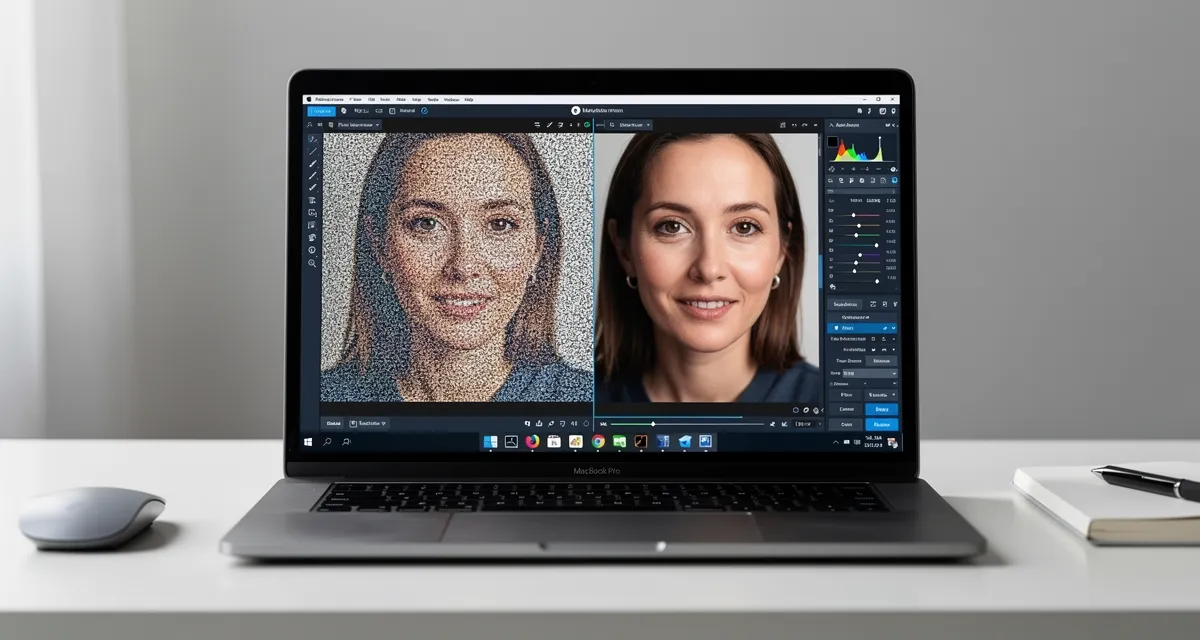
What 16x Upscaling Means
A 16x image upscaler enlarges the width and height of an image by sixteen times. That is a huge jump. A 500 x 500 image becomes 8,000 x 8,000 pixels, which is far beyond a normal resize.
The important detail is that 16x is not just making the file bigger. A proper AI upscaler estimates missing detail, sharpens useful edges, reduces some noise, and tries to keep the image natural at a much larger size.
That also means 16x can fail when the source is too damaged. If the original image is blurry, compressed, or missing key facial details, the model has to guess more aggressively. Those guesses can look artificial.
When 16x Upscaling Works Best
Use 16x AI upscaling when the image is small but still readable. Product photos, icons, old web graphics, simple portraits, screenshots, AI art, and illustrations usually have enough structure for a strong result.
16x can also work well when you plan to view the result from a distance. A poster, wall print, banner mockup, or large ecommerce preview does not need every pixel to survive close inspection.
Good candidates:
- Small images with clear edges
- AI art or digital illustrations
- Product photos with simple backgrounds
- Logos or graphics that are not heavily compressed
- Cropped photos where the subject is still recognizable
- Images intended for posters or large previews
Poor candidates:
- Tiny face crops with missing eye or mouth detail
- Photos with heavy JPEG blocks
- Blurry screenshots with small text
- Low-light photos with strong noise
- Images where exact identity or document text matters
16x vs 8x vs 4x Upscaling
The right scale depends on the source image and the final use. Bigger is not always better.
| Scale | Best for | Risk level | Typical result |
|---|---|---|---|
| 4x upscaling | Photos, ecommerce images, web graphics | Low | Sharpest natural result for most images |
| 8x upscaling | Cropped photos, AI art, print prep | Medium | Good balance of size and detail |
| 16x upscaling | Very small images, posters, large mockups | High | Huge output, but artifacts become more likely |
If you are unsure, start with 4x. Move to 8x image upscaling when you need more pixels. Use 16x only when the final size really demands it.
Does 16x Create Real Detail?
AI can create plausible detail, but it cannot recover information that never existed. That distinction matters.
If a shirt has visible fabric texture, 16x may make that texture cleaner. If the texture is completely blurred away, the model may invent a generic texture that looks convincing but is not the original.
That is fine for creative images, social media, product mockups, and old graphics. It is not ideal for evidence, medical images, legal documents, or any use case where exact visual truth matters.
How To Get Better 16x Results
Start with the cleanest source file you have. Avoid screenshots of screenshots. Use the original export, camera file, or highest-resolution version whenever possible.
Then follow this workflow:
- Crop only after upscaling when possible. Cropping first removes useful context.
- Remove obvious noise before extreme enlargement if the image is very grainy.
- Try 4x first and inspect faces, text, hands, and edges.
- Move to 8x or 16x only when the smaller output is not enough.
- View the result at its real final size, not only at 400% zoom.
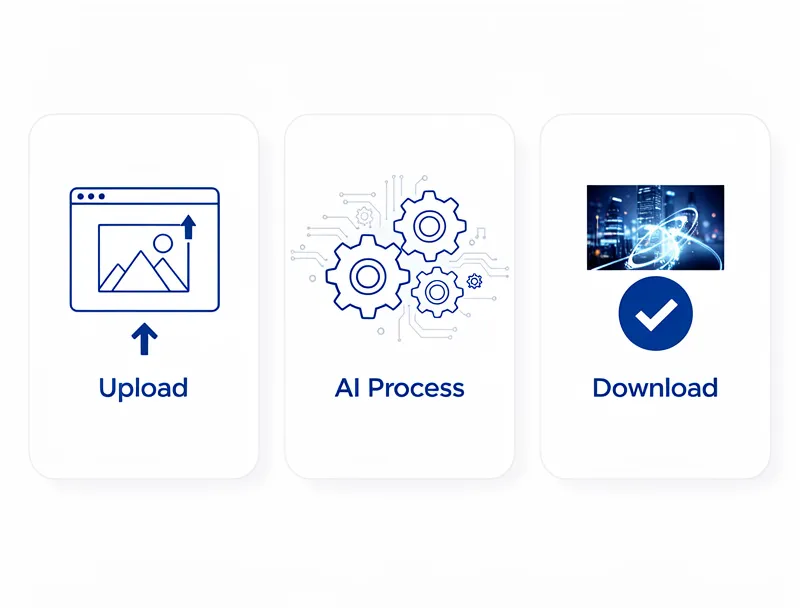
You can test the workflow with the AI image upscaler and compare 4x, 8x, and 16x outputs before committing to the largest file.
Common 16x Artifacts
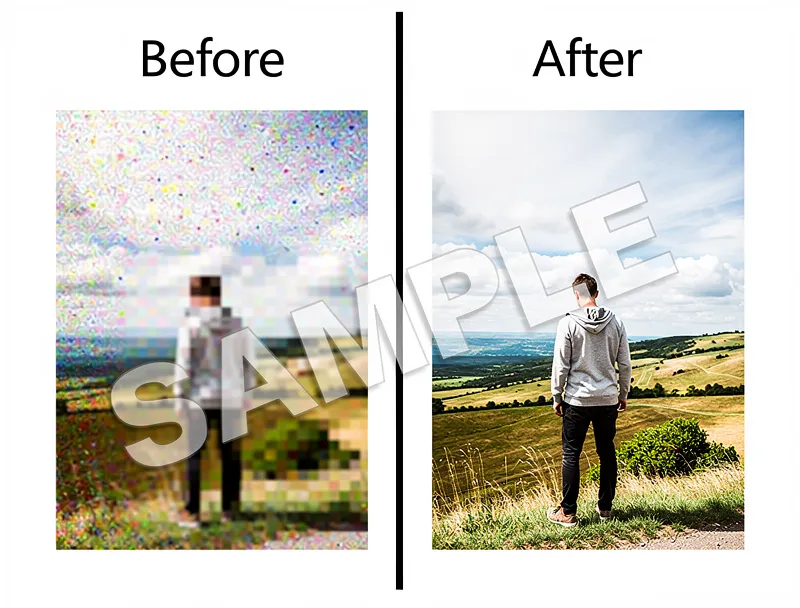
Extreme upscaling makes weak source problems easier to see. Watch for these before using the final image:
- Plastic-looking skin
- Over-sharpened edges
- Repeated texture patterns
- Warped letters or tiny text
- Strange eyes, teeth, or hands
- Ringing around high-contrast borders
- Background details that look painted instead of photographed
If these show up, step down to 8x or 4x. A smaller clean image is often more useful than a giant image with obvious artifacts.
Best Uses For 16x Upscaling
16x is strongest as a rescue tool for specific jobs:
- Turning a small product photo into a large marketplace preview
- Enlarging AI artwork for a wall print
- Preparing old graphics for a presentation slide
- Making a small crop usable for a mockup
- Testing how far a low-resolution image can be pushed
For normal photo enhancement, use a lower scale first. For print, check the final print size and pixel requirements before choosing 16x. If your target is a standard 8 x 10 print, you may only need 4x or 8x.
FAQ
Is 16x upscaling better than 8x?
Not always. 16x creates a much larger file, but 8x often looks more natural. Use 16x only when the final output needs the extra pixels.
Can I upscale a photo 16 times without losing quality?
You can enlarge a photo 16x with AI, but quality depends on the source. Clean images can look good; blurry or compressed images may show artifacts.
Should I use 16x for printing?
Use 16x for large prints, posters, and wall art when the original is very small. For normal prints, calculate the needed pixels first because 4x or 8x may be enough.
Does 16x work on logos?
It can work on simple logos, but vector conversion is better when you need perfect edges. Use AI 16x when you only have a raster logo and need a larger preview or print mockup.
Bottom Line
16x upscaling does work, but it is a specialist setting. Use it when you need a very large output and the original image still has enough structure for AI to build on. For most photos, 4x or 8x will look cleaner, load faster, and avoid the artifacts that come from pushing an image too far.
Start with the 16x image upscaler when the final size demands it, and compare against 4x or 8x before choosing the final export.

Reviewed byJoao Furtado
AI Image Upscaling Specialist
Joao is the founder of MyImageUpscaler and an AI image upscaling specialist. He tests every guide against real upscaling workflows — comparing model outputs, evaluating sharpness and artifact tradeoffs, and validating tool recommendations before publication.
- AI image upscaling
- Model comparison
- Photo restoration
- E-commerce image prep
![Upscale Image Online Free — No Sign Up, No Watermarks [2026]](https://xqysaylskffsfwunczbd.supabase.co/storage/v1/object/public/blog-images/2026/02/1771797822106-featured-online-upscaler.webp)
![Easiest Way to Make Image Background Transparent Free [2026]](https://xqysaylskffsfwunczbd.supabase.co/storage/v1/object/public/blog-images/2026/02/1771367088516-featured-transparent-bg.webp)