

![AI Image Extender: How to Expand Your Photos Online Free [2026]](https://xqysaylskffsfwunczbd.supabase.co/storage/v1/object/public/blog-images/2026/02/1771098990322-featured-ai-extender.webp)
AI Image Extender: How to Expand Your Photos Beyond Their Borders
Ever taken the perfect shot, only to realize the framing was too tight? Or needed a horizontal banner from a square photo? AI image extending solves this — it generates new content beyond your image borders that blends seamlessly with the original.
This is not cropping in reverse. The AI actually creates new visual content: extending a sky, continuing a landscape, or widening a room. The results look natural because the AI understands context.
What Is AI Image Extending?
AI image extending (also called outpainting or generative fill) uses machine learning to add new pixels around the edges of an existing image. Unlike upscaling — which makes your entire image larger — extending adds new content to specific sides.
Think of it like this:
- Upscaling: 1000x1000 becomes 4000x4000 (same scene, more detail)
- Extending: 1000x1000 becomes 1500x1000 (wider scene, new content on sides)
The AI analyzes your existing image — colors, textures, composition, perspective — and generates plausible content that continues naturally beyond the frame.
How Does AI Image Extending Work?
The technology behind image extending is called generative AI, specifically diffusion models trained on millions of images. Here is the simplified process:
- Analysis — The AI examines your image edges: what colors are present, what objects are cut off, what the overall scene looks like
- Context mapping — It identifies patterns: is this a sky? A room? A product on a table?
- Generation — New pixels are created that match the style, lighting, and perspective of the original
- Blending — The generated content is seamlessly merged with the original, matching colors and textures at the boundary
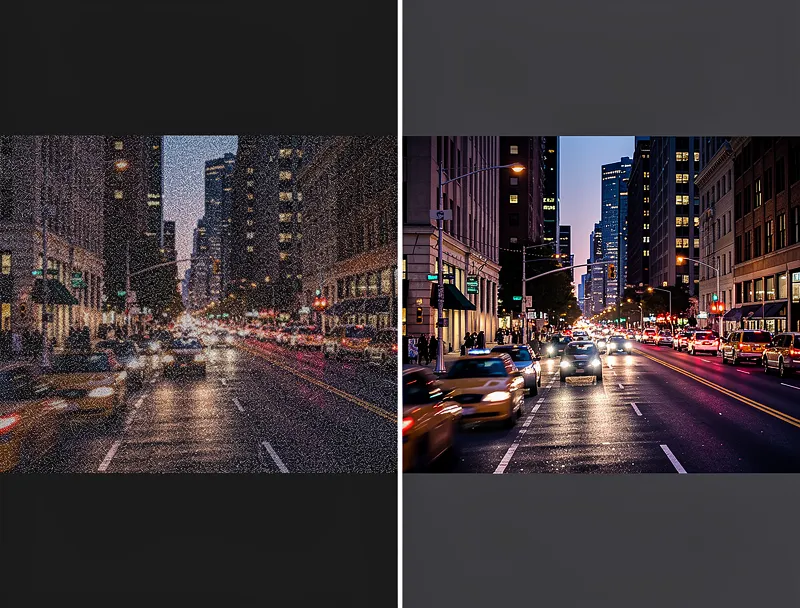
The result is an expanded image where you cannot tell where the original ends and the AI-generated content begins.
Common Use Cases for AI Image Extending
Social Media Aspect Ratios
This is the biggest practical use. You shot a vertical photo for Instagram Stories, but now you need it horizontal for a Twitter/X header. Instead of awkwardly cropping (and losing half the subject), you extend the sides.
Common conversions:
- Portrait to landscape — extend left and right sides
- Square to widescreen — extend for YouTube thumbnails or website banners
- 4:3 to 16:9 — adapt photos for modern displays
Product Photography
E-commerce listings often need images in specific aspect ratios. Rather than reshooting products, extend the background. A product shot on a white table can have that white table extended in any direction — the AI handles it seamlessly.
Graphic Design and Presentations
Designers constantly need more breathing room around subjects. Extending an image gives you space for text overlays, logos, or other design elements without covering the main subject.
Real Estate Photography
Room photos taken with a standard lens often feel cramped. AI extending can widen the apparent field of view, making spaces look more open while keeping the furnishings and architecture consistent.
Art and Creative Projects
Digital artists use outpainting to expand compositions, explore scene variations, and create panoramic views from single frames.
How to Extend Images with AI
Using an Online Tool
The simplest approach:
- Visit MyImageUpscaler — our AI tools handle both upscaling and image enhancement
- Upload your image
- Select which sides to extend and by how much
- Let the AI generate the new content
- Download the expanded image
No software installation, no technical knowledge needed.

Tips for Better Results
-
Start with clean edges. If your image edge has a complex subject cut off mid-detail, the AI has a harder job. Simple edges (sky, solid backgrounds, repeating patterns) extend most naturally.
-
Extend in stages. Need 50% more width? Do 25% first, check the result, then extend again. This gives you more control.
-
Match the content. Extending a photo of a person is harder than extending a landscape. People and faces require more precision, while nature scenes extend beautifully.
-
Keep proportions reasonable. Extending an image by 10-30% per side produces the most convincing results. Going beyond 50% increases the risk of visible artifacts.
-
Combine with upscaling. After extending, you can upscale the entire result to ensure maximum resolution. Try our AI upscaler for the best quality.
AI Image Extending vs Other Solutions
| Method | Pros | Cons |
|---|---|---|
| AI extending | Natural results, fast, no skill needed | May struggle with complex subjects |
| Manual editing (Photoshop) | Full control | Requires skill, time-consuming |
| Reshooting | Perfect quality | Expensive, not always possible |
| Content-aware fill | Good for small areas | Struggles with large extensions |
| Mirror/clone | Quick | Looks obviously duplicated |
For most people and most use cases, AI extending is the best balance of quality, speed, and effort.
Limitations to Know About
AI image extending is impressive but not perfect:
- People and faces — The AI may generate extra fingers, distorted features, or inconsistent clothing when extending images with people at the edges
- Text and logos — Generated text is usually gibberish. If your image has text at the border, the extension may not match
- Precise architecture — Straight lines and geometric patterns can show slight inconsistencies
- Style consistency — Very stylized images (specific artistic styles, filters) may not extend with perfect style matching
These issues are improving rapidly as the AI models get better. For landscapes, product photos, and general photography, the results are already excellent.
The Future of AI Image Extending
This technology is evolving fast. Current models already handle most common scenarios well, and each new generation brings noticeable improvements in consistency, detail, and the ability to handle complex subjects.
We are heading toward a future where framing constraints during photography matter less. Shoot what you can, extend what you need.
Get Started
Stop letting tight crops limit your images. Whether you need a different aspect ratio, more background space, or a wider scene — AI image extending handles it in seconds.
Start with MyImageUpscaler — upload your photo and see AI extending in action. Free, fast, no signup required.
Frequently Asked Questions
Quick answers for this guide
What should I know about AI image extender how to expand your photos online free []?+
Use AI image extender to expand photos beyond their borders. Add new content to any side seamlessly. Free online tool, no signup needed. Try it now. Start with the highest-quality source file available, choose the smallest upscale factor that meets your target size, and inspect the result at 100% before publishing or printing.
When should I use AI upscaling for this workflow?+
Use AI upscaling when the original image is too small for the target use case but still has enough detail to guide the model. For guides work, pay closest attention to source image quality, upscale settings, output dimensions, and final visual inspection, especially AI, tutorial, photo.
How do I avoid losing quality after upscaling?+
Upscale once from the best original, avoid repeated compression, keep important text and edges sharp, and export in a format that matches the final use. If the output shows halos, smeared texture, or distorted text, reduce the upscale factor or use a cleaner source image.

Reviewed byJoao Furtado
AI Image Upscaling Specialist
Joao is the founder of MyImageUpscaler and an AI image upscaling specialist. He tests every guide against real upscaling workflows — comparing model outputs, evaluating sharpness and artifact tradeoffs, and validating tool recommendations before publication.
- AI image upscaling
- Model comparison
- Photo restoration
- E-commerce image prep
![Upscale Image Online Free — No Sign Up, No Watermarks [2026]](https://xqysaylskffsfwunczbd.supabase.co/storage/v1/object/public/blog-images/2026/02/1771797822106-featured-online-upscaler.webp)