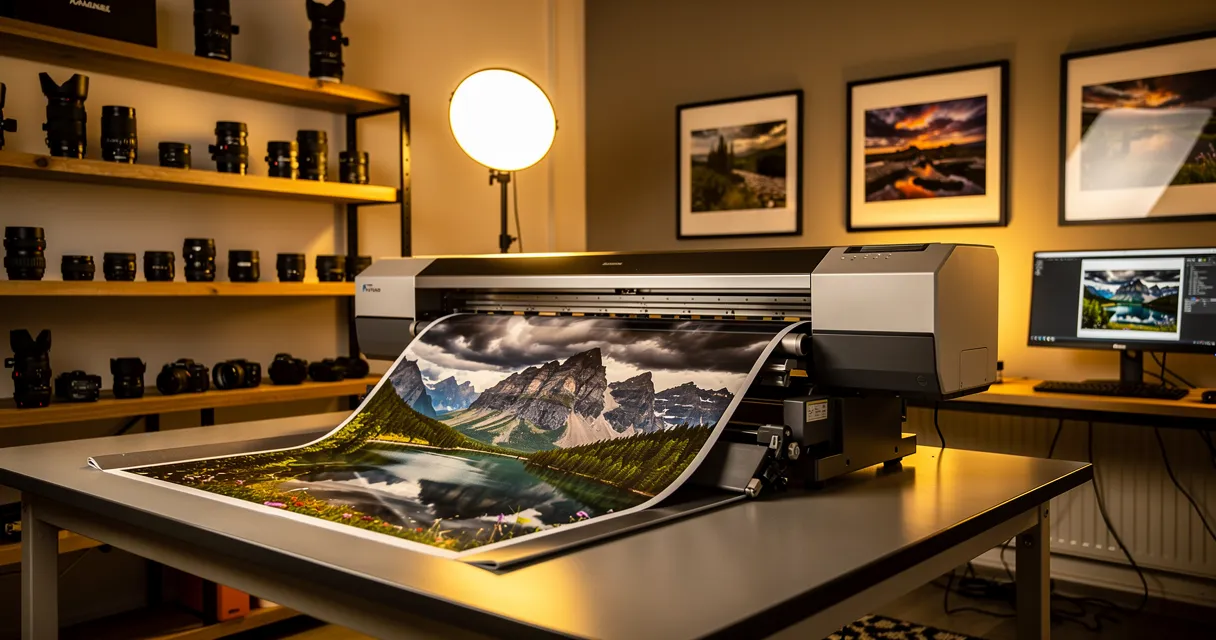
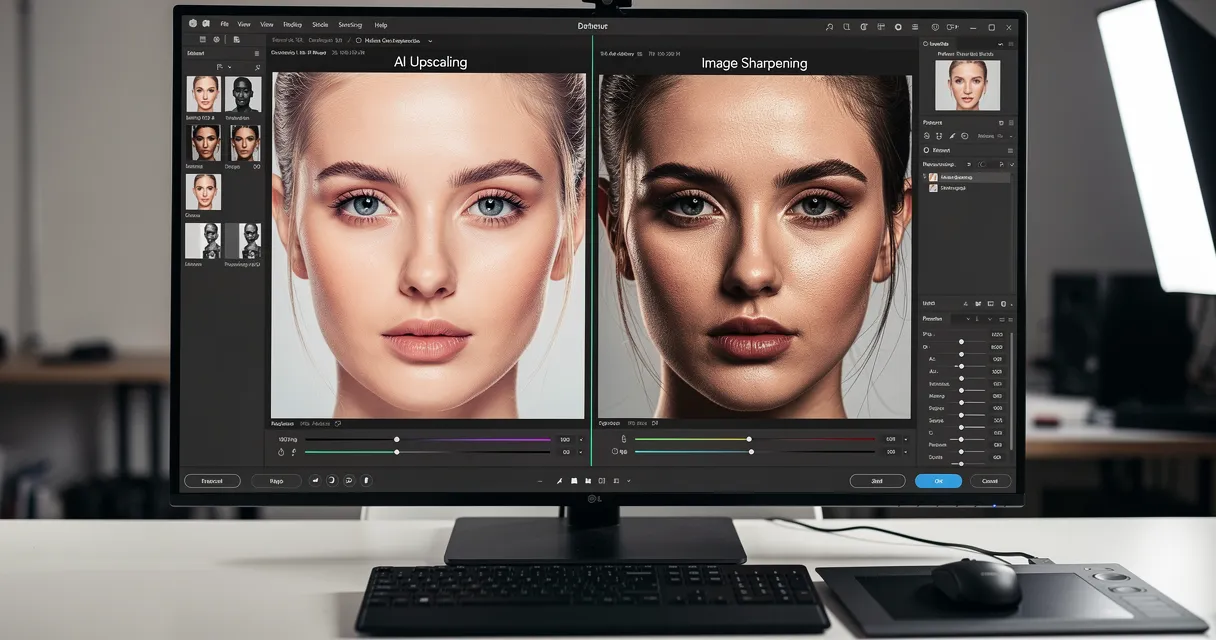
You have a low-resolution image that you need to make larger and sharper for professional use. Whether you are a photographer preparing a print, an e-commerce seller optimizing product photos, or a designer repurposing assets for a high-resolution display, simply scaling an image up in standard software results in a blurry, pixelated mess. The solution is an AI-powered image upscaler, which intelligently reconstructs detail to increase resolution without sacrificing quality.
Finding the best image upscaler for your specific needs, however, can be challenging. The market is filled with options, from dedicated desktop applications to simple web-based tools, each with its own processing model, feature set, and pricing structure. This guide provides a direct analysis of the top tools available, helping you decide which platform aligns with your workflow, quality standards, and budget.
Quick answer: use a free browser upscaler when you need a fast 2x-8x enlargement for web, ecommerce, AI art, or occasional prints. Use desktop/pro software when you already need RAW editing, local processing, or print-production controls. If you only want the free-tool ranking, start with our best free AI image upscaler 2026 comparison; this page focuses on the broader free-vs-pro software decision.
| Workflow | Best Fit | Why |
|---|---|---|
| One-off photo, screenshot, or product image | Free online upscaler | No install, fast preview, simple 2x-8x output |
| RAW photography already in Lightroom or Photoshop | Adobe Super Resolution | Fits an existing editing catalog |
| Large print batches with manual sharpening | ON1 Resize AI or Topaz | More controls, local review, pro print workflow |
| Private files that cannot leave your machine | Upscayl or desktop software | Offline processing and local storage |
| Comparing no-watermark free tools | Canonical free comparison | See the best free AI image upscaler 2026 comparison |
Understanding the Technology: How AI Image Upscalers Work
Before comparing tools, it helps to understand the core technology. Unlike traditional methods that just stretch pixels (interpolation), AI upscalers use complex algorithms trained on millions of images to "hallucinate" or intelligently generate new detail. They add pixels that they predict should be there, resulting in a much sharper and more detailed image.
| Technology | How It Works | Common Use Case |
|---|---|---|
| Super-Resolution (SR) | A general term for AI techniques that increase image resolution. Most modern upscalers use a form of SR. | General-purpose upscaling of photos and graphics. |
| GANs (Generative Adversarial Networks) | Two neural networks compete: a "generator" creates new image data, and a "discriminator" judges its quality against real images. This competition refines the output, often creating highly realistic textures. | Restoring old photos, adding realistic detail to portraits and landscapes. |
| Diffusion Models | This newer technique works by gradually adding noise to an image and then training a model to reverse the process. By learning to remove noise, it can effectively generate new, clean details from a low-resolution starting point. | High-fidelity art generation and upscaling, often producing very clean, artifact-free results. |
Understanding these concepts helps you grasp why some tools are better for certain types of images. For instance, a GAN-based model might excel at restoring a vintage photograph, while a diffusion model might be better for upscaling digital art.
How to Upscale an Image with MyImageUpscaler
Using a web-based tool like MyImageUpscaler is a straightforward process that requires no software installation. Here are the steps to get a high-quality result in minutes.
1. Sign Up and Get Free Credits
First, you need to navigate to the MyImageUpscaler signup page. The process is quick, and upon signing up, you will automatically receive 10 free credits to test the platform's full capabilities. No credit card is required to get started.
2. Upload Your Image
Once logged in, you will see the main dashboard. Click the "Upload" button or drag and drop your low-resolution image file into the designated area. The platform supports various formats, including JPG, PNG, and WebP. For larger projects, you can select multiple images for batch processing.
3. Choose Your Settings
Before processing, you can select the desired upscale factor (e.g., 2x or 4x). MyImageUpscaler automatically detects the image type (like a portrait or product photo) and applies the best enhancement model. You can also manually select other enhancement options if needed, such as deblurring or color correction.
4. Process and Download
Click the "Upscale" button to start the process. The AI will analyze your image and generate the high-resolution version, which typically takes about 30 seconds per image. Once complete, a before-and-after slider will appear, allowing you to inspect the quality. If you are satisfied with the result, you can download the upscaled image to your computer.
This simple, web-based workflow makes it easy for you to enhance images without needing technical expertise or powerful hardware.
Best Image Upscaler Tools: Free vs Pro Shortlist
Here is a direct comparison of image upscaler tools available today, analyzed by workflow rather than only by a single winner. The point is not that every user needs pro software. Most people do not. The point is matching the tool to the file, privacy requirement, scale factor, and budget.
1. MyImageUpscaler
MyImageUpscaler earns its top spot as the best image upscaler by delivering professional-grade results through an exceptionally fast and accessible web-based platform. It is engineered for you if you require high-fidelity visuals without the complexity of desktop software. You can upscale images up to 4x for 4K output, with options extending to 8x, ensuring every pixel is refined. The key benefit is that it requires no installation.

Its core strength is detail preservation. Unlike many AI tools that can produce an artificial, overly smooth finish, MyImageUpscaler maintains the integrity of intricate details. Text and fine textures remain sharp, which is critical for e-commerce product shots and professional photography. You can start immediately with 10 free credits by visiting their tools page.
Key Strengths & Features
- Versatile Enhancement Tools: Beyond resolution, the platform offers deblurring, noise reduction, and specialized face restoration.
- Workflow Efficiency: The web-based interface lets you process hundreds of images in a batch, with each taking approximately 30 seconds.
- Advanced Format Support: It supports modern formats like AVIF and allows for exporting images with transparent backgrounds.
- Honest Limitations: As a web-based tool, it requires an internet connection for processing. The free trial is limited to 10 credits, after which you would need a pricing plan for further use.
Website: https://myimageupscaler.com
2. Adobe Super Resolution (Photoshop, Lightroom, Adobe Camera Raw)
If you are already in the Adobe ecosystem, Super Resolution offers a powerful and convenient option. This is an AI-powered feature integrated directly into Photoshop, Lightroom, and Adobe Camera Raw (ACR). It's designed to double the linear resolution of your image, effectively quadrupling the total pixel count.

The primary advantage is its seamless integration. You can apply Super Resolution non-destructively within your existing editing process. However, access is tied to an Adobe Creative Cloud subscription, making it less accessible for casual users. The tool is also limited to a single 2x upscale per application. To achieve a larger enlargement, you must repeat the process, which can be cumbersome.
| Feature | Adobe Super Resolution | MyImageUpscaler |
|---|---|---|
| Platform | Desktop (Integrated) | Web-Based |
| Max Upscale | 2x per pass | 4x-8x in one step |
| Installation | Required (Part of Adobe CC) | None |
| Ease of Use | Requires Adobe software knowledge | Simple, direct interface |
Website: Adobe Super Resolution
3. Topaz Gigapixel (via Topaz Studio subscription)
For a long time, Topaz Gigapixel has been a benchmark for AI-powered image enlargement. It’s a powerful desktop application, now part of the Topaz Studio subscription, known for its specialized AI models. These models are tuned for different image types, allowing you to choose the best algorithm for portraits, landscapes, or computer-generated graphics.

The primary strength of Gigapixel is its exceptional detail recovery. It supports batch processing and enlargements up to 6x. However, the shift to a subscription model is a downside for users who prefer a one-time purchase. As a desktop application, it also requires a substantial installation and demands more from your computer's GPU compared to web-based upscalers.
Website: Topaz Labs
4. ON1 Resize AI
If you are a photographer focused on creating large, high-quality prints, ON1 Resize AI stands out. It operates both as a standalone application and as a plug-in for software like Photoshop and Lightroom. Its core strength is producing predictable and clean results when preparing images for large-format printing.

Its print-centric approach means the interface can feel more complex than simple web-based tools. It is a powerful choice for dedicated print professionals but potentially oversized if you need quick, occasional enlargements without granular print controls.
Website: ON1 Resize AI
5. Pixelmator Pro – ML Super Resolution (Mac)
For Mac users, Pixelmator Pro presents a compelling, all-in-one solution. Its ML Super Resolution feature is an integrated function that uses Apple's Core ML framework for impressive performance. Optimized for Apple Silicon, it offers a polished and speedy experience.

The main draw is its seamless integration and its one-time purchase model. However, its biggest strength is also its main limitation: it is exclusively available on macOS. While the quality is high, it is limited to a single algorithm and a ~3x maximum, which is less than some dedicated cloud-based services offer.
Website: Pixelmator Pro
6. Upscayl (open source)
If you prioritize privacy, cost-effectiveness, and offline access, Upscayl is a compelling open-source solution. As a free desktop application, it runs entirely on your local machine, meaning your images are never uploaded to a server. This is ideal for processing sensitive images.
Upscayl is built on established AI models, delivering solid quality. Its cross-platform availability for Windows, macOS, and Linux makes it accessible to nearly everyone. While powerful, its user interface is simpler than many paid pro tools, and it may struggle with heavily blurred images compared to more advanced commercial alternatives.
Website: Upscayl
7. Let’s Enhance
Let’s Enhance is a web-based platform geared toward business and commercial use cases. It stands out by providing content-specific presets for different types of images, such as e-commerce products, real estate photos, and digital art.

The platform operates on a credit-based system. The free trial includes watermarks on the results, and processing very large files or using the highest-quality models consumes more credits, potentially requiring a paid subscription for substantial projects.
Website: Let's Enhance
8. VanceAI Image Upscaler
VanceAI is a comprehensive suite of AI-powered image editing tools. It bundles upscaling with other functions like denoising and sharpening, offering convenience under a single account.

The platform offers both a web-based tool and a downloadable desktop application. You can choose specific AI models for different content, with upscaling available up to 8x. However, the quality can be inconsistent, and the credit-based system can become costly for high-volume use.
Website: VanceAI
9. Icons8 Smart Upscaler
Part of a broader suite of design tools, the Icons8 Smart Upscaler is a web-based solution that excels in simplicity. It offers a clean, straightforward interface if you need quick enlargements without complex controls.

The platform’s core strength is its accessibility and developer-friendly API. Its enlargement capabilities are most effective at 2x to 4x. For extreme enlargements, you may notice a drop in detail preservation compared to dedicated tools.
Website: Icons8 Smart Upscaler
10. Pixelcut AI Image Upscaler (Web + API)
Pixelcut offers a full suite of AI-powered editing features aimed at e-commerce merchants and marketers. Its AI Image Upscaler is a fast and effective component for improving product photos or marketing visuals.
The key distinction for Pixelcut is its API-first approach, positioning it as a strong choice for businesses that need to programmatically integrate upscaling. The quality is solid for clean, commercial images, but it may not produce the same nuance as tools trained on photographic content.
Website: Pixelcut AI Upscaler
11. Clipdrop – Image Upscaler
Clipdrop, now part of the Jasper and Stability AI ecosystem, presents its upscaler as one component within a broader suite of tools. This makes it useful if you need more than just upscaling, such as object cleanup and background removal.

The main benefit here is workflow efficiency. You can upscale a photo, remove its background, and adjust lighting all within the same browser interface. However, its utility as a dedicated upscaling tool is limited, with upscaling capped at 4x and a constrained free tier.
Website: Clipdrop
12. AI Image Enlarger (ImgLarger)
AI Image Enlarger offers a suite of AI-powered tools on a credit-based system. This makes it an affordable option if you have occasional needs for image enhancement functions like sharpening and denoising in addition to enlargement.

The key appeal of ImgLarger is its flexible, low-cost entry point. You can choose to upscale images by 2x, 4x, or 8x. However, the quality and processing speed can be tied to your plan, and the results may not always match the fidelity of more specialized professional applications.
Website: AI Image Enlarger
Comparison of Top Image Upscalers
To help you choose, here is a summary table comparing the key attributes of the top contenders.
| Tool | Platform | Max Upscale | Best For | Key Advantage | Limitation |
|---|---|---|---|---|---|
| MyImageUpscaler | Web-Based | 8x | Professionals & Businesses | No installation, fast, high-quality, free credits. | Requires internet connection. |
| Adobe Super Resolution | Desktop (Integrated) | 2x per pass | Adobe Users | Seamless workflow integration. | Subscription required; limited upscale factor. |
| Topaz Gigapixel | Desktop | 6x | Pro Photographers | Specialized AI models for high detail. | Requires powerful hardware; subscription model. |
| ON1 Resize AI | Desktop | 10x+ | Print Professionals | Optimized for high-quality printing. | Complex interface for casual users. |
| Upscayl | Desktop | 4x | Privacy-conscious Users | Free, open-source, and works offline. | Simpler UI; may struggle with blurry images. |
| Let's Enhance | Web-Based | 16x | E-commerce | Content-specific presets for automation. | Free trial is watermarked; credit-based. |
Final Thoughts: Choose by Workflow, Not Hype
The best image upscaler is the one that fits your specific workflow, budget, and quality requirements. Your choice depends on whether you value seamless integration, offline processing, or the convenience of a web-based tool.
If you are a professional photographer already using Adobe products, Super Resolution is a logical choice. If you prioritize absolute privacy and cost is a factor, the open-source tool Upscayl is an excellent option.
However, for a large number of you—from marketers to e-commerce owners and content creators—speed, accessibility, and high-quality results are the most important factors. This is where web-based tools provide the most value. They require no software installation and can be accessed from any device.
Among these, MyImageUpscaler stands out by offering a balance of professional-grade quality, ease of use, and affordability. It is a web-based tool that requires no installation and provides 10 free credits for you to start immediately. Its ability to preserve fine details makes it ideal for a wide range of professional applications.
Once you have upscaled your image, remember to optimize it for its final destination. For example, a large image for a website must be compressed correctly to avoid slowing down page load times. Understanding how to manage image sizes for different platforms, such as learning how to resize your logo in WordPress, is a crucial final step.
Frequently Asked Questions (FAQ)
What is the best image upscaler in 2026?
The "best" image upscaler depends on your needs. For professional photographers in the Adobe ecosystem, Adobe Super Resolution is excellent. For users seeking a powerful, accessible, and fast web-based solution, MyImageUpscaler is a top choice due to its high-quality output, ease of use, and batch processing capabilities.
Can I upscale an image for free?
Yes, many tools offer free trials or limited free versions. For example, MyImageUpscaler provides you with 10 free credits to test its features without any commitment. Upscayl is a completely free, open-source desktop application.
What is the difference between upscaling and resizing?
Traditional resizing simply stretches the existing pixels, which makes the image larger but also blurry and pixelated. AI upscaling uses machine learning to intelligently add new pixels and reconstruct details, resulting in a larger image that is also sharp and clear.
Does upscaling reduce image quality?
When done correctly with a good AI tool, upscaling significantly improves the perceived quality of a low-resolution image by making it larger and sharper. However, a poor upscaler or an incorrect process can introduce artifacts or create an unnatural, "plastic" look. No upscaler can create detail that was never there; it can only make intelligent predictions.
What does it mean that MyImageUpscaler is web-based?
It means you can access and use the tool directly from your web browser (like Chrome, Firefox, or Safari) without needing to download or install any software on your computer. This makes it highly convenient and accessible from any device with an internet connection.
Ready to see the difference for yourself? MyImageUpscaler offers a powerful, web-based solution that requires no installation and delivers exceptional quality for photos, illustrations, and e-commerce images. Experience superior image enhancement with MyImageUpscaler and use your 10 free credits today.

Reviewed byJoao Furtado
AI Image Upscaling Specialist
Joao is the founder of MyImageUpscaler and an AI image upscaling specialist. He tests every guide against real upscaling workflows — comparing model outputs, evaluating sharpness and artifact tradeoffs, and validating tool recommendations before publication.
- AI image upscaling
- Model comparison
- Photo restoration
- E-commerce image prep