

![How to Enhance Picture Quality with AI [Free Tool, 2026]](https://xqysaylskffsfwunczbd.supabase.co/storage/v1/object/public/blog-images/2026/02/1771279589720-featured-enhance.webp)
How to Enhance Picture Quality with AI
Your photo looked perfect on your phone screen. Then you opened it on a laptop and saw the grain, the blur, the washed-out colors. Sound familiar?
Whether it is an old family photo, a product shot, or a screenshot you need for a presentation, poor picture quality kills the impact. The good news: AI can fix most of these problems in seconds, no Photoshop skills required.
Your photo looks fine on your phone but falls apart on a large screen or in print. The problem is picture quality — and AI can fix it without Photoshop. This guide shows you the fastest method, using a free tool that sharpens, denoises, and upscales in one step.
Why Pictures Lose Quality
Before jumping to solutions, it helps to understand why your photos look bad in the first place.
Low resolution is the biggest culprit. When a camera sensor captures fewer pixels, or when you crop a photo aggressively, you end up with an image that falls apart at larger sizes. A 640x480 screenshot stretched to fill a 4K screen will look blocky.
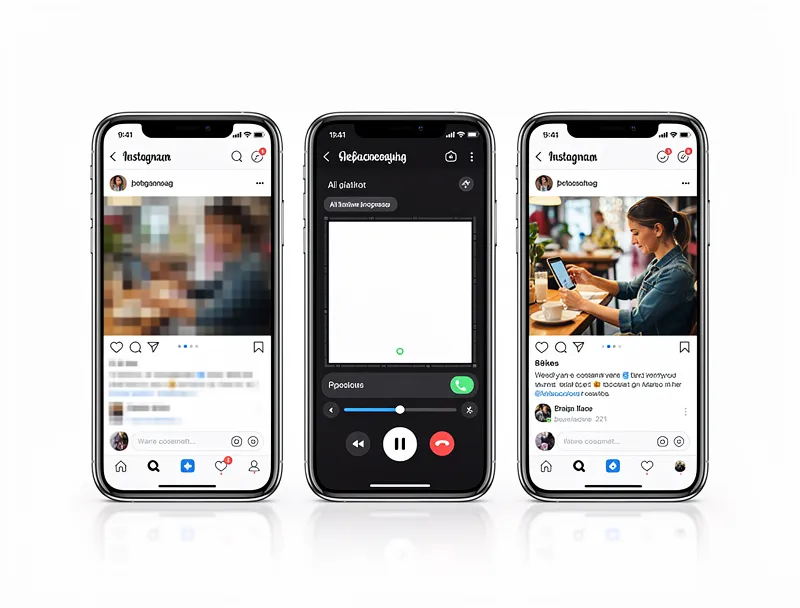
Compression artifacts happen every time an image gets saved, shared, or uploaded. Social media platforms compress photos heavily. Messaging apps do the same. Each round of compression strips away detail that never comes back.
Poor lighting and camera shake produce noise and blur that degrade the perceived quality, even if the technical resolution is fine.
File format choices matter too. Saving a detailed photo as a low-quality JPEG introduces visible banding and artifacts around edges.
6 Ways to Enhance Picture Quality
1. AI Upscaling (Best for Low-Resolution Photos)
AI upscaling is the most effective way to enhance picture quality when your image is too small or pixelated. Unlike basic resizing that just copies existing pixels, AI models analyze the content of your photo and generate new detail.
A portrait gets sharper facial features. A landscape gets crisper textures in foliage and rock. Text in screenshots becomes readable again.
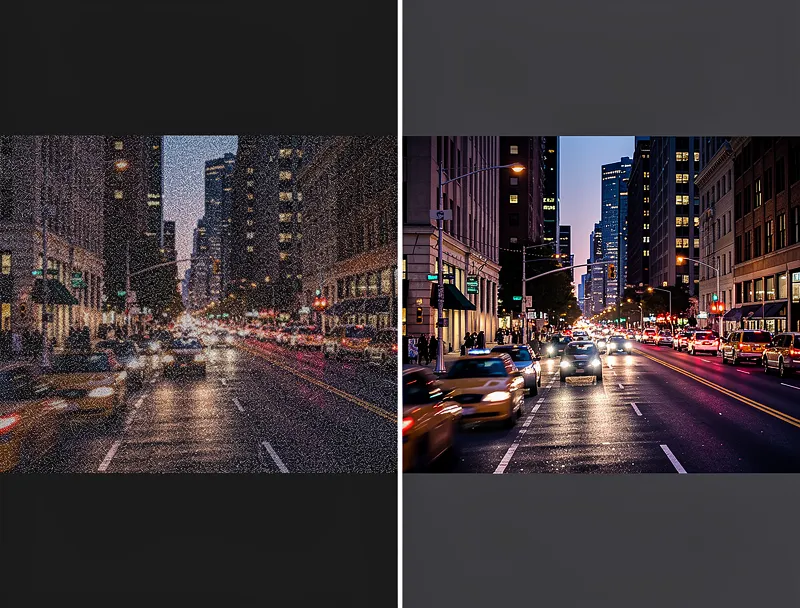
Try our free AI upscaler to see the difference on your own photos. Upload any image and get an enhanced version in under 30 seconds.
2. Noise Reduction
Photos taken in low light often have visible grain or speckles, called noise. AI-powered noise reduction identifies these artifacts and removes them while keeping actual detail intact.
This works particularly well for:
- Indoor photos without flash
- Evening and night shots
- High-ISO images from older cameras
- Scans of printed photos
3. Sharpening
Slight blur from camera shake or a missed focus point can make an otherwise good photo look soft. AI sharpening detects edges and textures, then selectively increases contrast along those boundaries.
The key word is "selectively." Old-school sharpening filters applied the same effect everywhere, which often created ugly halos around objects. Modern AI tools understand what should be sharp and what should stay smooth.
4. Color Correction
Faded colors, incorrect white balance, and washed-out tones all reduce picture quality. Whether it is an old scanned photo with yellowed tones or a recent shot with weird indoor lighting, color correction restores natural-looking hues.
AI-based color enhancement can:
- Fix white balance (remove blue or orange casts)
- Boost saturation without making colors look artificial
- Restore faded colors in old photographs
- Improve contrast for flat-looking images
5. Artifact Removal
JPEG compression artifacts show up as blocky patterns and color bleed, especially around sharp edges and text. AI models trained to recognize these patterns can clean them up while reconstructing the underlying detail.
This is critical when working with images that have been saved and re-saved multiple times, or screenshots from heavily compressed video.
6. Resolution Enhancement for Printing
Printing requires much higher resolution than screen display. A photo that looks fine on Instagram will look terrible printed as an 8x10. AI enhancement can boost your image to print-ready resolution (300 DPI) without the usual blurriness from simple upscaling.
How to Enhance Picture Quality Online (Step by Step)
You do not need expensive software to enhance your pictures. Here is how to do it with a free online tool:
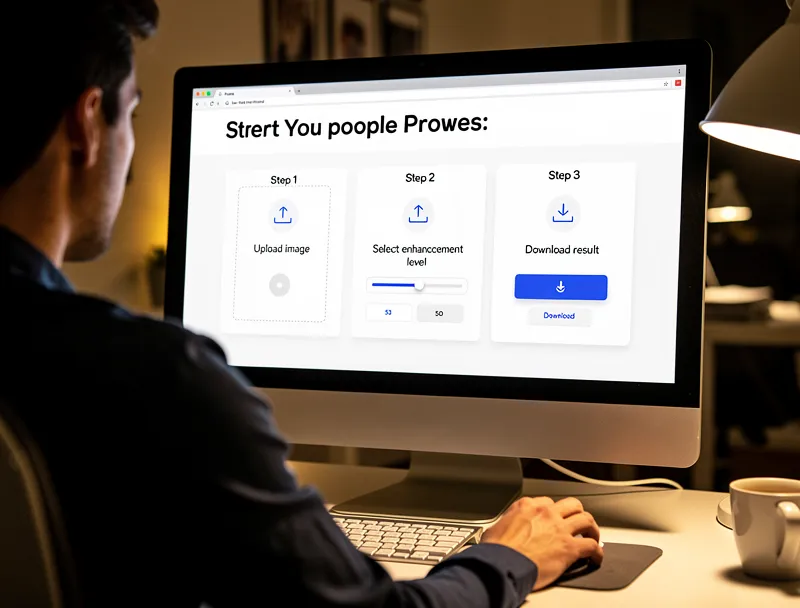
Step 1: Open MyImageUpscaler Go to myimageupscaler.com. No account creation needed.
Step 2: Upload Your Photo Drag and drop your image or click to browse. The tool accepts JPG, PNG, WebP, AVIF, TIFF, and BMP files up to 10MB.
Step 3: Choose Enhancement Level Select 2x or 4x enhancement depending on how much you need to improve the resolution.
Step 4: Download the Result The AI processes your photo in seconds. Compare the before and after, then download your enhanced image.
That is it. No watermarks, no signup wall, no subscription to download.
Best Use Cases for AI Picture Enhancement
Social Media Content
Platforms like Instagram, Facebook, and LinkedIn compress your uploads. Starting with a higher-quality source image means the final result still looks sharp after compression. Enhance your photos before posting for noticeably better results.
E-Commerce Product Photos
Product images directly affect conversion rates. Blurry or pixelated product photos make your store look unprofessional. AI enhancement can rescue photos shot with a phone camera and make them look like they came from a professional shoot.
Old and Scanned Photos
Family photos from the 90s and earlier are often low resolution, faded, and noisy. AI enhancement brings them back to life by adding detail, correcting colors, and removing grain.
Presentations and Documents
Screenshots, charts, and diagrams pulled from low-resolution sources look terrible when projected on a big screen. Quick AI enhancement makes them crisp and professional.
Real Estate Listings
Property photos need to look inviting. AI enhancement improves lighting, sharpness, and color accuracy for interior and exterior shots that attract more potential buyers.
Tips for the Best Enhancement Results
Start with the best source you have. AI can do a lot, but it works better with more data. If you have access to the original uncompressed file, use that instead of a screenshot or social media download.
Do not over-enhance. Going from 200x200 to 1600x1600 (8x) will push any AI tool past its limits. Stick to 2x or 4x enhancement for the most natural results.
Match output to purpose. A website banner does not need the same resolution as a poster print. Enhance to what you actually need.
Check the details. After enhancement, zoom in to faces, text, and fine textures. Make sure the AI has not added any artifacts or distorted important details.
Save in the right format. Use PNG for images with text or sharp edges. Use JPEG at high quality (90%+) for photographs. Use WebP for web use where supported.
Enhance Picture Quality vs. Upscale: What Is the Difference?
People often use these terms interchangeably, but there is a distinction.
Upscaling specifically means increasing the pixel dimensions of an image. A 500x500 image becomes 2000x2000.
Enhancing quality is broader. It includes upscaling but also covers noise reduction, sharpening, color correction, and artifact removal. You can enhance quality without changing the resolution at all.
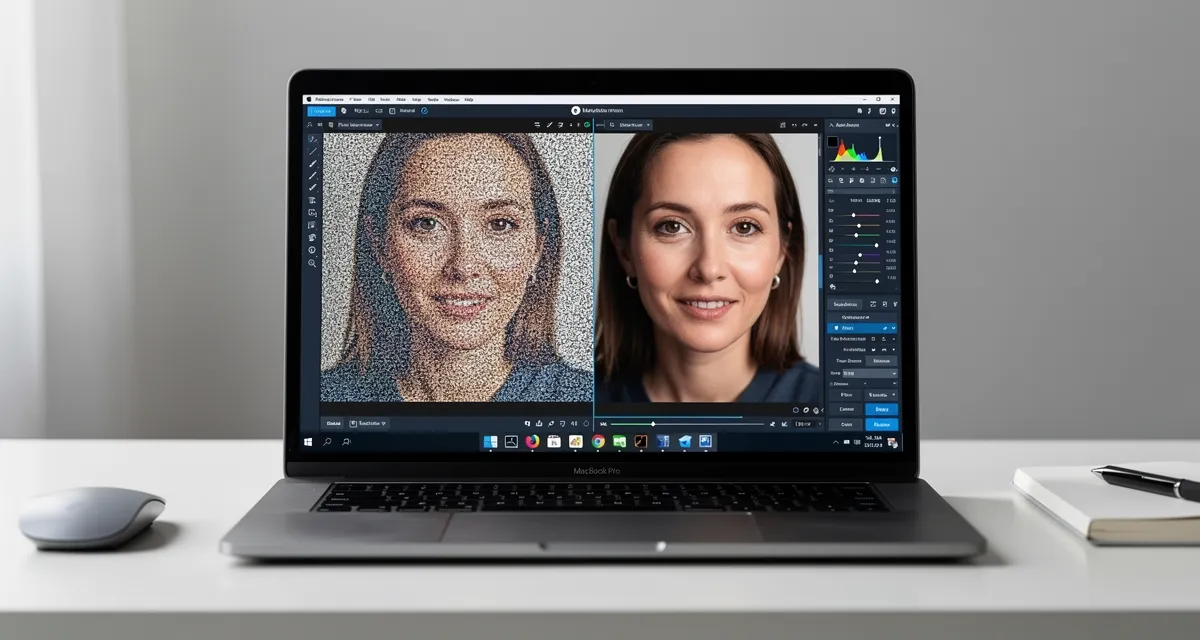
In practice, the best AI tools do both simultaneously. When you upload a photo to MyImageUpscaler, the AI increases resolution while also improving sharpness, reducing noise, and cleaning up compression artifacts. You get a bigger and better image in one step.
Conclusion
Bad picture quality is not permanent. Whether your photo is too small, too noisy, too blurry, or too compressed, AI enhancement can fix it in seconds.
The fastest way to try it: upload your photo to MyImageUpscaler. It is free, works in your browser, and needs no signup. See the difference for yourself.
Frequently Asked Questions
Quick answers for this guide
How do I enhance picture quality with AI [free tool, ]?+
Learn 6 proven ways to enhance picture quality using AI. Fix blurry, pixelated, and low-res photos in seconds with our free online tool. No signup needed. Start with the highest-quality source file available, choose the smallest upscale factor that meets your target size, and inspect the result at 100% before publishing or printing.
When should I use AI upscaling for this workflow?+
Use AI upscaling when the original image is too small for the target use case but still has enough detail to guide the model. For guides work, pay closest attention to source image quality, upscale settings, output dimensions, and final visual inspection, especially enhancement, AI, tutorial.
How do I avoid losing quality after upscaling?+
Upscale once from the best original, avoid repeated compression, keep important text and edges sharp, and export in a format that matches the final use. If the output shows halos, smeared texture, or distorted text, reduce the upscale factor or use a cleaner source image.

Reviewed byJoao Furtado
AI Image Upscaling Specialist
Joao is the founder of MyImageUpscaler and an AI image upscaling specialist. He tests every guide against real upscaling workflows — comparing model outputs, evaluating sharpness and artifact tradeoffs, and validating tool recommendations before publication.
- AI image upscaling
- Model comparison
- Photo restoration
- E-commerce image prep
![Upscale Image Online Free — No Sign Up, No Watermarks [2026]](https://xqysaylskffsfwunczbd.supabase.co/storage/v1/object/public/blog-images/2026/02/1771797822106-featured-online-upscaler.webp)