
![GIF Upscaler: How to Upscale Animated GIFs Without Quality Loss [2026]](https://xqysaylskffsfwunczbd.supabase.co/storage/v1/object/public/blog-images/2026/03/1773176596862-gif-upscaler-featured.webp)
GIF Upscaler: How to Upscale Animated GIFs Without Quality Loss
A GIF upscaler lets you transform low-resolution, pixelated animations into crisp, high-quality versions — and AI makes it faster and better than anything before it.
You know the problem. You find the perfect reaction GIF, download it, and when you drop it into your presentation or Discord message it looks like it was made in 1998. Blocky pixels, washed-out colors, artifacts crawling over every frame. The web is full of GIFs stuck at 240×180 or lower, trapped by the format's old 8-bit color limit.
AI upscaling changes that. Instead of just stretching pixels (which gives you bigger blurry pixels), a modern GIF upscaler analyzes each frame and reconstructs missing details — smoothing edges, restoring color gradients, and sharpening motion without breaking the animation.
Why GIFs Look So Bad (And What Causes It)
GIF was invented in 1987. Its 256-color palette was revolutionary then. Today it is a severe technical limitation.
When you compress a modern video clip into GIF format, the encoder has to:
- Reduce millions of colors to 256
- Apply lossy compression frame by frame
- Balance file size against quality
The result is dithering, color banding, and visible pixel grids — especially on gradients, skin tones, and motion blur. Every time you resize a GIF downward, quality compounds the loss. By the time it reaches you, it may be two or three generations of compression away from the source.
To understand more about why the format works the way it does, the GIF format guide has a complete breakdown of the codec and its limitations.
How AI GIF Upscaling Actually Works
Traditional upscalers (Photoshop bicubic, Lanczos, etc.) just average neighboring pixels. They make images bigger without making them better.
AI upscalers are different. They are trained on millions of image pairs — low resolution on the left, high resolution on the right — until the model learns what a sharp, high-quality version of a degraded image should look like. Applied to your GIF:
- Each frame is extracted individually
- The AI model reconstructs lost detail using learned patterns
- Frames are reassembled with the original timing and loop behavior
The result is a 2x or 4x upscale that holds up under a magnifying glass, not just at thumbnail size.
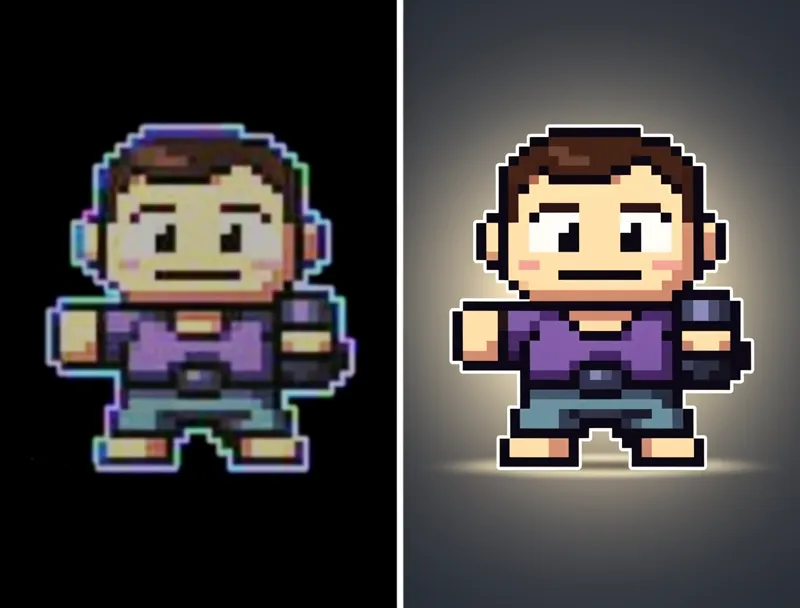

Try It Yourself
Upload your image and see the AI enhancement in action. Start with 5 free credits.
How to Upscale a GIF: Step by Step
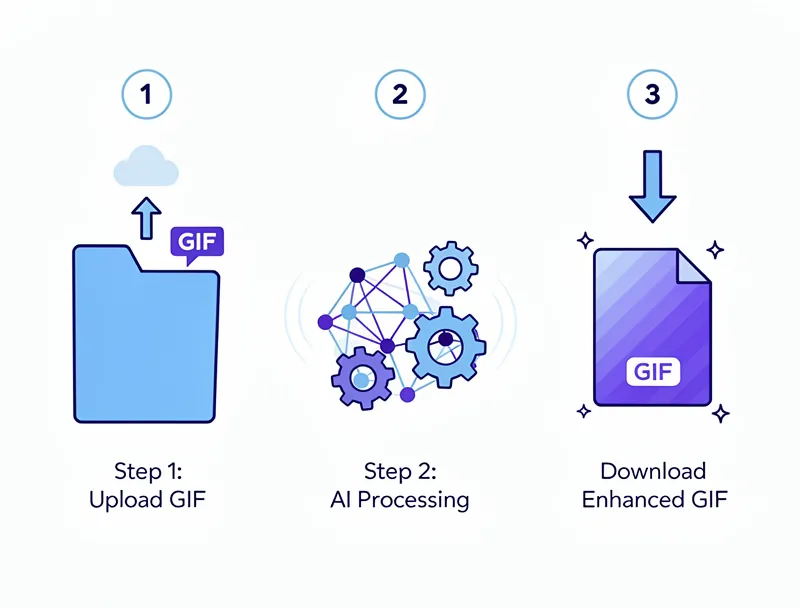
Here is the fastest way to upscale a GIF without losing quality or breaking the animation:
Step 1: Export your GIF frames
Extract the GIF into individual frames using a tool like Ezgif or GIMP. For a quick single-frame fix (a profile picture or logo animation), you can upscale one frame directly.
Step 2: Upload to the AI upscaler
Go to MyImageUpscaler and upload your image. No account needed to start. Select your upscaling factor — 2x is enough for web use, 4x for presentations or print.
Step 3: Download your enhanced frame
Processing takes seconds. Download the upscaled image — the quality jump is immediate and measurable.
Step 4: Reassemble the GIF
Take all your upscaled frames back into Ezgif, GIMP, or Photoshop and rebuild the animation with the original frame delays. Your new GIF will be sharper and noticeably better.
For working with the GIF format specifically, there are more format-specific tips and comparisons worth reading before you start.
When Should You Bother Upscaling a GIF?
Not every GIF needs upscaling. Here is when it is worth the effort:
- Presentations and pitch decks — a pixelated GIF on a 4K display looks unprofessional
- Discord stickers and emotes — upscaled frames let you fit more quality into the 512KB limit
- Profile picture animations — if your avatar or logo GIF looks blurry, upscaling the source frames fixes it
- Content repurposing — turning an old GIF into a higher-quality video clip for Instagram Reels or TikTok
- Anime and cartoon GIFs — the anime upscaler is tuned for the clean lines and flat color of animation, making it ideal for animated content
What to Expect: Realistic Quality Improvements
AI upscaling is good. It is not magic. Here is what it can and cannot do:
| Problem | Can AI Fix It? |
|---|---|
| Visible pixel grid | Yes — smoothed by reconstruction |
| Color banding | Partially — gradient recovery improves with 2x+ |
| Dithering artifacts | Reduced significantly |
| Motion blur | Frame-by-frame only |
| Missing detail (was never there) | No — AI fills in plausible detail, not original detail |
The sweet spot is 2x upscaling on a GIF that is at least 200x200. Anything smaller and you are fighting the format's color limits more than resolution.
See the Difference
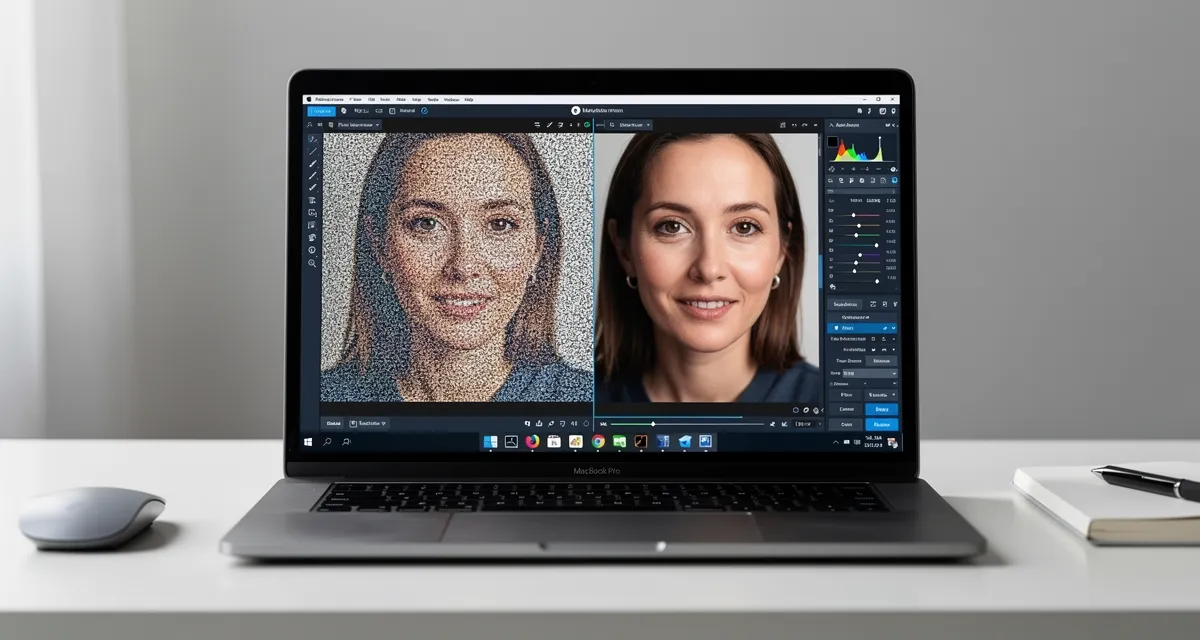
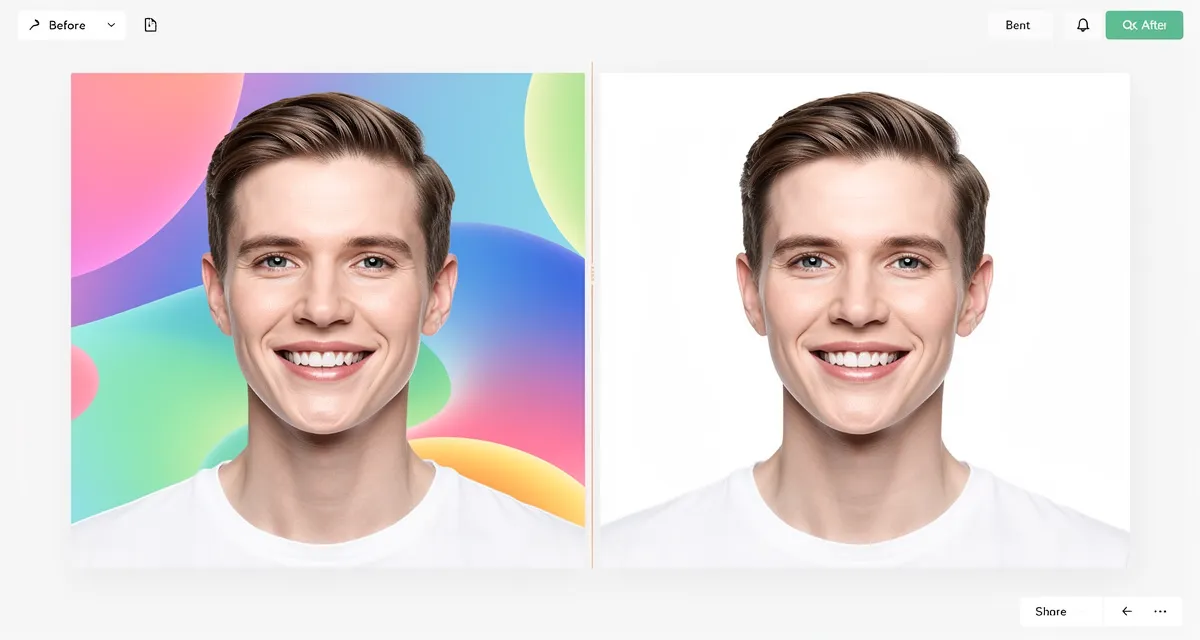
Experience crystal-clear upscaling that preserves text, logos, and fine details.
Conclusion
GIFs do not have to look bad. A GIF upscaler powered by AI can take blurry, low-res animation frames and turn them into something worth sharing in 2026.
The process takes under a minute: extract frames, upscale them free at MyImageUpscaler, reassemble. Get 10 free credits on signup — no credit card needed.
Frequently Asked Questions
Can I upscale an animated GIF directly?
Most AI upscalers work on static images. The best workflow is to extract the frames, upscale each one, then reassemble the animation using Ezgif or GIMP.
Will upscaling a GIF make the file size bigger?
Yes. A 2x upscale typically increases file size 3–5x. If file size is a concern, convert the result to WebP or MP4.
How much can you upscale a GIF before quality breaks?
For most GIFs, 2x produces excellent results. At 4x you are pushing the limits of what the AI can convincingly reconstruct.
Is it free to upscale GIFs?
You can try MyImageUpscaler free — no signup required as a guest, and 10 free credits on account creation with no credit card needed.
Which format is better for upscaled animation — GIF or MP4?
MP4 or animated WebP. GIF is inefficient for high-resolution animation. Exporting as MP4 gives better quality at a fraction of the file size.
Frequently Asked Questions
Quick answers for this guide
How do I choose the right GIF upscaler how to upscale animated gifs without quality loss []?+
Learn how a GIF upscaler can transform pixelated animated GIFs into crisp, high-quality frames. Free AI tool with step-by-step guide. No signup required. Compare tools by output sharpness, watermark policy, signup requirements, file limits, export quality, and whether the result holds up when inspected at 100%.
When should I use AI upscaling for this workflow?+
Use AI upscaling when the original image is too small for the target use case but still has enough detail to guide the model. For guides work, pay closest attention to source image quality, upscale settings, output dimensions, and final visual inspection, especially upscale, GIF, animation.
How do I avoid losing quality after upscaling?+
Upscale once from the best original, avoid repeated compression, keep important text and edges sharp, and export in a format that matches the final use. If the output shows halos, smeared texture, or distorted text, reduce the upscale factor or use a cleaner source image.

Reviewed byJoao Furtado
AI Image Upscaling Specialist
Joao is the founder of MyImageUpscaler and an AI image upscaling specialist. He tests every guide against real upscaling workflows — comparing model outputs, evaluating sharpness and artifact tradeoffs, and validating tool recommendations before publication.
- AI image upscaling
- Model comparison
- Photo restoration
- E-commerce image prep
![Upscale Image Online Free — No Sign Up, No Watermarks [2026]](https://xqysaylskffsfwunczbd.supabase.co/storage/v1/object/public/blog-images/2026/02/1771797822106-featured-online-upscaler.webp)