

![How to Improve Photo Resolution: Free Online Guide [2026]](https://xqysaylskffsfwunczbd.supabase.co/storage/v1/object/public/blog-images/2026/02/1771538510886-featured-photo-resolution.webp)
How to Improve Photo Resolution: Free Online Guide [2026]
You have a photo that matters. Maybe it's a product shot for your store, a portrait from a special event, or a logo you need to print large. The problem? It's blurry, pixelated, or just too small to use professionally.
The good news: you can improve photo resolution for free, online, in seconds — without Photoshop, without a design degree, and without losing what makes the photo great.
Low-resolution photos get blurry fast — on large screens, in prints, or when you zoom in. AI upscaling fixes this by generating new pixels that weren't there before. Here's how to do it free, online, in under a minute.
Why Photo Resolution Matters
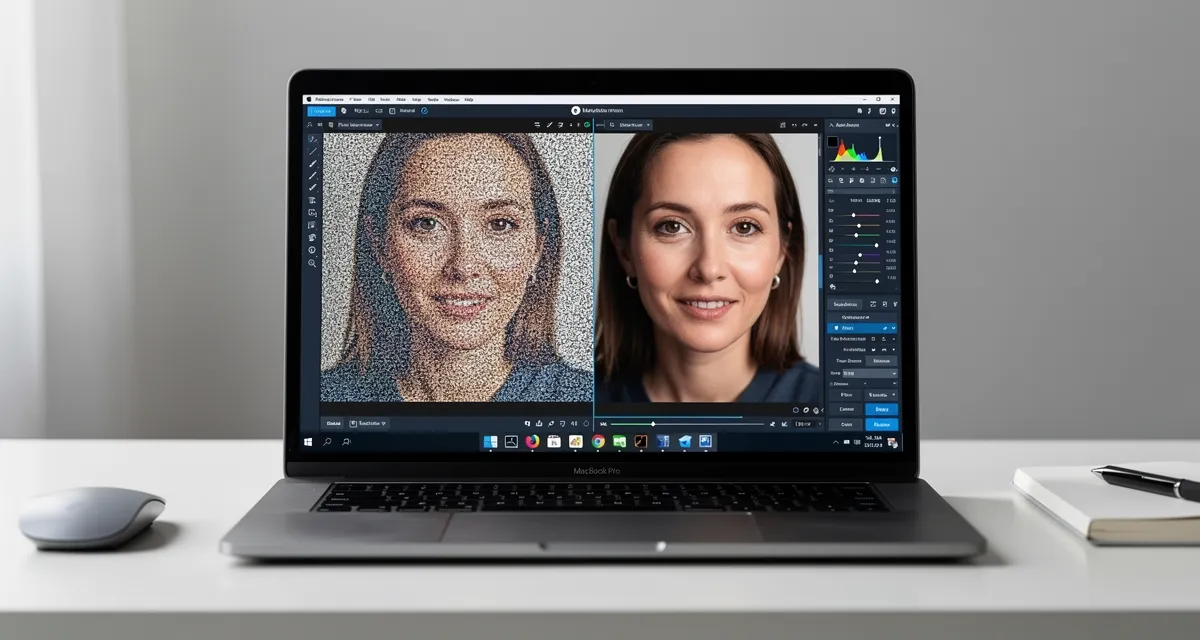
Resolution determines how much detail an image contains. Low resolution means fewer pixels — and fewer pixels means blurry edges, lost detail, and photos that fall apart when you zoom in or print them large.
A photo that looks fine on your phone screen can look terrible when printed on an A4 sheet or used as a website header. This is the resolution trap most people don't see coming until it's too late.
The standard for professional print is 300 DPI (dots per inch). Most smartphone photos at their original size don't meet this threshold when enlarged. Social media compresses images further, degrading quality with every share.
!Side-by-side comparison of low resolution versus AI-enhanced high resolution photo
The Old Way vs. The AI Way
Traditional Resizing (Doesn't Work)
Old photo editing software — even Photoshop's basic resize tool — works by interpolation: it guesses what the new pixels should look like by averaging the ones around them. The result is a larger image that's just as blurry, or sometimes blurrier. You've made the file bigger without making it better.
AI Upscaling (Actually Works)
AI-powered photo resolution improvement is fundamentally different. Instead of guessing, the AI has been trained on millions of images and learned what real detail looks like. It recognizes edges, textures, hair, fabric, architecture — and reconstructs them with precision.
The difference is dramatic. What used to require hours of manual retouching in Photoshop now takes seconds.
Try our free AI photo resolution enhancer — no account needed, instant results.
How to Improve Photo Resolution Free Online
The process couldn't be simpler:
Step 1: Upload your image Go to myimageupscaler.com and upload your photo. Supported formats include JPG, PNG, WEBP, AVIF, and more. Files up to 10MB work fine.
Step 2: Let the AI analyze your image The AI examines your photo at a pixel level — detecting edges, textures, and patterns — and begins reconstructing detail that wasn't visible before.
Step 3: Download your improved photo In seconds, you get a higher-resolution version of your image. The AI typically delivers 2x–4x resolution improvements while preserving the natural look of your original.
!Step-by-step AI image upscaling workflow showing upload, processing, and enhanced output
Best Use Cases for Photo Resolution Improvement
Product Photos for Online Stores
Low-res product images kill conversions. Shoppers zoom in. If your product photos pixelate on zoom, customers leave. Upscaling your product photos to high resolution makes your listings look professional and increases buyer confidence.
Enhance your product photos now before your next listing goes live.
Portraits and Family Photos
Got an old photo you scanned from a print? Or a digital photo taken years ago on a low-megapixel camera? AI resolution improvement can recover detail you thought was lost — bringing back sharpness to faces, fabric textures, and backgrounds.
Social Media Graphics
Instagram, LinkedIn, and Twitter/X all have optimal image dimensions. If your graphic was designed for one platform and you're adapting it for another, you may need to upscale it. AI resolution improvement keeps it sharp at any size.
Print Projects
Banners, posters, business cards, photo books — all require high-resolution images (typically 300 DPI). If your source image is too low-res for your print dimensions, our AI upscaler can bridge the gap.
Website Headers and Hero Images
Web designers often receive assets that aren't large enough for full-width hero sections. A quick AI upscale solves the problem without going back to the client for new assets.
!High quality print produced from an AI-upscaled photograph
How Much Resolution Improvement Can You Expect?
Results depend on your source image quality and content:
| Source Quality | Typical Improvement | Best For |
|---|---|---|
| Slightly blurry (phone photo) | 2x — very sharp results | Portraits, products |
| Moderately low-res (old scan) | 3x — strong detail recovery | Family photos, documents |
| Very low-res (web thumbnail) | 4x — significant improvement | Logos, icons, graphics |
| Highly compressed (screenshot) | 2x — clearer edges | Screenshots, UI graphics |
The AI performs best on photos with clear subjects. It handles portraits, product photography, architecture, and landscapes particularly well.
Free vs. Paid: What's the Difference?
Many AI upscalers charge monthly fees or sell credits. Our tool is free to use — no subscription, no account required, no watermarks on your downloaded image.
The only limitation on the free version is file size. For extremely large batch jobs (hundreds of images), a workflow tool might be more efficient. But for individual photos? Free works perfectly.
Start improving your photos for free
Tips for the Best Results
Start with the best version you have. If you have multiple versions of an image at different quality levels, always upload the highest quality one. The AI improves on what's there — it can't invent detail that was never captured.
Avoid over-compressing before uploading. If you're converting or resaving an image before upload, use maximum quality settings. JPEG artifacts (blocky compression noise) become more visible after upscaling.
Test on your actual use case. Download the upscaled version and check it in the context you're going to use it — zoom in on the print preview, check it at full-screen on your website mock-up, or view it at the print dimensions.
For portraits: look at the eyes. Eyes are the sharpest indicator of upscaling quality. If the eyes look natural and detailed, the rest of the portrait will too.
Common Questions About Photo Resolution Improvement
Can I improve the resolution of any photo format? Yes. Our tool supports JPG, PNG, WEBP, AVIF, BMP, TIFF, and more. Whatever format your photo is in, you can upload it directly.
Will the improved photo have a watermark? No. Your downloaded image is clean — no watermarks, no branding. It's your photo.
How large will the improved photo be? The AI typically produces a 2x–4x resolution increase, so a 1000×1000px image might become 2000×2000px or 4000×4000px. The exact output depends on the image and enhancement level.
Is there a limit to how many photos I can improve? No hard limit for normal use. Upload and enhance as many as you need.
Does it work on screenshots? Yes, though photos and illustrations tend to get more dramatic improvements than screenshots of text.
Conclusion
Improving photo resolution doesn't require expensive software or professional editing skills. AI has made it fast, free, and accessible to anyone.
Whether you're preparing product photos for your store, rescuing an old family portrait, or getting an image print-ready — the results speak for themselves.
Improve your photo resolution now — free, instant, no signup required.
Frequently Asked Questions
Quick answers for this guide
How do I improve photo resolution free online []?+
Learn how to improve photo resolution free online with AI. Transform blurry, low-res photos into sharp, print-quality images in seconds — no software or signup needed. Start with the highest-quality source file available, choose the smallest upscale factor that meets your target size, and inspect the result at 100% before publishing or printing.
When should I use AI upscaling for this workflow?+
Use AI upscaling when the original image is too small for the target use case but still has enough detail to guide the model. For guides work, pay closest attention to source image quality, upscale settings, output dimensions, and final visual inspection, especially upscale, AI, tutorial.
How do I avoid losing quality after upscaling?+
Upscale once from the best original, avoid repeated compression, keep important text and edges sharp, and export in a format that matches the final use. If the output shows halos, smeared texture, or distorted text, reduce the upscale factor or use a cleaner source image.

Reviewed byJoao Furtado
AI Image Upscaling Specialist
Joao is the founder of MyImageUpscaler and an AI image upscaling specialist. He tests every guide against real upscaling workflows — comparing model outputs, evaluating sharpness and artifact tradeoffs, and validating tool recommendations before publication.
- AI image upscaling
- Model comparison
- Photo restoration
- E-commerce image prep
![Upscale Image Online Free — No Sign Up, No Watermarks [2026]](https://xqysaylskffsfwunczbd.supabase.co/storage/v1/object/public/blog-images/2026/02/1771797822106-featured-online-upscaler.webp)