

![How to Upscale AVIF Images Without Losing Quality [2026]](https://xqysaylskffsfwunczbd.supabase.co/storage/v1/object/public/blog-images/2026/02/1771367405212-featured-avif-upscale.webp)
How to Upscale AVIF Images Without Losing Quality
AVIF files are small. That's the whole point — they compress images better than JPEG and WebP. But that compression comes with a trade-off: when you need a larger version of an AVIF image, the quality usually falls apart fast.
Pixelation, blurry edges, washed-out colors. None of that is acceptable when you're preparing a product photo for print or scaling up an image for a banner ad.
This guide covers how to properly upscale AVIF images, what makes AVIF different from other formats, and why AI-based upscaling is the only method that actually works well.
What Makes AVIF Upscaling Different from Other Formats
AVIF (AV1 Image File Format) uses a fundamentally different compression algorithm than JPEG or PNG. It's based on the AV1 video codec, which means it stores images as "key frames" — encoding only the visual information that matters most to the human eye.
This makes AVIF files extremely compact. A photo that's 500KB as a JPEG might be 80KB as AVIF at similar visual quality. That's a real win for web performance.
But there's a cost: when you blow up an AVIF image, the compression artifacts behave differently from JPEG. Instead of classic blocky JPEG artifacts, AVIF degradation tends to show up as smearing, edge loss, and color banding. Traditional upscaling methods — bicubic interpolation, Lanczos resampling — don't handle these patterns well.
The result looks worse than you'd expect from a JPEG upscale at the same compression ratio.
Why Simple Resizing Fails with AVIF
Most image editors resize images the same way: they look at existing pixels and interpolate new ones in between. Photoshop does it. GIMP does it. Even online resizers use the same basic approach.
This works fine when the source image is clean and high-resolution. It breaks down when:
- The image was heavily compressed before you got it
- You're scaling more than 1.5x the original size
- Fine details like text, hair, or fabric textures are involved
AVIF images tend to hit all three of these conditions. They're compressed by design, and the format is so efficient that people often compress them aggressively. When you try to upscale that, you're essentially asking the algorithm to fill in detail that was never stored in the file.
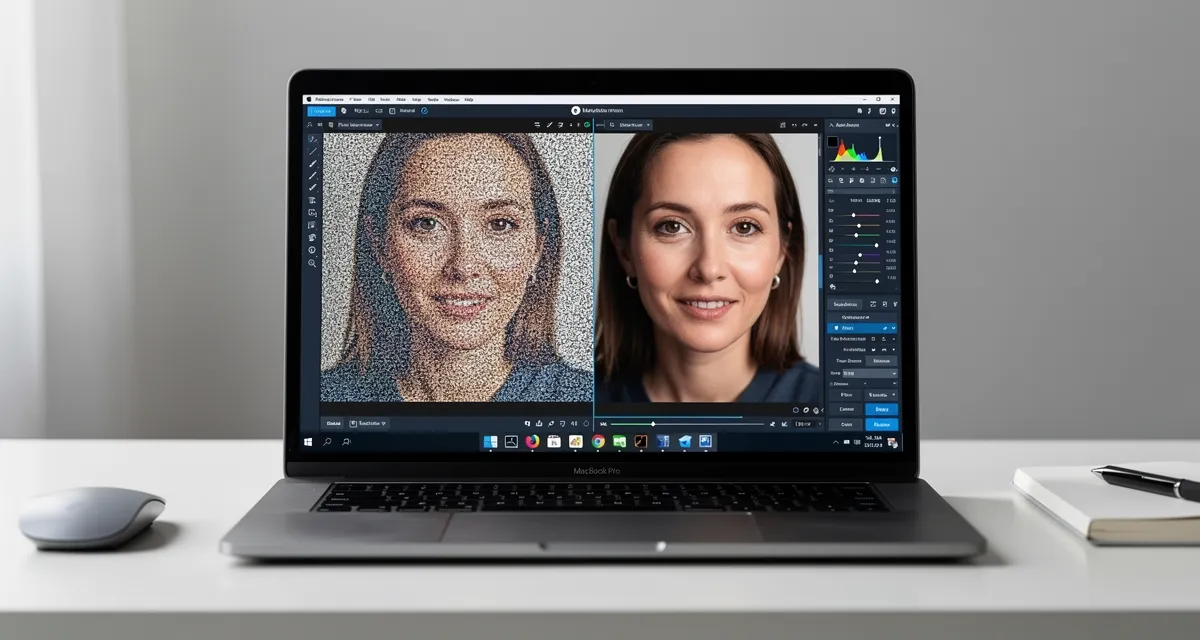
Bicubic interpolation fills that gap with blurry approximations. AI upscaling fills it with learned patterns based on millions of real images.
!Before and after upscaling comparison of AVIF image quality
How to Upscale AVIF Images: The AI Approach
The best way to avif upscale without quality loss is to use a neural network trained specifically for image enhancement. These models have learned what fine detail looks like — at the pixel level — from massive training datasets. When they encounter a compressed AVIF image, they can reconstruct edges, textures, and detail that the original compression removed.
Here's the step-by-step process using our AI image upscaler:
Step 1: Prepare your AVIF file
Make sure you have the original AVIF file, not a screenshot or re-export. Every time an image is re-saved in a lossy format, you lose quality. Start from the cleanest version you have.
Step 2: Upload to the AI upscaler
Our AVIF upscaling tool accepts AVIF files directly. No conversion needed first. Drag and drop your file onto the upscaler interface.
Step 3: Select your scale factor
Choose 2x for moderate enlargements (doubling width and height). Choose 4x if you need to print large or display on a high-DPI screen. The AI handles both — the quality holds up at either scale.
Step 4: Download the result
Processing takes a few seconds. The output will be a high-resolution version of your original, with detail restored rather than blurred over.
Try our AI upscaler on your AVIF image — free, no account required.
!AI upscaling workflow showing upload to enhanced output process
AVIF Upscale Quality: What to Expect
The results vary depending on the quality of your source file. Here's what's realistic:
Lightly compressed AVIF (CRF 20-30): Excellent results. The AI has enough source detail to work with, and the output looks genuinely sharp. You can scale 4x and use the result for print at 150 DPI.
Moderately compressed AVIF (CRF 30-45): Good results. Some fine textures may look slightly smoothed, but edges stay sharp and the overall image looks natural. Good for web display and moderate print sizes.
Heavily compressed AVIF (CRF 45+): Acceptable results. The AI will produce something much cleaner than bicubic upscaling, but heavy compression removes information that no upscaler can fully restore. Manage expectations here.
The key point: AI upscaling always outperforms simple resizing, regardless of source quality. The question is whether the source file has enough information to produce a print-quality result.
Common AVIF Upscaling Use Cases
Product Photos for E-commerce
AVIF is increasingly used for web product images because of its small file sizes. When a customer requests a high-resolution version for commercial use, or when you want to repurpose a web image for a catalog, upscaling is necessary.
The AI handles product photos well because product images tend to have consistent textures (fabric, metal, plastic) that the neural network recognizes.
Social Media Assets
Platform thumbnails get compressed aggressively. When you need to repurpose a social media image — say, a Facebook banner that came back as an AVIF — for a larger format, the upscaler recovers the quality you need.
Archival and Restoration
Some image archives and CMS systems export in AVIF. If you need a high-resolution version of an archived image for print, upscaling is often the only path forward when the original file is unavailable.
Web-to-Print Pipeline
Web images saved as AVIF are typically 72-96 DPI. Print requires 300 DPI minimum. Our AVIF upscaling page covers the specific DPI math in detail, but the short version: a 1000px wide AVIF image needs to be upscaled to at least 4x before it can be printed at 300 DPI at 13 inches wide.
!Side-by-side comparison of original low-resolution versus AI-upscaled AVIF image
Tips for the Best AVIF Upscale Results
Avoid double-compression. Don't convert your AVIF to JPEG before upscaling. Converting adds another round of lossy compression before the upscaler even starts. Upload the AVIF directly.
Check the original dimensions. If your AVIF is already 3000px wide, you probably don't need 4x upscaling. Use 2x and you'll get cleaner results with less processing time.
Use PNG output for print. When downloading your upscaled image, choose PNG if you're going to print. PNG is lossless, so the quality the AI added won't be compressed away again before it hits the printer.
Test at 100% zoom. The difference between bicubic and AI upscaling is most visible at 100% zoom. Zoom in before deciding whether the result meets your quality standard.
AVIF vs Other Formats for Upscaling
| Format | Upscaling Difficulty | Common Issues |
|---|---|---|
| AVIF | High | Color banding, edge smearing |
| JPEG | Medium | Blocky artifacts, ringing |
| WebP | Medium | Similar to JPEG with some AVIF traits |
| PNG | Low | No compression artifacts, easiest to upscale |
| TIFF | Low | Usually uncompressed, minimal issues |
AVIF is the hardest format to upscale because of how its compression algorithm works. But that also means you see the biggest improvement from AI upscaling versus simple resizing — the gap between methods is most noticeable with AVIF.
Frequently Asked Questions
Can I upscale AVIF without converting to another format first? Yes. Our upscaler accepts AVIF files directly. There's no need to convert to JPEG or PNG first, which would only add unnecessary quality loss.
Will upscaling an AVIF image make it look like the original uncompressed version? It depends on how compressed the source is. AI upscaling reconstructs detail based on learned patterns, not by recovering the original data. Lightly compressed AVIF files can be upscaled to near-original quality. Heavily compressed files will improve significantly but won't be identical to an uncompressed source.
What scale factor should I use for print? For standard print at 300 DPI, calculate: (print width in inches × 300) ÷ current pixel width. If the result is between 1-2, use 2x. If it's between 2-4, use 4x. Our AVIF upscaling guide has a full DPI calculator walkthrough.
Is there a file size limit for AVIF upscaling? The free tool handles files up to 10MB. AVIF files at that size are typically very high resolution already, so upscaling needs are rare above that threshold.
Does the AI upscaler work with animated AVIF? Currently, the upscaler works with still AVIF images. Animated AVIF support is on the roadmap.
Conclusion
AVIF is a great format for the web — small files, good quality. It's a difficult format to upscale using traditional methods. AI upscaling solves that problem by reconstructing detail rather than blurring over it.
If you have AVIF images that need to be larger — for print, for commercial use, or just for a cleaner display — the AI approach gets you there without the quality loss that bicubic resizing leaves behind.
Upload your AVIF image now and see the difference. Free, instant, no signup required.
Frequently Asked Questions
Quick answers for this guide
How do I upscale AVIF images without losing quality []?+
AVIF files are notoriously hard to enlarge without blurring. Learn how AI upscaling reconstructs detail in AVIF images for print-quality results. Free tool, no signup. Start with the highest-quality source file available, choose the smallest upscale factor that meets your target size, and inspect the result at 100% before publishing or printing.
When should I use AI upscaling for this workflow?+
Use AI upscaling when the original image is too small for the target use case but still has enough detail to guide the model. For guides work, pay closest attention to source image quality, upscale settings, output dimensions, and final visual inspection, especially upscale, AI, tutorial.
How do I avoid losing quality after upscaling?+
Upscale once from the best original, avoid repeated compression, keep important text and edges sharp, and export in a format that matches the final use. If the output shows halos, smeared texture, or distorted text, reduce the upscale factor or use a cleaner source image.

Reviewed byJoao Furtado
AI Image Upscaling Specialist
Joao is the founder of MyImageUpscaler and an AI image upscaling specialist. He tests every guide against real upscaling workflows — comparing model outputs, evaluating sharpness and artifact tradeoffs, and validating tool recommendations before publication.
- AI image upscaling
- Model comparison
- Photo restoration
- E-commerce image prep
![Upscale Image Online Free — No Sign Up, No Watermarks [2026]](https://xqysaylskffsfwunczbd.supabase.co/storage/v1/object/public/blog-images/2026/02/1771797822106-featured-online-upscaler.webp)