

![How to Upscale AVIF, TIFF, and BMP Images with AI [2026]](https://xqysaylskffsfwunczbd.supabase.co/storage/v1/object/public/blog-images/2026/02/1771106582581-featured-formats.webp)
How to Upscale AVIF, TIFF, and BMP Images with AI
You have a TIFF scan from a decade ago. Or an AVIF file your browser saved at half resolution. Maybe a BMP screenshot from an old project. The image is too small, and simple resizing makes it worse.
AI upscaling fixes this for any image format. Here's exactly how it works and which formats benefit most.
Why Image Format Matters for Upscaling
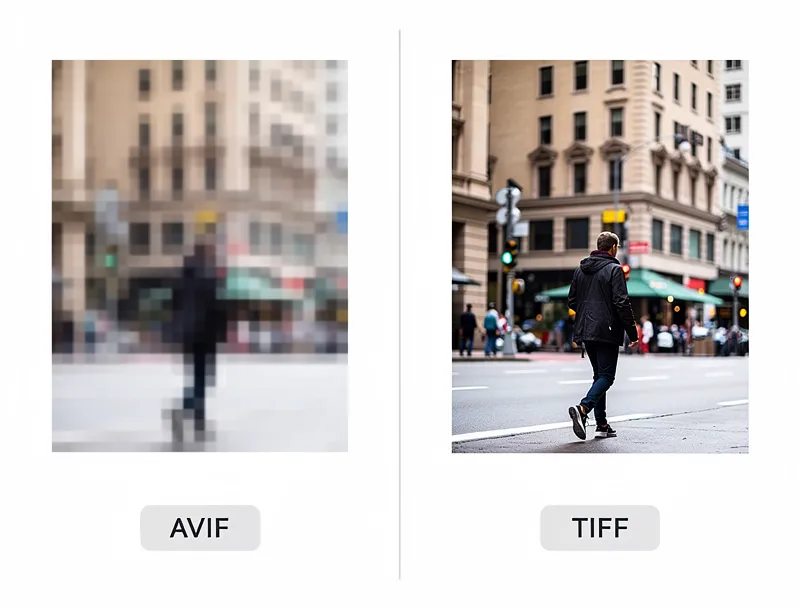
Not all image formats store data the same way. JPEG uses lossy compression, so some detail is already gone before you even start. TIFF and BMP preserve everything. AVIF compresses aggressively while keeping quality high.
This matters because AI upscalers work with whatever pixel data exists. More original detail means better results.
Here's the breakdown:
- AVIF: Next-gen format with excellent compression. Popular in web browsers. Upscales well because its compression is smart about preserving edges and textures.
- TIFF: The gold standard for archival quality. Zero compression loss. AI upscalers produce their best results with TIFF inputs.
- BMP: Raw bitmap data with no compression. Large files, but every pixel is intact. Great source material for upscaling.
- PNG: Lossless compression. Solid for upscaling, especially screenshots and graphics.
- JPEG: Lossy compression. AI can still improve these, but artifacts may get amplified if the source quality is low.
- WebP: Google's format balancing quality and size. Upscales similarly to JPEG for lossy, or PNG for lossless variants.
How to Upscale Any Image Format
The process is the same regardless of format. Our AI handles the conversion internally.
Step 1: Upload Your Image
Go to MyImageUpscaler and drag your file onto the upload area. We accept AVIF, TIFF, BMP, PNG, JPEG, WebP, and more.
No format conversion needed on your end. The tool reads your file as-is.
Step 2: Choose Your Scale
Pick 2x or 4x enlargement. For most images, 2x strikes the right balance between size increase and sharpness. Use 4x when you need a significantly larger output, like preparing a small photo for printing.
Step 3: Download the Result
Your upscaled image downloads in a web-friendly format. The AI has added real detail, not just stretched pixels.
The entire process takes seconds. No account required, no software to install.
Format-Specific Tips
Upscaling AVIF Images
AVIF is relatively new, and many desktop tools still can't open it. Our free image upscaler handles AVIF natively.
AVIF files from modern cameras and browsers typically upscale cleanly because the format preserves perceptual quality well. If your AVIF came from heavy compression (very small file size), expect slightly softer results.
Upscaling TIFF Images
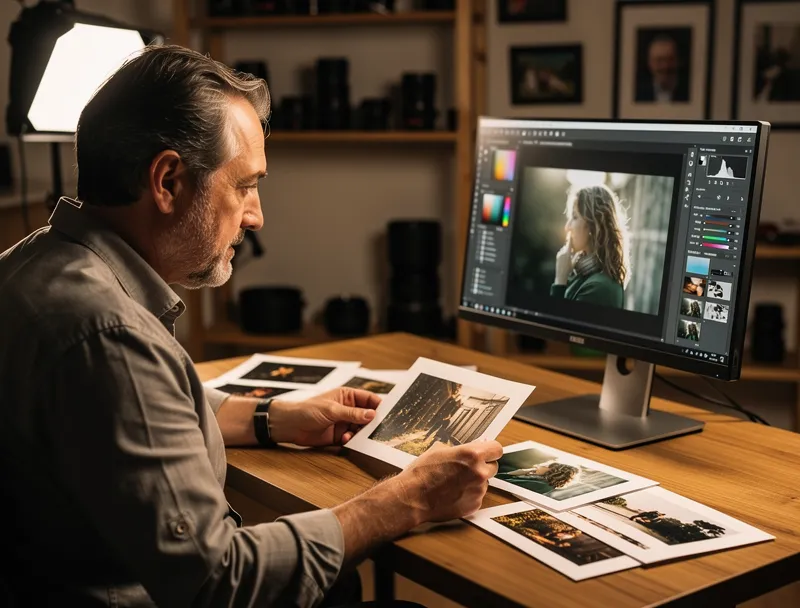
TIFF is the best source format for AI upscaling. Scanners, medical imaging, and professional cameras often output TIFF.
Old TIFF scans are perfect candidates. A 600 DPI scan from the 1990s upscaled 4x becomes sharp enough for modern large-format printing.
One thing to watch: multi-page TIFF files. Our upscaler processes single images, so extract the page you need first.
Upscaling BMP Images
BMP files are rare today, but they show up in legacy software exports, old Windows screenshots, and retro game assets. Since BMP stores raw pixel data, the AI gets clean input to work with.
BMP files are large, though. If the upload feels slow, that's normal for a 50+ MB uncompressed bitmap.
When to Upscale vs. When to Re-export
Upscaling makes sense when:
- You don't have the original source and the image is too small for your use case
- The original resolution is genuinely low (under 1000px on the long side)
- You need a larger version for print, social media, or a website hero section
- You're working with archival scans that were captured at limited resolution
Re-exporting from the source makes more sense when:
- You have access to the original design file (PSD, AI, etc.)
- The image was intentionally downsampled and you can get the full-res version
- You need a different format, not a larger size
Common Mistakes to Avoid
Upscaling an already-upscaled image. Each pass adds diminishing returns and can introduce softness. Start from the original whenever possible.
Using JPEG as your source when TIFF is available. If you have both, always upscale the TIFF. The AI produces noticeably sharper results from lossless sources.
Expecting miracles from tiny thumbnails. A 50x50 pixel icon won't become a poster. AI upscaling works best on images that are at least a few hundred pixels wide.
Ignoring your output needs. If you're upscaling for web, 2x is usually enough. Save 4x for print and large displays.
Which Format Should You Save Your Upscaled Image As?
After upscaling, choose your output format based on where the image will be used:
| Use Case | Best Output Format | Why |
|---|---|---|
| Web / social media | WebP or JPEG | Small file size, fast loading |
| TIFF or PNG | Lossless quality for sharp prints | |
| Archival | TIFF | Maximum quality preservation |
| Email / sharing | JPEG | Universal compatibility |
| Transparent backgrounds | PNG | Supports alpha channel |
Start Upscaling Your Images
Whether you're working with AVIF files from a modern browser, TIFF scans from a decade ago, or BMP screenshots from legacy software, AI upscaling gives you a larger, sharper image in seconds.
Upload your image now and see the difference. Free, instant, no signup needed.
Frequently Asked Questions
Quick answers for this guide
How do I upscale AVIF, TIFF, and BMP images with AI []?+
Learn how to upscale AVIF, TIFF, BMP, and other image formats using AI. Preserve quality across every format with our free online upscaler. Start with the highest-quality source file available, choose the smallest upscale factor that meets your target size, and inspect the result at 100% before publishing or printing.
When should I use AI upscaling for this workflow?+
Use AI upscaling when the original image is too small for the target use case but still has enough detail to guide the model. For guides work, pay closest attention to source image quality, upscale settings, output dimensions, and final visual inspection, especially upscale, AI, image.
How do I avoid losing quality after upscaling?+
Upscale once from the best original, avoid repeated compression, keep important text and edges sharp, and export in a format that matches the final use. If the output shows halos, smeared texture, or distorted text, reduce the upscale factor or use a cleaner source image.

Reviewed byJoao Furtado
AI Image Upscaling Specialist
Joao is the founder of MyImageUpscaler and an AI image upscaling specialist. He tests every guide against real upscaling workflows — comparing model outputs, evaluating sharpness and artifact tradeoffs, and validating tool recommendations before publication.
- AI image upscaling
- Model comparison
- Photo restoration
- E-commerce image prep
![Upscale Image Online Free — No Sign Up, No Watermarks [2026]](https://xqysaylskffsfwunczbd.supabase.co/storage/v1/object/public/blog-images/2026/02/1771797822106-featured-online-upscaler.webp)