![How to Upscale HEIC Images from iPhone: AI Enhancement Guide [2026]](https://xqysaylskffsfwunczbd.supabase.co/storage/v1/object/public/blog-images/2026/03/1772921115899-featured-heic.webp)
How to Upscale HEIC Images from iPhone with AI
Your iPhone takes great photos in HEIC format, but they fall apart when you zoom in or try to print them. AI upscaling fixes that — and you don't even need to convert to JPEG first.
This guide walks through exactly how to upscale HEIC images, why your iPhone photos lose quality when enlarged, and the fastest way to get sharp, print-ready results.
What Is HEIC and Why Does It Matter?
HEIC (High Efficiency Image Container) is Apple's default photo format since iOS 11. It replaced JPEG because it produces smaller files at similar quality — roughly 50% smaller, in fact.
But here's the problem: HEIC files are typically captured at the iPhone sensor's native resolution. An iPhone 15 Pro shoots at 4032 x 3024 pixels. That's decent for Instagram, but not enough for:
- Large prints (canvas, posters, photo books)
- Cropped shots where you need detail from a small area
- Professional use where clients expect high-res deliverables
- Desktop wallpapers on 4K or 5K monitors
When you zoom into a HEIC photo past 100%, you see the pixels. AI upscaling adds real detail where simple resizing would just blur things out.
Why HEIC Photos Look Bad When Enlarged
Traditional image resizing uses algorithms like bicubic interpolation. These work by averaging neighboring pixels to fill in the gaps. The result? Soft, muddy images that look worse the more you enlarge them.
HEIC makes this slightly trickier because not every tool supports the format natively. Many upscalers force you to convert to JPEG first — which adds a lossy compression step before you even start enhancing.
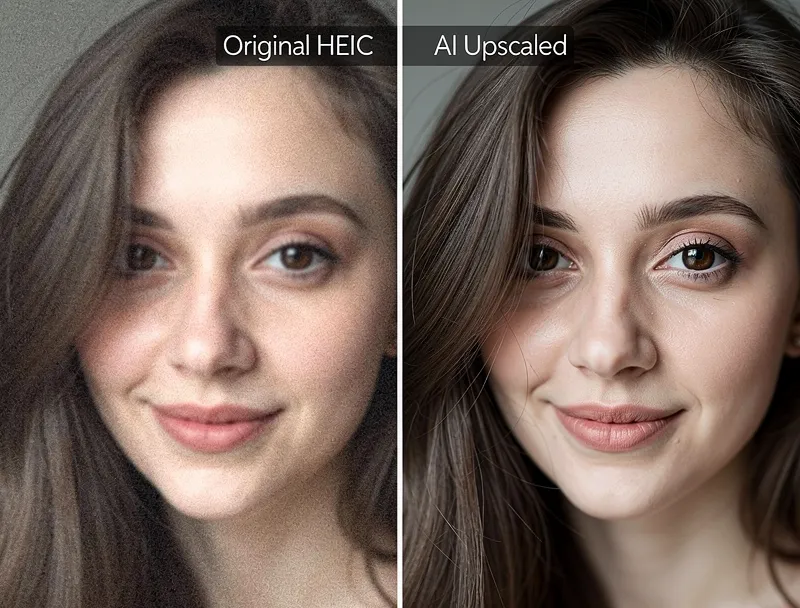
AI upscaling skips that problem entirely. Modern neural networks can process HEIC images directly, analyzing textures, edges, and patterns to generate genuinely new detail. A face becomes sharper. Fabric shows individual threads. Tree leaves get defined edges instead of green mush.

Try It Yourself
Upload your image and see the AI enhancement in action. Start with 10 free credits.
How to Upscale HEIC Photos: Step-by-Step
Here's the process from iPhone to print-ready image:
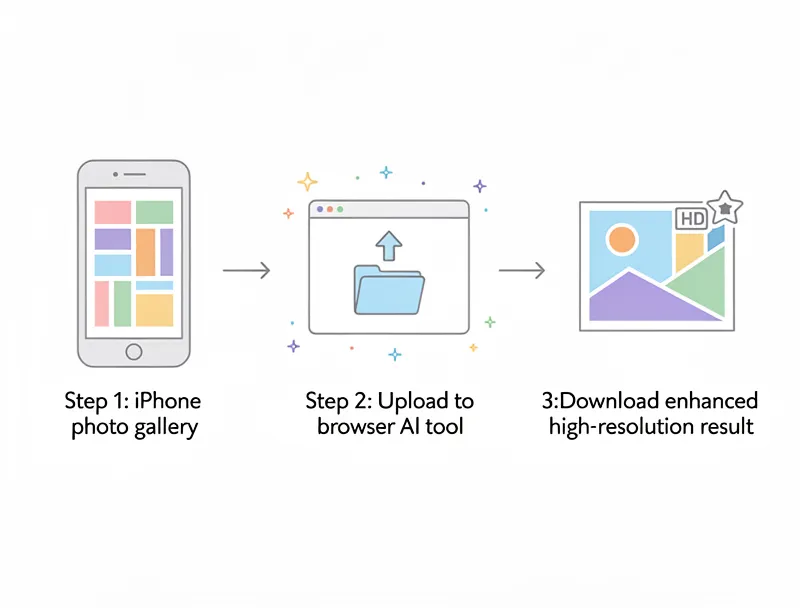
Step 1: Transfer Your HEIC File
Get the photo from your iPhone to a device with a browser. You can:
- AirDrop to a Mac (keeps HEIC format)
- Email it to yourself (may convert to JPEG — check settings)
- iCloud Photos on any device with browser access
- USB cable direct transfer (Windows may need HEIF codec)
The key: keep it in HEIC if possible. Converting to JPEG before upscaling means losing data twice.
Step 2: Upload to an AI Upscaler
Upload your HEIC photo to MyImageUpscaler — it accepts HEIC files directly. No conversion needed.
- Open MyImageUpscaler in your browser
- Drag and drop your .heic file (or tap to browse)
- Select your upscale factor (2x or 4x)
- Click "Upscale"
The AI processes your image in seconds and outputs a high-resolution result.
Step 3: Download the Enhanced Image
Your upscaled photo downloads as a high-quality file ready for printing, sharing, or editing further.
HEIC vs JPEG: Which Upscales Better?
This is a question I tested extensively. The short answer: HEIC upscales slightly better than JPEG because it retains more data at smaller file sizes.
Here's why:
| Factor | HEIC | JPEG |
|---|---|---|
| Compression | ~50% smaller at same quality | Larger files, more artifacts |
| Color depth | 10-bit (1 billion colors) | 8-bit (16.7 million colors) |
| Artifacts | Fewer blocking artifacts | More visible compression squares |
| AI upscale quality | Better source = better output | Artifacts get amplified |
The AI has more clean data to work with in a HEIC file. JPEG images carry compression artifacts that the neural network sometimes amplifies during upscaling, creating blocky patterns in smooth areas like skies or skin.
That said, the difference is subtle for casual use. If your photo is already in JPEG, don't stress — the AI handles both formats well.
Best Settings for Different Uses
Not every upscale needs the same treatment:
For Social Media
2x upscale is usually enough. Instagram maxes out at 1080px wide, and Facebook compresses everything anyway. A 2x upscale from iPhone resolution gives you 8064 x 6048 — more than enough headroom for any platform.
For Printing
Printers need 300 DPI for sharp output. Here's the math:
- iPhone 15 Pro native: 4032 x 3024 = prints sharp at 13.4" x 10.1"
- After 2x upscale: 8064 x 6048 = prints sharp at 26.9" x 20.2"
- After 4x upscale: 16128 x 12096 = prints sharp at 53.8" x 40.3"
For standard photo prints (4x6 to 8x10), your iPhone's native resolution works fine. But for canvas prints and posters, you'll want that 2x or 4x boost.
For Professional Delivery
Clients expecting high-res files? Upscale to 4x, then export in their requested format. Most professional workflows accept JPEG, PNG, or TIFF.
Common HEIC Upscaling Mistakes
I've seen these trip people up repeatedly:
Converting to JPEG before upscaling. Every lossy conversion degrades the image. If your upscaler accepts HEIC, use it.
Over-upscaling. Going from 4032px to 16128px (4x) works great. But stacking multiple 4x passes doesn't. The AI adds detail once — running it again just sharpens artifacts.
Ignoring Live Photo data. HEIC files from iPhone can contain Live Photo video data. Most upscalers process the still frame, which is what you want. But verify your file is the photo, not the video clip.
Using desktop screenshot tools. Taking a screenshot of your photo instead of transferring the actual file gives you a screen-resolution copy. Always transfer the original .heic file.
See the Difference
Experience crystal-clear upscaling that preserves text, logos, and fine details.
Conclusion
Upscaling HEIC images from iPhone is straightforward once you skip the conversion step. The format actually upscales better than JPEG thanks to its 10-bit color and lower artifact profile.
Upload your HEIC photo free — no signup, no watermarks.
Frequently Asked Questions
Can I upscale HEIC files without converting to JPEG?
Yes. MyImageUpscaler accepts HEIC files directly. No conversion means no quality loss before the AI enhancement begins.
How much can I enlarge an iPhone photo?
4x is the practical limit for a single pass. An iPhone 15 Pro photo at 4032 x 3024 becomes 16128 x 12096 at 4x — that's larger than an 8K display and prints sharp at over 50 inches wide.
Does HEIC upscale better than JPEG?
Slightly. HEIC retains more color data (10-bit vs 8-bit) and produces fewer compression artifacts. This gives the AI cleaner source material to work with. The difference is most visible in smooth gradients and skin tones.
Is it free to upscale HEIC images?
You can try the upscaler free with no account required. Get 10 free credits on signup — no credit card needed.
Will upscaling fix a blurry iPhone photo?
Upscaling enhances resolution, not focus. If the original photo is blurry from camera shake or missed focus, upscaling won't fix that. It works best on sharp photos that just need more pixels — like cropped shots or photos intended for large prints.

Reviewed byJoao Furtado
AI Image Upscaling Specialist
Joao is the founder of MyImageUpscaler and an AI image upscaling specialist. He tests every guide against real upscaling workflows — comparing model outputs, evaluating sharpness and artifact tradeoffs, and validating tool recommendations before publication.
- AI image upscaling
- Model comparison
- Photo restoration
- E-commerce image prep