
![How to Upscale Images with AI: The Complete Guide [2026]](https://xqysaylskffsfwunczbd.supabase.co/storage/v1/object/public/blog-images/2026/02/1771098995959-featured-how-to-upscale.webp)
How to Upscale Images with AI: The Complete Guide
Your photo looked perfect on your phone. Then you tried to print it, crop it, or use it on a website and suddenly it looked like a blurry mess. Sound familiar?
Image upscaling fixes this. And with modern AI, the results are genuinely impressive — not the stretched, pixelated disasters you get from dragging a corner in Photoshop.
This guide covers everything: what upscaling actually does, how AI changed the game, and how to upscale your own images step by step.
What Does Upscale Image Actually Mean?
Upscaling an image means increasing its resolution — the total number of pixels. A 500x500 photo becomes 2000x2000. More pixels means more detail, sharper edges, and a larger usable size.
But here is the catch: the original photo does not contain that extra detail. Traditional upscaling (like bicubic interpolation) just guesses what goes between existing pixels. The result? Soft, muddy images that look worse the more you enlarge them.
AI upscaling takes a fundamentally different approach.
How AI Image Upscaling Works
AI upscalers use neural networks trained on millions of image pairs — low-resolution originals and their high-resolution counterparts. The model learns patterns: what sharp edges look like, how textures behave at different scales, how facial features should render.
When you feed it a low-res image, the AI does not just interpolate between pixels. It predicts what the high-resolution version should look like based on everything it has learned.
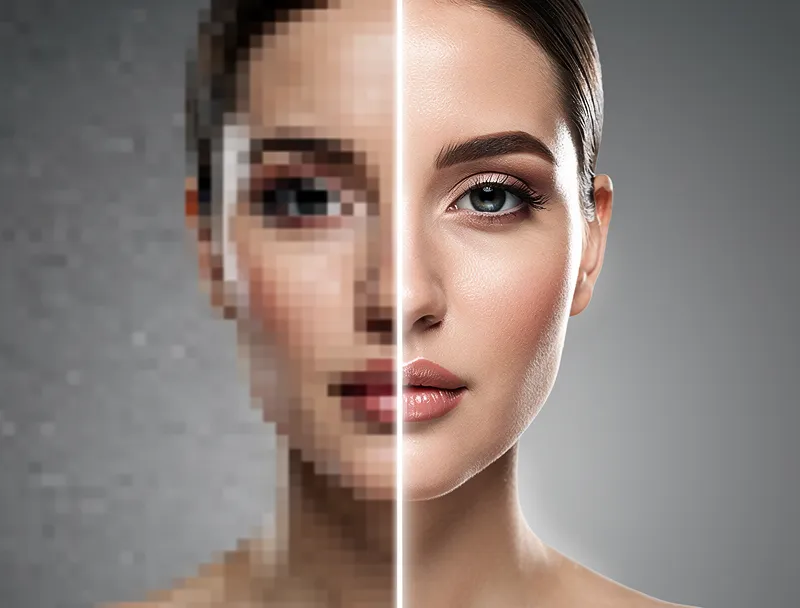
The difference is dramatic. Traditional upscaling produces blurry enlargements. AI upscaling produces images with genuine detail — sharp text, clean edges, and realistic textures.
AI Upscaling vs Traditional Resizing
| Feature | Traditional Resize | AI Upscaling |
|---|---|---|
| Method | Pixel interpolation | Neural network prediction |
| Edge quality | Blurry, soft | Sharp, defined |
| Texture detail | Lost or smeared | Reconstructed |
| Text readability | Degraded | Preserved or improved |
| Processing speed | Instant | 5-30 seconds |
| Best for | Simple graphics | Photos, artwork, everything |
Traditional resizing has one advantage: speed. For everything else — quality, detail preservation, usability — AI wins decisively.
How to Upscale Images: Step-by-Step Guide
Here is exactly how to upscale any image using an online AI image upscaler.
Step 1: Choose Your Image
Start with the highest quality source you have. AI can work miracles, but better input means better output. If you have the original file (not a screenshot or compressed social media download), use that.
Supported formats: PNG, JPEG, and WebP all work well. PNG is ideal because it is lossless.
Step 2: Upload to an AI Upscaler
Open MyImageUpscaler in your browser. Drag and drop your image or click to upload. No account needed, no software to install.
Step 3: Select Your Scale
Choose how much you want to enlarge:
- 2x — doubles dimensions (good for light touch-ups)
- 4x — quadruples dimensions (ideal for most use cases)
- 8x — eight times larger (for severely low-res images)
For most photos, 4x hits the sweet spot between size increase and quality.
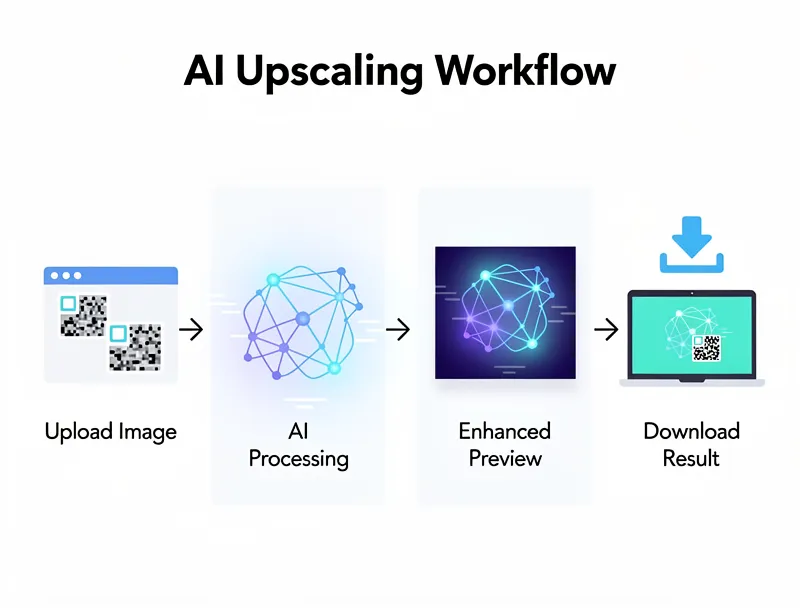
Step 4: Process and Download
Click upscale and wait a few seconds. The AI processes your image and generates the enhanced version. Download the result — it is yours to use however you want.

Try It Yourself
Upload your image and see the AI enhancement in action. Start with 5 free credits.
See the Difference
Experience crystal-clear upscaling that preserves text, logos, and fine details.
When to Upscale Images (Common Use Cases)
Printing
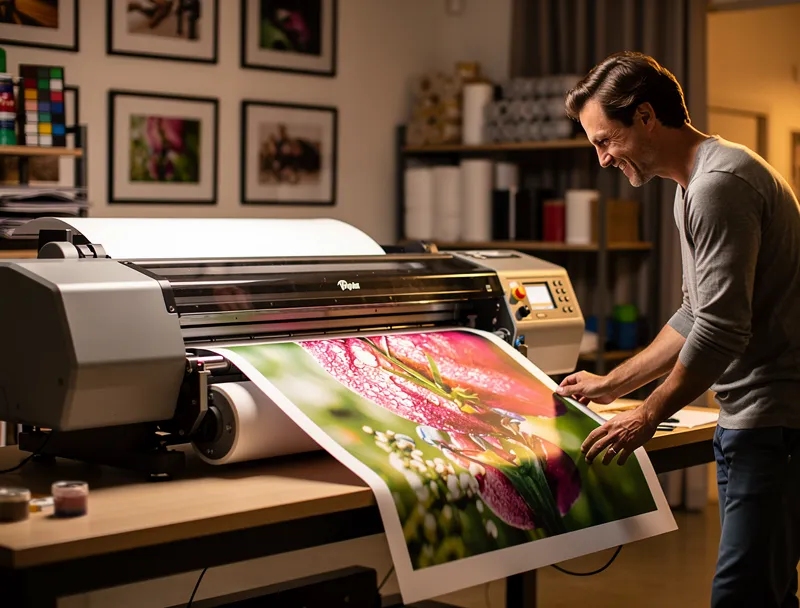
This is the most common reason people upscale. A photo that looks fine on screen at 72 DPI needs 300 DPI for a quality print. Upscaling bridges that gap.
A 1000x1000 image at 72 DPI prints at roughly 3.5 inches. After 4x upscaling to 4000x4000, you can print at 13+ inches with sharp detail.
E-Commerce Product Photos
Product images sell. Low-res product photos kill conversions. If your supplier sent small thumbnails, upscaling them to high-res versions can make your listings look professional without a reshoot.
Social Media
Platforms like Instagram compress images aggressively. Starting with a higher resolution means your final post retains more detail after compression.
Old Photo Restoration
Scanned family photos from the 90s? Film grain and low resolution make them look dated. AI upscaling can breathe new life into these images, making them sharp enough to display on modern screens or print in albums.
Game Screenshots and Digital Art
AI upscaling is popular in the gaming community for enhancing screenshots, texture packs, and pixel art. The results for stylized content can be surprisingly good.
Tips for the Best Upscaling Results
-
Start with the best source available. A clean 500px photo upscales better than a JPEG-compressed 1000px one.
-
Remove noise before upscaling. AI can amplify noise along with detail. Denoise first if your source is grainy.
-
Use PNG when possible. Lossless formats preserve more information for the AI to work with.
-
Match the scale to your needs. Going from 500px to 8000px (16x) pushes even AI to its limits. If you need extreme enlargement, try upscaling in stages: 4x, then 2x on the result.
-
Check the output at 100% zoom. Upscaled images always look good when zoomed out. The real test is viewing at full size.
What an Image Upscaler Cannot Fix
AI is powerful but not magic. Some things it struggles with:
- Motion blur — the AI can sharpen soft focus, but true motion blur loses too much information
- Extreme compression artifacts — heavily compressed JPEGs with visible blocks may show artifacts in the upscaled version
- Imagined detail — the AI generates plausible detail, but it is making educated guesses. Fine text in a photo might not be perfectly reconstructed
For 95% of use cases, these limitations do not matter. The results are more than good enough for printing, web use, and personal projects.
Free vs Paid Image Upscalers
Most AI upscalers offer a free tier. Here is what you should know:
- Free tools like MyImageUpscaler handle standard upscaling well and work for most needs
- Paid tiers typically offer batch processing, higher resolution limits, and API access
- Desktop software (like Topaz) costs more but processes locally without uploading your images
For one-off upscaling or moderate use, free online tools deliver excellent results. Paid tools make sense when you process hundreds of images regularly.
Frequently Asked Questions
Does upscaling improve image quality?
Yes, AI upscaling genuinely improves perceived quality by adding realistic detail, sharpening edges, and reducing artifacts. It is not the same as having the original high-res file, but the results are remarkably close.
What is the best image upscaler in 2026?
For free online use, MyImageUpscaler delivers fast, high-quality results with no signup required. For desktop use, Topaz Photo AI is the industry standard.
Can I upscale images for commercial use?
The upscaling process itself does not create copyright issues — you retain all rights to your upscaled images. Just make sure you have the rights to the original image.
How much can I upscale an image?
Most AI tools support 2x to 8x upscaling. For best results, stick to 4x or less. Beyond 8x, quality begins to degrade even with AI.
Start Upscaling Your Images
Low-res images hold you back. Whether you are preparing photos for print, fixing old family pictures, or making your product listings look professional — AI upscaling gets you there in seconds.
Upload your image to MyImageUpscaler and see the difference yourself. Free, instant, no signup required.

Reviewed byJoao Furtado
AI Image Upscaling Specialist
Joao is the founder of MyImageUpscaler and an AI image upscaling specialist. He tests every guide against real upscaling workflows — comparing model outputs, evaluating sharpness and artifact tradeoffs, and validating tool recommendations before publication.
- AI image upscaling
- Model comparison
- Photo restoration
- E-commerce image prep
![Upscale Image Online Free — No Sign Up, No Watermarks [2026]](https://xqysaylskffsfwunczbd.supabase.co/storage/v1/object/public/blog-images/2026/02/1771797822106-featured-online-upscaler.webp)