
![Upscale Images for Instagram: 2160x2700 Size Guide [2026]](https://xqysaylskffsfwunczbd.supabase.co/storage/v1/object/public/blog-images/2026/01/1769886169173-featured-instagram.webp)
Upscale Images for Instagram: 2160x2700 Size Guide
Quick answer: For Instagram portrait posts, upscale to 2160x2700 before uploading so Instagram can compress down to 1080x1350 cleanly. For square posts, use 2160x2160; for stories and reels covers, use 1080x1920 or 2160x3840 when the source image is small.
Ever uploaded a photo to Instagram only to find it looking blurry or pixelated? You're not alone.
There's a better way. AI upscaling can increase your image resolution while actually improving details.
Why Instagram Images Lose Quality
The problem isn't your camera. Modern phones take great photos. The issue is how images are processed:
- Resizing stretches pixels - Makes edges look fuzzy and unprofessional
- Compression removes details - Creates artifacts and banding in gradients
- Cropping cuts resolution - Reduces total pixel count significantly
Once quality is lost, you can't get it back with filters or editing tools.
What Is AI Image Upscaling?
Traditional upscaling just copies and stretches pixels. AI upscaling uses neural networks to intelligently fill in missing details.
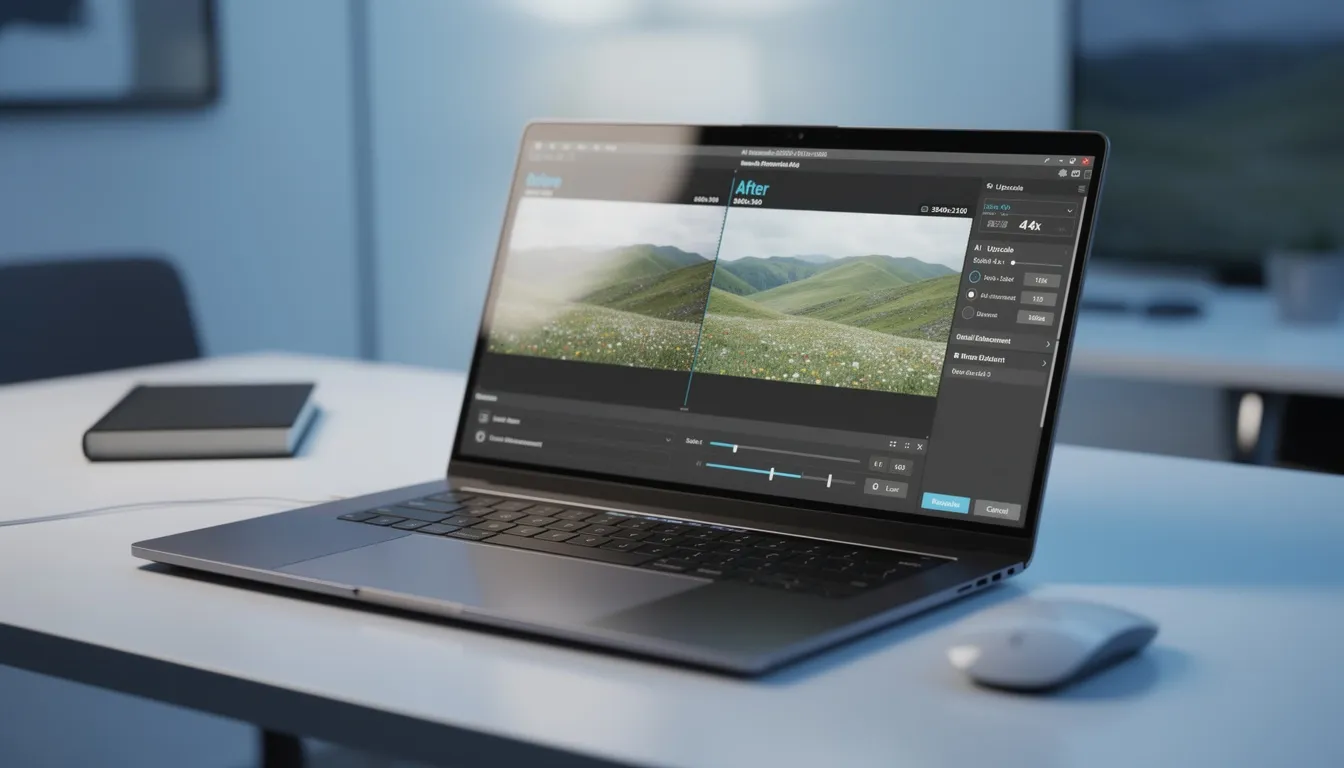
Try the AI image upscaler before uploading to Instagram. Use one photo, export the sharper 2x result, then compare it in the feed preview.

Try It Yourself
Upload your image and see the AI enhancement in action. Start with 5 free credits.
How to Upscale Images for Instagram
Follow these steps for perfectly sharp Instagram posts:
- Start with your original photo - Use the highest resolution version available
- Use an AI upscaler - Increase to 2x or 4x resolution while preserving details
- Export at optimal dimensions - 1080x1080 for square posts
- Upload to Instagram - Your photos will look crisp and professional
Run a quick browser test with the same crop you plan to post. If edges and text stay clean after compression, use that export for Instagram.
See the Difference
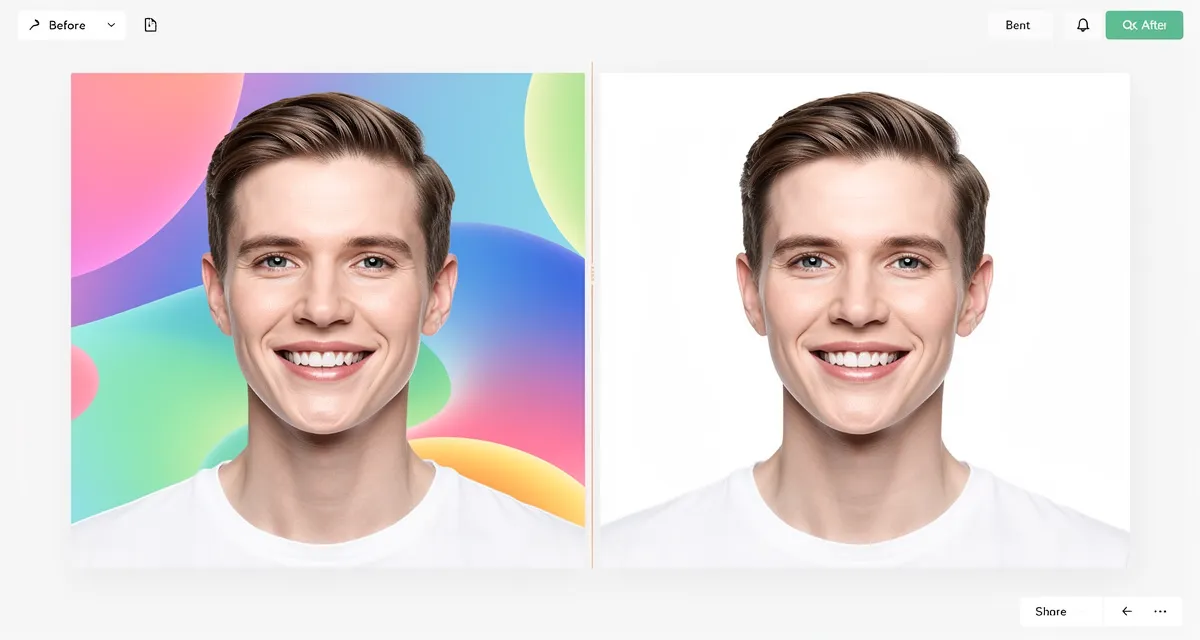
Experience crystal-clear upscaling that preserves text, logos, and fine details.
Best Settings for Different Instagram Formats
Square Posts (1:1): Upscale to 2160x2160 for extra sharpness
Portrait Posts (4:5): Upscale to 2160x2700 for vertical photos
Stories (9:16): Upscale to 1080x1920 for full-screen stories
Tips for Best Results
- Always start with the original photo
- Upscale first, then crop to your desired format
- Use JPG format for photos with quality 85-90%
- Check details at 100% zoom before posting
- Avoid upscaling already low-quality screenshots
Conclusion
Your photos deserve to look their best on social media. Don't let compression and resizing ruin your content.
Start upscaling your images now - free, no signup required.
Frequently Asked Questions
Quick answers for this guide
What should I know about upscale images for instagram 2160x2700 size []?+
Upscale images for Instagram without quality loss. Use 2160x2700 for portrait posts, 2160x2160 for square photos, and AI upscaling for sharper uploads. Start by confirming the target size, format, and platform requirements, then upscale only as much as needed to meet that target without introducing artifacts.
When should I use AI upscaling for this workflow?+
Use AI upscaling when the original image is too small for the target use case but still has enough detail to guide the model. For guides work, pay closest attention to source image quality, upscale settings, output dimensions, and final visual inspection, especially upscale, AI, Instagram.
How do I avoid losing quality after upscaling?+
Upscale once from the best original, avoid repeated compression, keep important text and edges sharp, and export in a format that matches the final use. If the output shows halos, smeared texture, or distorted text, reduce the upscale factor or use a cleaner source image.

Reviewed byJoao Furtado
AI Image Upscaling Specialist
Joao is the founder of MyImageUpscaler and an AI image upscaling specialist. He tests every guide against real upscaling workflows — comparing model outputs, evaluating sharpness and artifact tradeoffs, and validating tool recommendations before publication.
- AI image upscaling
- Model comparison
- Photo restoration
- E-commerce image prep
![Upscale Image Online Free — No Sign Up, No Watermarks [2026]](https://xqysaylskffsfwunczbd.supabase.co/storage/v1/object/public/blog-images/2026/02/1771797822106-featured-online-upscaler.webp)