

![How to Upscale Old Photos with AI: Restore Precious Memories [2026]](https://xqysaylskffsfwunczbd.supabase.co/storage/v1/object/public/blog-images/2026/02/1771367890850-featured-old-photos.webp)
How to Upscale Old Photos with AI: Restore Precious Memories
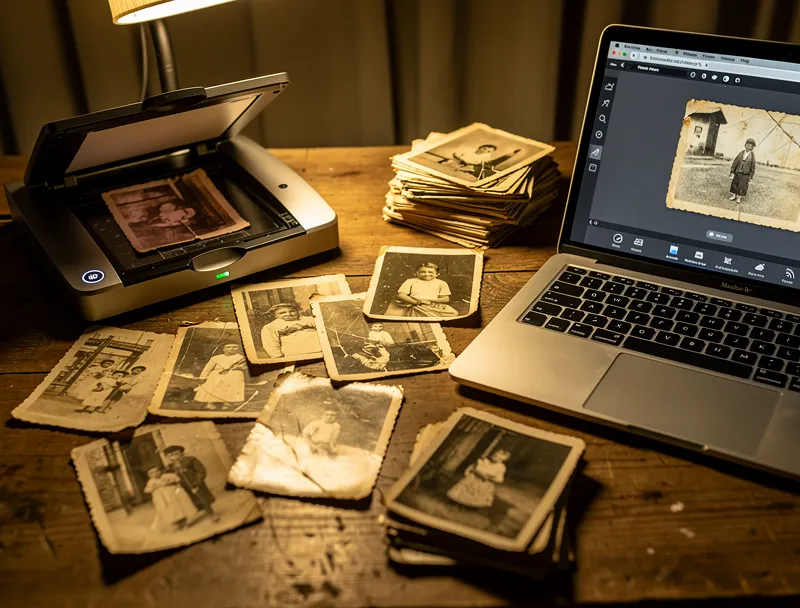
There is a shoebox under my grandmother's bed. It holds 40 years of birthdays, graduations, and Sunday lunches — printed on tiny, faded squares of paper that are falling apart at the edges.
Maybe you have one too.
The good news: AI has made it possible to restore those photos in minutes. What used to cost hundreds of dollars at a professional lab, and days of waiting, now takes seconds — and it's free.
This guide walks you through exactly how to upscale old photos with AI, what results you can realistically expect, and how to preserve your family's history before it's too late.
Why Old Photos Degrade (And Why It Matters)
Photographic prints from the 1960s, 70s, and 80s were not built to last forever. Film chemistry fades. Paper yellows. Moisture warps. Light bleaches.
Digital scans of those prints inherit all those problems — plus the compression artifacts and low resolution of early consumer scanners. A scan from 2005 might be 600x400 pixels. That is barely enough resolution to view on a phone screen, let alone print and frame.
Here is the hard reality: every year you wait, more detail is lost. Ink fades. Prints crack. Slides mold.
AI photo restoration is not just a fun tech trick. For many families, it is the last chance to save irreplaceable moments.
How AI Upscaling Works on Old Photos
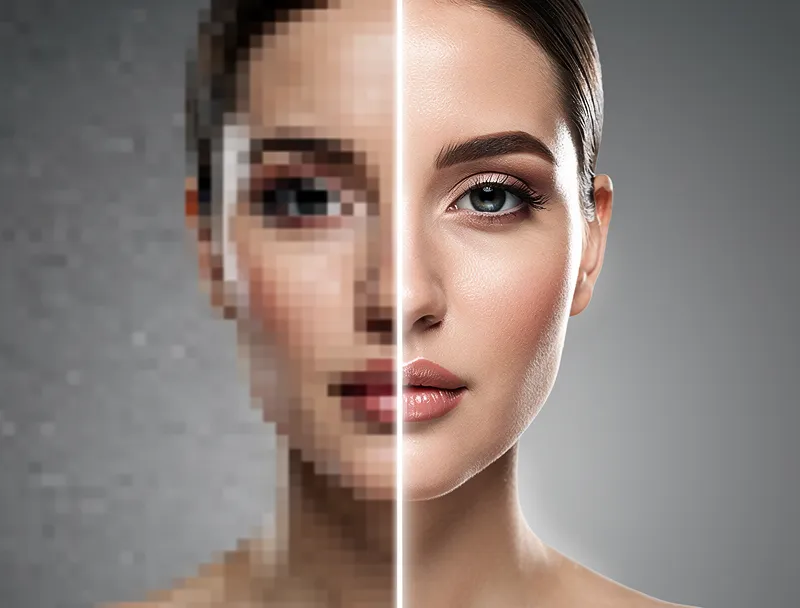
Regular resizing — the kind your phone does — just stretches pixels. It makes a blurry photo bigger and blurrier. You end up with a large, pixelated mess.
AI upscaling is different. The model has been trained on millions of images. When it encounters a degraded old photo, it does not just stretch what is there — it infers what should be there based on patterns it has learned.
It sees the curve of a face and reconstructs the detail in the eyes. It identifies text on a sign and sharpens the letters. It recognizes fabric texture and restores the weave.
The result is not just a bigger image. It is a sharper, more detailed, more natural-looking version of the original.
Try our AI image upscaler to see what AI does to your old photos — the difference is often remarkable.
How to Upscale Old Photos: Step-by-Step
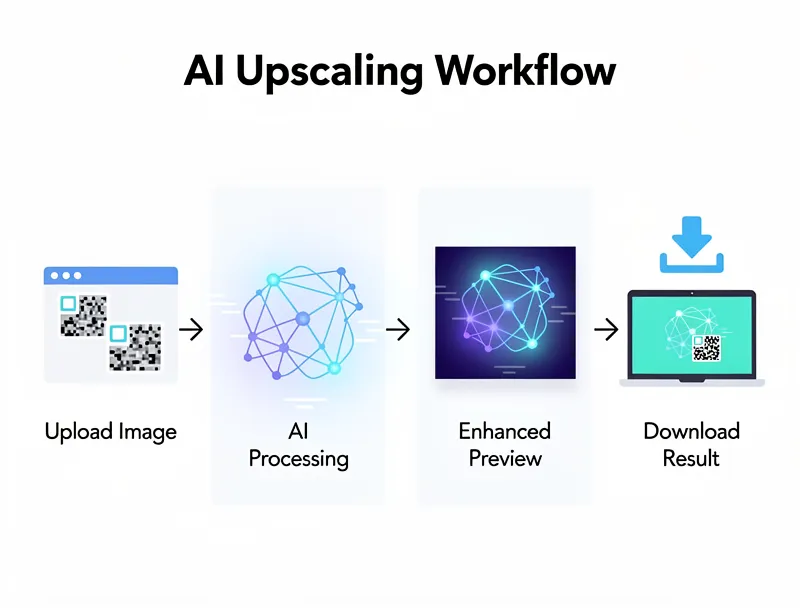
This process takes about 3 minutes per photo. Here is exactly what to do.
Step 1: Scan or Locate Your Digital Copy
If you are starting from a physical print, scan it at the highest resolution your scanner allows — ideally 600 DPI or higher. Higher is better. A 4x6 inch print scanned at 600 DPI gives you a 2400x3600 pixel image, which is much better material for the AI to work with.
If you already have digital copies from an old hard drive, memory card, or scan from years ago, those work fine too.
Step 2: Upload to the AI Upscaler
Go to myimageupscaler.com/tools/ai-image-upscaler. Drag and drop your photo. No account required.
The AI will analyze the image and upscale it — typically 2x or 4x the original resolution. For a 600x400 photo, that means you will get back a 2400x1600 image with recovered detail.
Step 3: Enhance the Quality Further
Upscaling increases resolution. But old photos also have specific problems: faded colors, poor contrast, noise from film grain, and overall softness.
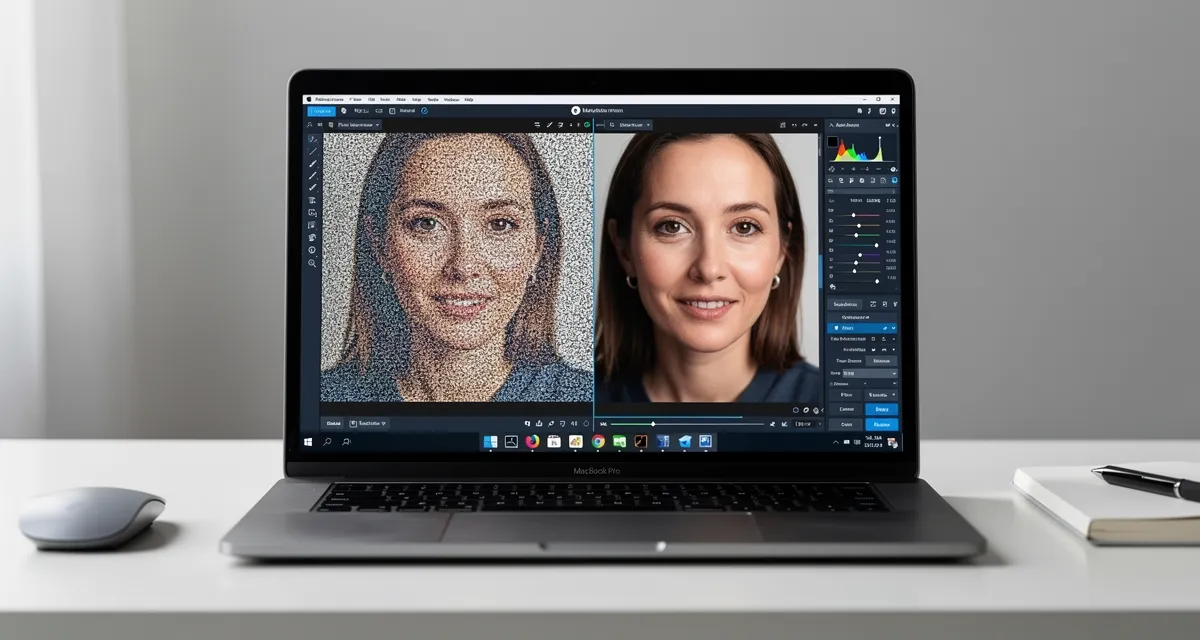
For this, run your upscaled photo through our AI photo enhancer. It handles color correction, sharpness, and noise reduction in one step — turning a washed-out old photo into something that looks like it was taken yesterday.
Step 4: Download and Save
Download the restored photo as a high-quality PNG. Save multiple copies — cloud storage, an external drive, and ideally a printed copy on archival paper.
What Results Can You Realistically Expect?
AI is powerful, but it is not magic. Here is an honest breakdown:
What AI upscaling does extremely well:
- Sharpening soft or slightly blurry photos
- Recovering fine detail from low-resolution scans
- Reducing noise and film grain
- Improving color vibrancy in faded prints
- Making photos large enough to print and frame
What AI struggles with:
- Heavily water-damaged photos where large areas are destroyed
- Extreme scratches or tears that obscure key features
- Photos that are so dark or overexposed that detail is truly gone
For most family photos — the slightly blurry, faded-color, low-res type — AI restoration produces results that look genuinely impressive. Faces become clearer. Colors feel more alive. The photo becomes something you actually want to display.
Upscale Old Photos for Printing and Framing
One of the best uses of AI-restored photos is printing them large enough to frame. Your grandmother's wedding portrait, your dad's childhood photo, the one picture you have of a relative who passed away.
These deserve to be on the wall. But a 3x5 inch faded print scanned at low resolution cannot be enlarged without looking terrible.
After AI upscaling, a photo that started at 500x700 pixels can become a clean 2000x2800 pixel image — enough to print at 8x11 inches at full quality. Run it through the AI photo enhancer afterward and you have something print-shop ready.
Restore your old photos now — free, no signup, instant results.
Tips for the Best Restoration Results
Scan at maximum resolution. The AI works better with more data. A 300 DPI scan gives the model much more to work with than a phone photo of a photo.
Clean the print first. Dust and smudges become part of the digital scan. Gently wipe the print with a soft cloth before scanning.
Use the original, not a copy. If you have a second-generation print (a photo of a photo), try to find the original. Each generation loses quality.
Process one at a time. Do not batch 50 photos at once before checking results. Test on 2-3 first so you understand what the tool does with your specific photos.
Combine upscaling with enhancement. Upscaling adds resolution. Enhancement improves quality. Use both tools together for the best results.
Frequently Asked Questions
Can AI really restore very old or damaged photos?
Yes — with caveats. AI upscaling and enhancement works remarkably well on photos that are faded, blurry, low-resolution, or slightly damaged. For heavily damaged photos (large tears, severe water damage, areas where content is completely missing), AI can improve them significantly but cannot fabricate content that was never there.
Is it free to upscale old photos online?
Yes. Our AI image upscaler is completely free to use. No account required, no watermarks, no hidden fees. Upload your photo and download the restored version.
How much can AI upscale an old photo?
Typically 2x or 4x the original dimensions. A photo that starts at 600x400 pixels becomes 2400x1600 pixels at 4x upscaling. This is usually enough to go from a low-quality screen image to a print-quality result.
Will upscaling make my old photo look fake or over-processed?
Modern AI upscalers are trained to produce natural-looking results, not overly sharpened or plastic-looking images. The goal is detail recovery, not artificial sharpening. That said, results vary by photo — some benefit enormously, others show smaller improvements.
What format should I save restored old photos in?
Save in PNG for maximum quality — it is lossless, meaning no quality is lost in compression. If you need to share them online or via email, JPEG at high quality (90% or above) is fine. Avoid saving over your original scan.
Can I restore black-and-white old photos?
Absolutely. AI upscaling works on black-and-white photos the same way it works on color. If you want to colorize a black-and-white photo, that is a separate process — but the first step of upscaling and sharpening applies just the same.
Don't Wait: Start Restoring Your Family Photos Today
Physical photos do not last forever. The longer you wait, the more detail is lost — to fading, humidity, light, and time.
The process is simple: scan at high resolution, upscale with AI, enhance the quality, print and frame. Start with the most important photos first — the ones of people you have lost, the moments you cannot recreate.
Start upscaling your old photos now — free, instant results, no signup required. Give your family's memories the quality they deserve.

Reviewed byJoao Furtado
AI Image Upscaling Specialist
Joao is the founder of MyImageUpscaler and an AI image upscaling specialist. He tests every guide against real upscaling workflows — comparing model outputs, evaluating sharpness and artifact tradeoffs, and validating tool recommendations before publication.
- AI image upscaling
- Model comparison
- Photo restoration
- E-commerce image prep
![Upscale Image Online Free — No Sign Up, No Watermarks [2026]](https://xqysaylskffsfwunczbd.supabase.co/storage/v1/object/public/blog-images/2026/02/1771797822106-featured-online-upscaler.webp)