

![Stable Diffusion Upscaler: How to Get Print-Quality AI Art [2026]](https://xqysaylskffsfwunczbd.supabase.co/storage/v1/object/public/blog-images/2026/02/1772229798879-sd-featured.webp)
Stable Diffusion Upscaler: How to Get Print-Quality AI Art [2026]
Stable Diffusion generates images at 512×512 or 1024×1024 pixels — fine for the screen, too small for a poster or 4K wallpaper. Rerunning the model at higher resolution takes more VRAM and often changes your composition. There is a faster way: upscale the finished image with AI after generation. This guide covers every method, from free online tools to local ESRGAN workflows.
Try our free AI upscaler to turn your SD art into print-ready files in seconds.
Why Stable Diffusion Images Need Upscaling
Stable Diffusion (SD 1.5) works at 512×512 natively. SDXL improved this to 1024×1024. Here's what those numbers actually mean at print:
| SD Output | At 300 DPI | At 150 DPI |
|---|---|---|
| 512×512 | 1.7" × 1.7" | 3.4" × 3.4" |
| 1024×1024 | 3.4" × 3.4" | 6.8" × 6.8" |
| 2048×2048 | 6.8" × 6.8" | 13.6" × 13.6" |
Even SDXL at 1024×1024 only prints a 3.4-inch square at professional quality. For anything larger—canvas prints, poster art, merchandise—you need upscaling.
!Low resolution versus AI-enhanced high resolution image comparison
SD's Built-In Upscaler vs External AI Upscaling
Stable Diffusion has its own upscaling tools: img2img at low denoising strength and the Hires. Fix option. Both work—but with trade-offs.
Stable Diffusion's built-in approach:
- Requires significant GPU time and VRAM
- Can alter composition details at higher denoising strengths
- Works best while still inside the SD workflow
- Adds artifacts if pushed too far
External AI upscaler:
- Works on any exported PNG or JPEG—no GPU required
- Preserves the original composition faithfully
- Handles 2x, 4x, or 8x upscaling in seconds
- Free to try, no installation needed
For most artists, the answer depends on the goal. If you're still iterating, use SD's built-in tools. If you have your final image and want it print-ready, use our dedicated stable diffusion upscaler to get there faster with more control.
How to Upscale Stable Diffusion Images (Step by Step)
Here's the fastest way to get print-quality output from your SD artwork:
Step 1: Export your SD image at maximum native resolution In SD or SDXL, generate at the highest resolution your setup allows—1024×1024 for SDXL, 768×768 for SD 1.5. Use PNG format to avoid JPEG compression artifacts.
Step 2: Upload to MyImageUpscaler Go to myimageupscaler.com and drag your PNG onto the upscaler. No account needed, no watermarks.
Step 3: Choose your upscale factor
- 2x → For web use or small prints (up to 5"×5" at 300 DPI)
- 4x → For medium prints, merchandise, social media (up to 13"×13" at 300 DPI)
- 8x → For large canvas prints, posters, commercial use
Step 4: Download and verify The enhanced image downloads as a high-resolution file. Zoom into fine detail areas—hair, fabric, edges—to confirm the upscale added real sharpness, not just size.
!Step-by-step AI image upscaling workflow from upload to enhanced output
What Makes AI Upscaling Different for SD Art
Traditional upscaling (bicubic, lanczos) spreads existing pixels over more space. The result looks soft and blurry.
AI upscaling is different. It's trained on millions of images and understands how fine details—hair strands, fabric texture, architectural lines, illustrated edges—should look at higher resolutions. When it upscales your SD art, it adds plausible, coherent detail that feels like part of the original image.
This matters especially for PNG images from Stable Diffusion—the AI preserves the hard edges and clean lines of illustrated and rendered artwork without adding the muddiness you get from JPEG-based workflows.
SD vs SDXL: Which Benefits More from Upscaling?
Both benefit, but in different ways.
Stable Diffusion 1.5:
- Native 512×512, sometimes 768×768
- Every print larger than a business card needs upscaling
- 4x upscaling reaches 2048×2048 (~6.8" at 300 DPI)—good for most use cases
SDXL:
- Native 1024×1024
- A 4x upscale hits 4096×4096 (~13.6" at 300 DPI)—poster-ready
- Less upscaling needed overall, but quality improvements are still significant
Curious how Stable Diffusion compares to Midjourney for upscaling results? See our Midjourney vs Stable Diffusion upscaler comparison.
Tips for Best Results When Upscaling SD Art
Start with the cleanest possible source. Generate at the highest resolution your hardware allows. Every pixel of detail gives the AI more to work with.
Avoid compression before upscaling. Save as PNG, not JPEG, before uploading. JPEG compression creates block artifacts that AI upscaling can amplify at scale.
Match the upscale factor to your end use. Don't 8x an image you'll only use on Instagram. The right scale factor produces more natural-looking results than overkill.
Check edge detail after upscaling. Zoom into fine areas like hair, text, and architectural lines. Good AI upscaling makes these sharper—not mushier.
Save the prompts that get you there. Found a combination that consistently produces sharp, upscale-ready output? Don't let it disappear into your history. TaoApex gives you a dedicated place to store your best AI prompts — so you're not reconstructing what worked last Tuesday when you want to run another batch.
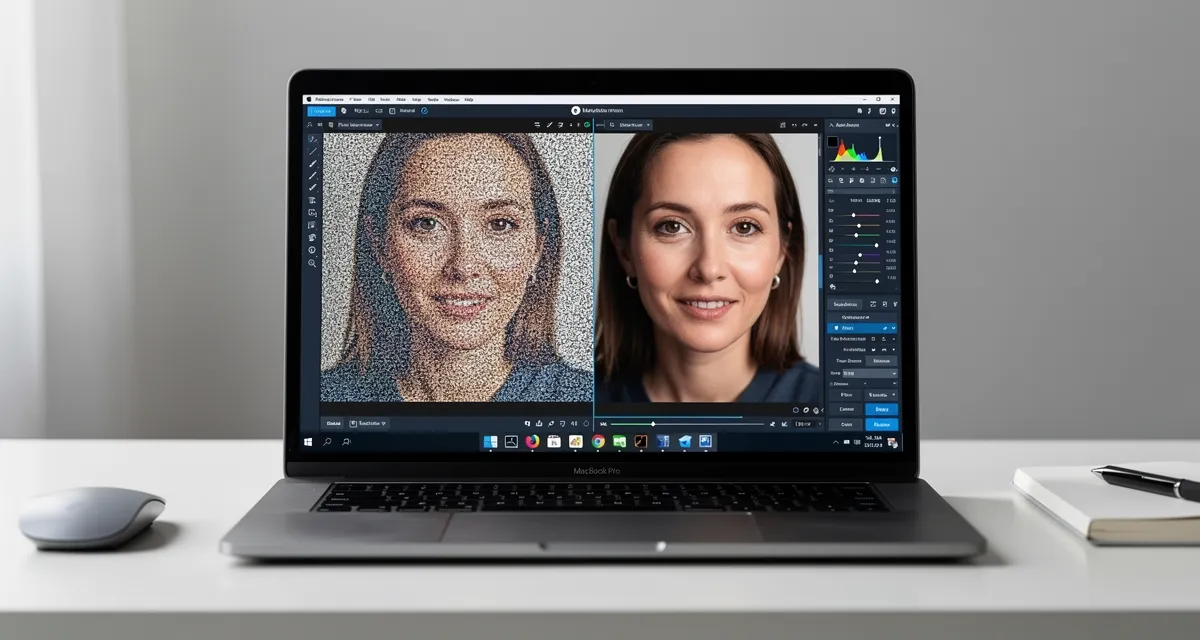
!Person using AI image upscaler on laptop to enhance Stable Diffusion artwork
Common Mistakes SD Artists Make When Upscaling
Upscaling a JPEG instead of PNG. Always export PNG from SD before upscaling. If you only have a JPEG, upscaling still works—but you'll fight compression artifacts.
Using too high a denoising strength in img2img upscaling. SD's img2img with high denoising changes your composition. Use 0.3–0.5 max, or skip it and use an external upscaler that doesn't touch composition at all.
Skipping upscaling for web-only use. Even for Instagram, a 2x upscaled image looks sharper on high-DPI (retina) screens. The file size increase is minimal; the visual difference is real.
Not checking the result at 100% zoom. Always inspect your upscaled image at full zoom before sending to print. AI upscalers are good, but source image quality matters.
Conclusion
Stable Diffusion generates incredible art—but at resolutions that need a boost for real-world use. Whether you're printing posters, selling prints on Etsy, creating merchandise, or just want your AI artwork looking sharp everywhere, AI upscaling closes the gap between what SD produces and what the world can see.
Start upscaling your Stable Diffusion images now—free, instant, no signup required. Upload your PNG and see the difference in seconds.
Frequently Asked Questions
Quick answers for this guide
How do I choose the right stable diffusion upscaler how to get print quality AI art []?+
Stable Diffusion images too small for print? Learn how to upscale SD and SDXL artwork to 4K+ resolution using free AI tools. Step-by-step guide with tips for best results. Compare tools by output sharpness, watermark policy, signup requirements, file limits, export quality, and whether the result holds up when inspected at 100%.
When should I use AI upscaling for this workflow?+
Use AI upscaling when the original image is too small for the target use case but still has enough detail to guide the model. For guides work, pay closest attention to source image quality, upscale settings, output dimensions, and final visual inspection, especially upscale, AI, tutorial.
How do I avoid losing quality after upscaling?+
Upscale once from the best original, avoid repeated compression, keep important text and edges sharp, and export in a format that matches the final use. If the output shows halos, smeared texture, or distorted text, reduce the upscale factor or use a cleaner source image.

Reviewed byJoao Furtado
AI Image Upscaling Specialist
Joao is the founder of MyImageUpscaler and an AI image upscaling specialist. He tests every guide against real upscaling workflows — comparing model outputs, evaluating sharpness and artifact tradeoffs, and validating tool recommendations before publication.
- AI image upscaling
- Model comparison
- Photo restoration
- E-commerce image prep
![Upscale Image Online Free — No Sign Up, No Watermarks [2026]](https://xqysaylskffsfwunczbd.supabase.co/storage/v1/object/public/blog-images/2026/02/1771797822106-featured-online-upscaler.webp)