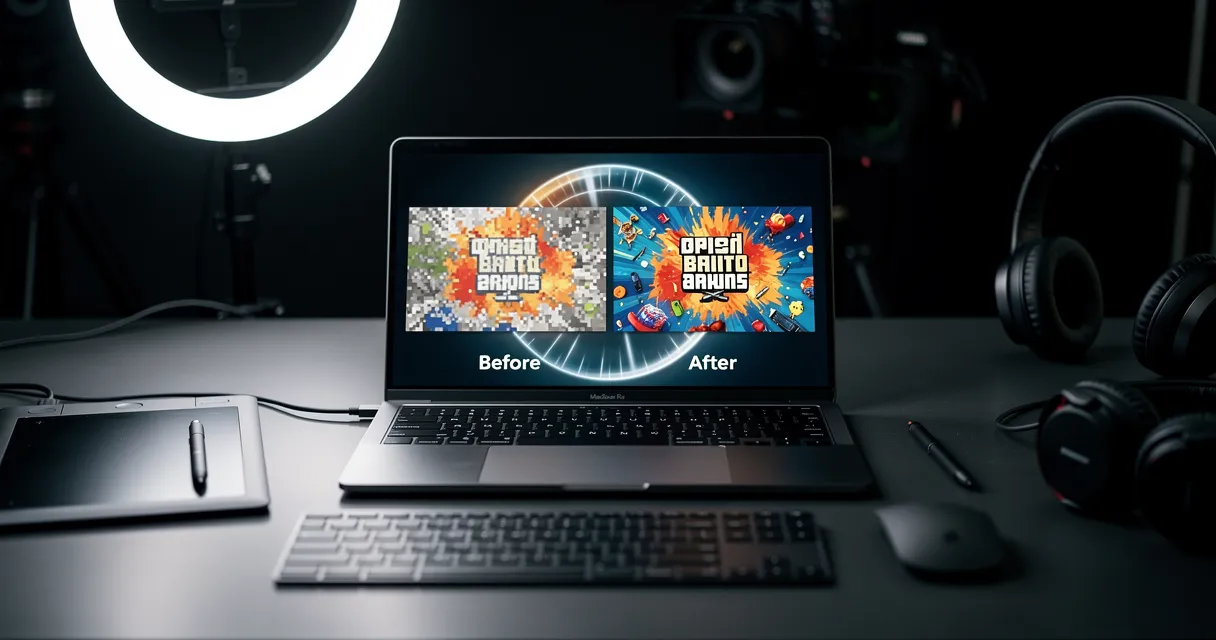
![Free AI Photo Enhancer Online [2026] - No Watermark](https://xqysaylskffsfwunczbd.supabase.co/storage/v1/object/public/blog-images/2026/04/1777143132700-enhancer-featured-new.webp)
Best Free AI Photo Enhancer Online [2026] — No Signup
Quick answer: A good free AI photo enhancer should improve blurry faces, noise, low resolution, and dull color without forcing a watermark. Start with one browser test, compare the enhanced file at 100% zoom, and use the smallest enhancement that makes the photo look natural.
The best free AI photo enhancers can turn a blurry, dull, or low-resolution photo into something you'd be happy to print or share — in seconds. I compared the top options so you can skip the ones that waste your time.
These tools are different from simple filters. They use neural networks trained on millions of images to reconstruct detail, reduce noise, and sharpen edges in ways that manual editing cannot replicate.
What Separates a Good AI Photo Enhancer From a Bad One?
Most tools claim to "enhance" photos. Here is what actually matters:
- Does it add real detail, or just sharpen edges? True AI enhancement reconstructs missing information. Sharpening filters just increase contrast at edges.
- Does it introduce artifacts? Bad AI tools create plastic-looking skin, halos around edges, or color shifts.
- Is the free tier actually useful? Some tools let you enhance but watermark or downscale the output — useless for real use.
- No signup required to test? You should be able to try before committing.

Try It Yourself
Upload your image and see the AI enhancement in action. Start with 5 free credits.
Enhancer vs Upscaler vs Sharpener
These terms overlap, but they do not mean the same thing. Matching the tool to the job keeps the page from drifting into generic upscaling advice.
| Need | Use | What Changes |
|---|---|---|
| Photo looks dull, noisy, or soft | AI photo enhancer | Detail, noise, color, and clarity improve together |
| Image is too small for print or web | AI image upscaler | Pixel dimensions increase 2x, 4x, or 8x |
| Edges are slightly soft but size is fine | Image sharpener | Edge contrast increases without changing dimensions |
| Old scanned photo has fading or damage | Photo restoration | Scratches, color fade, and low resolution are repaired |
For enhancement-specific jobs, go straight to the AI photo enhancer. Use the upscaler only when the file is also too small.
Before/After Results to Check
A useful free enhancer should prove itself on more than one pretty sample. Test it against these four cases before trusting it with a real project:
| Test Image | Good Result | Red Flag |
|---|---|---|
| Blurry face | Eyes and hair recover without waxy skin | Plastic skin or changed facial features |
| Old scanned print | Grain drops, color improves, texture stays natural | Over-smoothed paper texture |
| Product photo | Edges, labels, and fabric detail sharpen | Halos around product edges |
| Low-light phone shot | Noise drops without crushing shadows | Muddy blacks or color shift |
The Best Free AI Photo Enhancers (Tested)
1. MyImageUpscaler — Best Overall
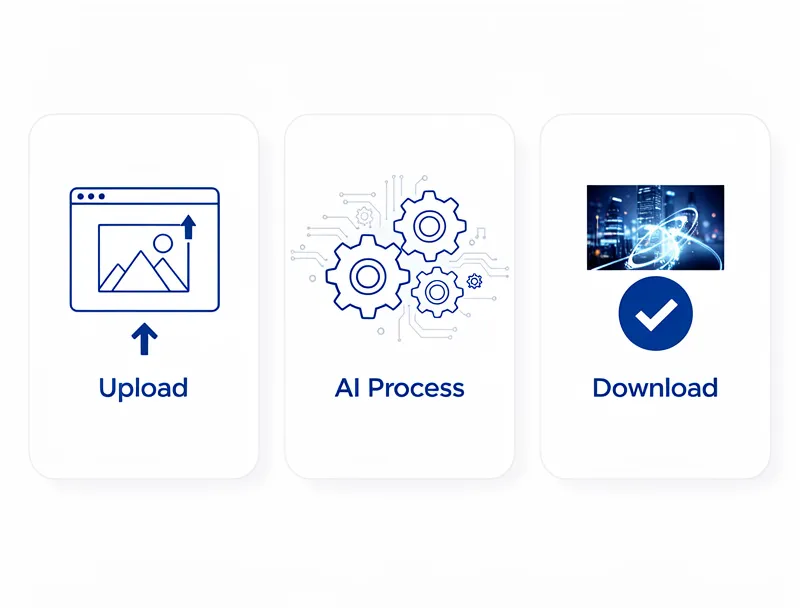
MyImageUpscaler's AI photo enhancer runs your image through a neural network that simultaneously upscales resolution, removes noise, and sharpens detail. Unlike tools that do these as separate steps, the AI handles everything in one pass — which avoids the quality loss that accumulates when chaining filters.
Free access: No account needed to preview results. Sign up and get 10 free credits — no credit card required.
Best for: General photos, product images, portraits, landscapes, old photos.
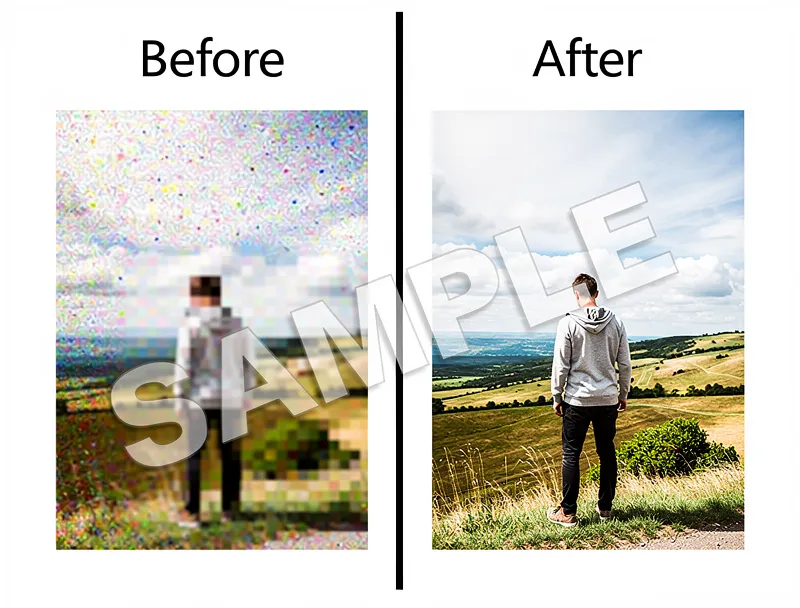
Results: Genuine detail recovery, not just sharpening. Skin texture, fabric, and fine background detail all improve without the plastic look common in competitor tools.
2. Remini — Best for Faces
Remini is the go-to tool specifically for portrait enhancement. It is trained heavily on human faces and does an exceptional job reconstructing facial features from very blurry or low-resolution originals.
Free tier: 5 free enhancements per day. Watermark on output. No web version — mobile app only.
Best for: Old portrait photos, family photos where faces are the subject, dating app photos.
Limitation: The free tier watermarks everything and you are limited to 5 photos per day. Not useful for product photos, landscapes, or anything non-portrait.
3. Canva AI Enhance — Good for Light Fixes
Canva's built-in AI enhance runs a single-click improvement on brightness, contrast, clarity, and noise. It is more polished than a manual edit and works well for social media photos that just need a quick lift.
Free tier: Included in Canva free plan.
Best for: Social media content, casual photos that need a quick improvement, existing Canva users.
Limitation: It is a smart filter, not a true reconstruction tool. It cannot recover detail from genuinely low-resolution images.
4. Fotor AI Enhancer — Decent Quality, Aggressive Upsell
Fotor has solid AI enhancement quality but the free tier severely restricts what you can actually do with the result. You can see the enhancement but saving at full resolution requires a Pro subscription.
Free tier: Preview enhancement but export at reduced resolution only.
Best for: Checking if enhancement is worth it before deciding to pay for a service.
The Detail Recovery Test
I tested all four tools on the same set of photos:
- A blurry 800×600 JPEG taken in low light
- A faded scan of an old 35mm print
- A 72 DPI product photo needed at print resolution
- A portrait taken on an older phone camera
MyImageUpscaler recovered the most detail across all four categories, particularly on the product photo and the scanned print. Remini beat it specifically on the portrait. Canva and Fotor performed well on the already-decent phone shot but struggled with the genuinely low-resolution inputs.
When to Use Free vs. Paid Enhancement
The free tiers above cover most personal use cases. Upgrade when:
- You need to process more than 10 photos in a batch
- Your project requires watermark-free exports at print resolution
- You need API access for automated workflows
For one-off personal photos — old prints, travel shots, product photography for a small shop — the free AI photo enhancer is more than enough.
See the Difference
Experience crystal-clear upscaling that preserves text, logos, and fine details.
Frequently Asked Questions
What is the best free AI photo enhancer with no watermark? MyImageUpscaler delivers enhanced results without a watermark on your trial runs. No credit card needed to get started.
Can AI photo enhancement fix blurry photos? Yes — AI enhancement can recover a significant amount of detail from motion blur and out-of-focus shots. It cannot fully recover from extreme blur but produces noticeably better results than manual sharpening.
Is there an AI photo enhancer that works without signup? MyImageUpscaler lets you preview enhancement results without creating an account. Sign up for free credits to download the full-resolution output.
How is AI photo enhancement different from just sharpening? Standard sharpening increases contrast at edges. AI enhancement analyzes the image content and reconstructs plausible detail based on patterns learned from millions of photos — the result is genuine texture and detail recovery, not just an edge-contrast boost.
Does AI enhancement work on old photos? Yes, particularly well. Older photos often have noise, low resolution, and color fading — all of which AI enhancement addresses in one pass.
Conclusion
For free AI photo enhancement, MyImageUpscaler gives you genuine detail recovery without watermarks on your trial. Remini is the better choice if your photos are primarily portraits.
Enhance your photos with the AI photo enhancer — free to try, no account required for preview.
Frequently Asked Questions
Quick answers for this guide
What should I know about free AI photo enhancer online [] with no watermark?+
Enhance blurry, dull, or low-resolution photos online with free AI tools. Compare no-signup and no-watermark options for sharpening, denoise, and restoration. Start with the highest-quality source file available, choose the smallest upscale factor that meets your target size, and inspect the result at 100% before publishing or printing.
When should I use AI upscaling for this workflow?+
Use AI upscaling when the original image is too small for the target use case but still has enough detail to guide the model. For comparisons work, pay closest attention to source image quality, upscale settings, output dimensions, and final visual inspection, especially photo enhancer, AI, free.
How do I avoid losing quality after upscaling?+
Upscale once from the best original, avoid repeated compression, keep important text and edges sharp, and export in a format that matches the final use. If the output shows halos, smeared texture, or distorted text, reduce the upscale factor or use a cleaner source image.

Reviewed byJoao Furtado
AI Image Upscaling Specialist
Joao is the founder of MyImageUpscaler and an AI image upscaling specialist. He tests every guide against real upscaling workflows — comparing model outputs, evaluating sharpness and artifact tradeoffs, and validating tool recommendations before publication.
- AI image upscaling
- Model comparison
- Photo restoration
- E-commerce image prep