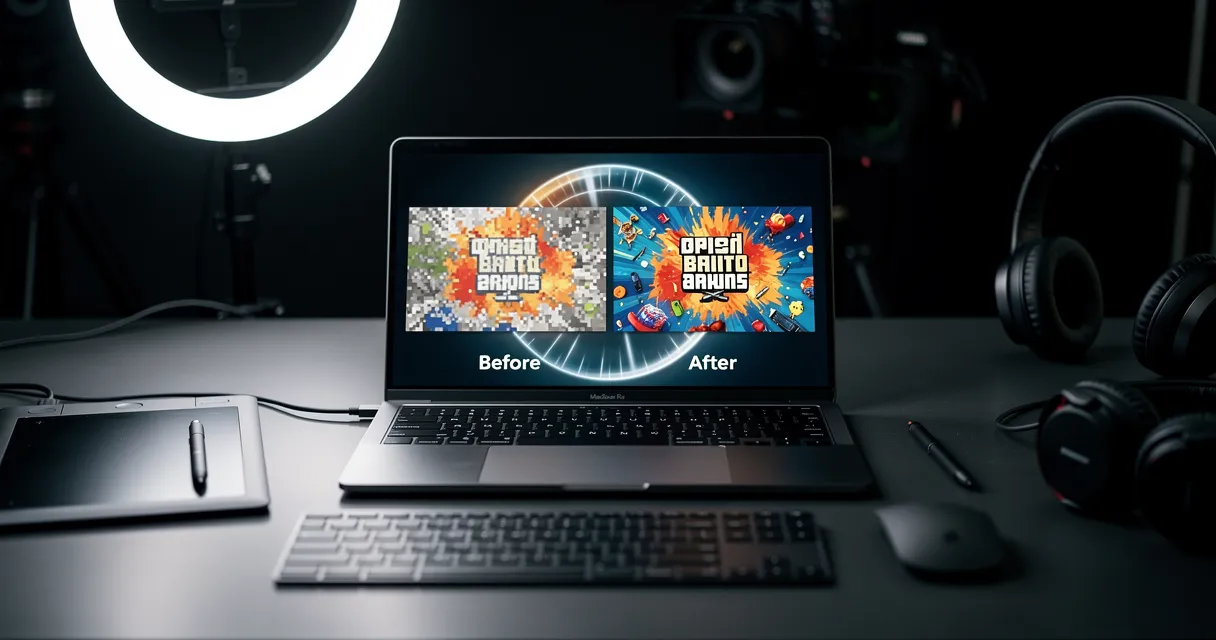
If you have old, damaged, or faded photos, finding the best photo restoration software depends on your specific goals, technical skill, and budget. For most users who want excellent results without a steep learning curve, a web-based AI tool is the most efficient choice. For professionals who require absolute, pixel-by-pixel control, traditional desktop software like Adobe Photoshop remains the standard, provided you have the necessary expertise.
Deciding Between Web-Based AI and Desktop Software
The first step in restoring your photos is to understand the two main options: automated AI platforms that you use in your web browser, and manual editing software that you install on your computer. Your decision involves a trade-off between speed and convenience versus total control and complexity.

Web-based tools like MyImageUpscaler are designed for efficiency. They operate entirely in your browser, which means no installation is required, and they use powerful cloud servers for processing. This gives you instant access to AI models that can automatically repair scratches, restore faded colors, and sharpen faces in seconds—tasks that could take a skilled professional hours to complete by hand.
On the other hand, desktop software like Photoshop provides an extensive toolkit for detailed, manual editing. It gives you complete authority over every aspect of the photograph, which is essential for professional archivists or photographers working with uniquely or severely damaged images. That power, however, comes with a significant learning curve and a time-intensive workflow.
Comparison of Photo Restoration Approaches
To help you decide which path is right for you, this table outlines the key differences between these two approaches.
| Attribute | Web-Based AI (e.g., MyImageUpscaler) | Desktop Software (e.g., Adobe Photoshop) |
|---|---|---|
| Ease of Use | Simple; fully automated with one-click results. | Difficult; requires deep technical knowledge and practice. |
| Speed | Extremely fast; results are typically ready in seconds or minutes. | Very slow; manual restoration can take hours for a single photo. |
| Installation | None; all processing happens in your web browser. | Required; you must install and maintain the software on your computer. |
| Control Level | Low; you rely on the AI to make the correct adjustments automatically. | Total; you have complete manual control over every pixel and edit. |
| Best For | Beginners, families, and anyone needing fast, high-quality results. | Professionals, archivists, and complex, high-stakes projects. |
If your goal is to quickly fix a collection of old family photos and achieve impressive results without technical hassle, a web-based AI tool is the clear choice. If you are a professional who must perform complex, artistic repairs, then the manual control of desktop software is necessary.
A common workflow combines both: you can use an AI tool to handle 80% of the restoration—fixing scratches, fading, and general enhancements—and then, only if needed, import the image into a manual editor for final minor adjustments.
MyImageUpscaler allows you to test this process easily. When you sign up for free, you receive 10 free credits to use on your own photos. This lets you see what the AI can accomplish before you commit to a specific tool.
How Modern Photo Restoration Technology Works
To choose the right photo restoration software, it helps to understand the technology behind it. Previously, fixing an old photo required hours of meticulous manual work in Photoshop. Today, modern tools use Artificial Intelligence (AI) to analyze and reconstruct damaged images automatically. These AI models are trained on millions of photos, learning what a "clean" and "undamaged" image should look like.

This AI-first approach is what enables web-based tools like MyImageUpscaler to provide powerful restoration features directly in your browser, with no installation needed. All the demanding computation happens on powerful cloud servers, giving you access to state-of-the-art technology from any device.
Generative Adversarial Networks (GANs): Filling in Gaps
One of the core technologies is the Generative Adversarial Network (GAN). You can think of this as a two-part system where two AIs work in opposition to improve the final result.
- The Generator: This AI's job is to create new image data. When it encounters a crack, tear, or scratch, it "paints" in what it predicts should be there, generating new, realistic details.
- The Discriminator: This AI acts as a quality inspector. It compares the Generator's created patches to a vast library of real, undamaged photos and tries to identify the "fake" or repaired sections.
This continuous feedback loop forces the Generator to become increasingly better at creating believable textures, patterns, and details. The result is a restored photo where repaired areas blend seamlessly with the original image.
Diffusion Models: Removing Imperfections
Another powerful AI technique is the Diffusion Model. This process works by first training an AI to systematically destroy a clean image by adding layers of digital "noise" until the original is unrecognizable.
By learning this degradation process, the AI then masters how to reverse it. When you upload a faded, grainy, or scratched photo, the diffusion model treats those imperfections as another layer of noise to be removed, carefully rebuilding the clean, underlying image. Diffusion models are highly effective at fixing widespread issues like film grain and color fading, producing clean and natural-looking results without destroying the fine details that give an old photo its character.
Super-Resolution: Enhancing Detail
Finally, Super-Resolution is an AI technique used to increase an image's size and clarity without the blurriness of traditional resizing methods. Instead of simply stretching pixels, Super-Resolution models analyze the image and intelligently generate new, context-aware pixels to add genuine detail.
| Method | How It Works | Common Outcome |
|---|---|---|
| Traditional Scaling | Duplicates existing pixels to make the image larger. | Creates a blurry, pixelated, or "blocky" result. |
| AI Super-Resolution | Generates new pixels based on learned visual patterns. | Creates a sharp, detailed image at a higher resolution. |
This technology is crucial for turning a small, old scanned photo into a high-quality print or a digital file that looks sharp on modern high-resolution displays. To see how these features work together, you can read our guide on AI old photo restoration and upscaling technology.
Restoration also involves addressing issues like glare and reflections, particularly in photos stored behind glass. Advanced software often includes features to fix this, and you can also learn how to remove reflections in Photoshop using AI-assisted principles for a final polish.
A Head-to-Head Comparison of Restoration Tools
The best photo restoration tool for you depends entirely on what you need to accomplish. The choice is a trade-off: do you need a fast, automated solution for many photos, or do you require surgical precision for a single, precious image? Comparing a web-based AI tool against comprehensive software like Adobe Photoshop helps clarify this trade-off.

AI has fundamentally changed the market. AI-driven enhancement is no longer a niche feature but a core component of modern editing. According to market analysis, the AI photo editing software space, valued at USD 1,040.0 million in 2025, is projected to grow to USD 2,229.3 million by 2033. This growth highlights the rapid adoption of smarter, faster tools. You can find more details in the full research on the AI creative software market.
Automated AI vs. Manual Control
The primary difference between modern restoration tools lies in their core philosophy: one-click AI automation versus a traditional, do-it-yourself digital darkroom.
MyImageUpscaler is a web-based tool that operates entirely in your browser. This means no installation is required, and you can use it on any computer. The process is designed for speed: you upload a photo, and the AI automatically begins fixing scratches, correcting color, and sharpening faces.
In contrast, Adobe Photoshop is the industry standard for manual control. Its power lies in a deep toolkit of layers, masks, and brushes, such as the Clone Stamp and Healing Brush. This gives a skilled user microscopic control to fix damage that an AI might misinterpret, but it requires a significant investment in time and training.
Detailed Feature Showdown of Restoration Software
This table compares key features for photo restoration across different types of tools, highlighting their strengths and limitations.
| Feature | MyImageUpscaler | Adobe Photoshop | Other AI Tool |
|---|---|---|---|
| Ease of Use | Automated. Designed for one-click results with no learning curve. | Manual. Requires extensive technical knowledge and skill. | Varies. Often automated, but may offer fewer specific controls. |
| Speed | Extremely Fast. Processes most images in under a minute. | Extremely Slow. Can take hours to restore a single photo by hand. | Fast. Usually processes in seconds or minutes. |
| Scratch Removal | AI-Powered. Automatically detects and fills in cracks and scratches. | Manual Tools. Uses Healing Brush and Clone Stamp for precise, manual repair. | AI-Powered. Effectiveness varies; some tools struggle with complex patterns. |
| Facial Enhancement | Dedicated AI Model. Automatically reconstructs facial details with high accuracy. | Manual Retouching. Requires expert-level skill with frequency separation and dodging/burning. | Generic Models. May improve clarity but often lack specialized facial reconstruction. |
| Color Correction | Automated. AI corrects color fade and can colorize B&W photos. | Manual Adjustments. Uses Curves, Levels, and Color Balance for total control. | Automated. Quality depends on the model's training data. |
| Batch Processing | Built-in. Designed to process hundreds of photos with consistent settings. | Complex Actions. Possible but requires setting up custom scripts and actions. | Often a paid feature. Many free tools process images one by one. |
The right choice depends on the job. The one-click simplicity of AI is ideal for bulk work, while Photoshop's manual tools remain essential for high-stakes, detailed projects. If you are trying to quickly restore a large collection of old family photos with good, consistent results, an automated AI tool is your best option. If you are a professional archivist restoring a single, priceless photograph with unique damage, the manual control of Photoshop is non-negotiable.
Workflow and Use Case Analysis
Your ideal tool is one that fits your workflow. For someone running an e-commerce store or digitizing a large family archive, speed and consistency are paramount.
This is where a tool like MyImageUpscaler excels. You can upload an entire album of scanned photos and use its batch processing feature to apply the same restoration and upscaling settings across all images. This saves a significant amount of time and ensures a uniform look for your entire collection. You can test it with the 10 free credits you get when you sign up.
The Photoshop workflow is entirely different. Each photo is a separate manual project. You would open an image, create adjustment layers, meticulously paint out scratches with a stylus, and balance colors by hand. While this offers total control, it is not a practical method for restoring dozens or hundreds of photos. If you want to see how other AI tools compare, you can review our guide to the best AI upscalers available today.
Evaluating Output Quality
Ultimately, the quality of the final result is what matters most. For many common restoration tasks, a modern AI can deliver results that are as good as, or even better than, what an average user could achieve manually.
- For Moderate Damage: When you are dealing with typical scratches, dust, and faded colors, AI restoration tools are highly effective. They are trained on millions of damaged photos and are programmed to fix these common issues.
- For Facial Details: This is where specialized AI models have a distinct advantage. Rebuilding a face from a blurry, faded old photo is extremely difficult to do by hand. An AI trained specifically on faces can often produce more natural and realistic results than a non-expert retoucher.
- For Severe or Unusual Damage: In cases of extreme damage—such as a photo torn in half where a key part of the subject is missing—Photoshop still provides an edge. An AI may struggle to "invent" large missing areas realistically, whereas a skilled artist can use other photos as a reference to reconstruct the section manually.
Often, the most efficient workflow combines both approaches. A professional might use an AI tool to perform 80% of the restoration in minutes, then import the enhanced photo into Photoshop for the final 20% of fine-tuning. This hybrid method gives you the speed of automation plus the precision of manual control.
How to Restore an Old Photo in 5 Steps
Using an AI-powered tool like MyImageUpscaler makes photo restoration a fast and simple process. You can achieve excellent results in minutes, directly from your web browser, with no software to install.
This guide will walk you through the entire process, from uploading a faded scan to downloading a vibrant, restored image.
1. Create Your Account and Get Free Credits
First, you need to create an account. The process is quick, and it allows you to try the tool without any commitment.
Go to the MyImageUpscaler sign-up page. After creating your account, you will automatically receive 10 free credits. This is enough to restore several photos, so you can evaluate how it works on your own images before considering a paid plan.
2. Upload Your Scanned Photo
Once your account is ready, upload the image you want to fix. For the best possible outcome, always start with a high-quality scan of your original photograph.
Drag and drop your file onto the dashboard or click the "Upload Image" button. MyImageUpscaler supports common formats like JPG, PNG, and WebP, and it is designed to handle large files, so you do not need to worry about the size of your high-resolution scan. The upload process is fast and secure.
To learn more about preparing your images for restoration, you can read our guide on how to restore photos, which covers scanning best practices.
3. Select the Right AI Model and Settings
This is the step where you instruct the AI. MyImageUpscaler provides clear, restoration-focused options to simplify the process.
You will see several key settings:
- AI Model: For old photos, you should select the "Photo Restoration" model. If the image is a portrait, also enable "Face Enhance" for a more accurate facial reconstruction.
- Upscaling Factor: This determines the final resolution of your image. You can upscale your photo by 2x, 4x, or up to 8x. A 4x upscale is a good starting point for turning a small, old photo into something sharp enough for modern screens or for printing.
These settings give you control over the final image without overwhelming you with complex technical sliders.
4. Start the Restoration Process
With your settings selected, click the "Start Processing" button. This sends your image and instructions to the platform's cloud servers.
The AI immediately begins analyzing the photo for common issues:
- Scratches, dust, and tears
- Faded or discolored areas
- Film grain and digital noise
- Blurry or indistinct facial features
The entire process is automated and typically takes less than a minute. You can monitor the progress as the AI repairs and enhances your image based on your chosen settings.
5. Preview and Download Your Restored Photo
Once processing is complete, you will see a before-and-after comparison in your browser. A slider allows you to swipe between the original and restored versions, giving you a clear view of the improvements—scratches removed, colors revived, and details sharpened.
If you are satisfied with the result, click the "Download" button. Your newly restored, high-resolution photo will be saved directly to your device, ready to be shared, printed, or archived.
Choosing the Right Tool for Your Specific Use Case
The "best" photo restoration software is not a one-size-fits-all solution. It depends on what you need to fix, how many photos you have, and how much time you are willing to spend. The right tool is the one that aligns with your specific goal.
The demand for high-quality images is growing. The global image editing software market growth on businessresearchinsights.com is significant, reflecting the need for clear visuals across personal and professional domains.
For Families Preserving Heritage Photos
If you have a collection of old family photos, your goal is to fix faded colors, remove scratches, and, most importantly, bring the faces of loved ones back into focus. You want quality results without needing to learn complex editing software.
For this purpose, a web-based AI tool is your best choice. Here’s why:
- Automated Face Restoration: Modern AI is excellent at identifying and reconstructing faces, a task that is difficult and time-consuming to do manually.
- Zero Learning Curve: You do not need to understand layers or healing brushes. The process is typically "upload and click."
- No Installation Needed: Tools like MyImageUpscaler are web-based. You can start restoring photos on any computer immediately. To see for yourself, you can sign up and get 10 free credits.
For E-commerce Sellers and Marketers
As an e-commerce seller, your product photos are critical for sales. They must be clean, consistent, and high-quality to build customer trust. You may be dealing with old, low-resolution product shots or need to process hundreds of new images efficiently.
A tool with robust batch processing is essential. You need to apply a consistent look across your entire catalog, and editing photos one by one is not practical.
| Feature | Your Priority | How AI Helps |
|---|---|---|
| Batch Processing | Critical. Manually editing hundreds of photos is inefficient. | AI platforms can process entire folders of images with one click. |
| Consistent Quality | High. Uniform images project a professional brand identity. | AI applies the same enhancement logic to every photo for a consistent finish. |
| Speed | High. Faster processing gets products listed online sooner. | Cloud-based AI tools can enhance images in seconds, not hours. |
MyImageUpscaler is built for this workflow. The batch processing feature lets you upload and enhance an entire product line at once, ensuring every photo meets the same high standard. You can learn more about our tools for professionals.
For Professional Photographers and Archivists
As a professional, you require precision. While AI is fast, it may not be perfect for complex, artistic restorations where every pixel matters. For that level of detail, manual control is non-negotiable.
However, AI can still be a valuable part of a professional workflow. The most efficient approach is often a hybrid one:
- Use AI for the First Pass: Use an AI restoration tool to perform 80% of the work in minutes. Let it handle widespread scratches, general color fade, and upscaling the image to a higher resolution. This provides a much-improved base image to work from.
- Use Manual Tools for Fine-Tuning: After the AI has done its part, import the enhanced image into a program like Adobe Photoshop for the final 20%. This is where you apply your expertise—using layers, masks, and cloning—to fix unique damage or refine artistic details that the AI may have misinterpreted.
This hybrid workflow combines the speed of automation with the precision of manual editing, allowing you to achieve professional results in a fraction of the time. While MyImageUpscaler is a powerful first step, we are honest about its limitations: it does not offer the pixel-level control of Photoshop. Its strength is its speed and its powerful, automated models that give you an excellent start on any restoration project. You can review the different pricing plans available for both quick jobs and heavy professional workloads.
Frequently Asked Questions About Photo Restoration
When you research the best photo restoration software, several common questions arise. Here are answers to some of the most frequent queries to help you make an informed decision.
Can AI truly restore severely damaged photos?
AI can significantly improve severely damaged photos by fixing tears, correcting faded colors, and reconstructing faces. However, its effectiveness depends on the extent of the damage.
If a critical part of the image, such as an eye or a mouth, is completely missing, the AI must "guess" what should be there based on its training data. This may not be historically accurate. AI performs best when it has enough original information to analyze and rebuild from. It is important to have realistic expectations; AI can work wonders on moderate to significant damage, but it cannot always salvage a photo that is almost completely destroyed.
Is web-based software as good as desktop software?
For most common restoration tasks, yes. High-quality, web-based AI software can often deliver results that are as good as—or even better than—what a non-expert could achieve with complex desktop software.
This is because web-based tools run demanding AI models on powerful cloud servers, which are far more capable than a typical home computer. This gives you access to advanced technology with no installation required. While desktop programs like Adobe Photoshop offer granular control for seasoned professionals, web-based solutions provide superior speed and accessibility for most users.
How much does photo restoration typically cost?
The cost of photo restoration varies widely. Hiring a professional for manual retouching can cost anywhere from $50 to over $500 for a single photograph, depending on the complexity of the damage.
Desktop software like Adobe Photoshop typically requires a monthly subscription. In contrast, many web-based AI tools use a flexible, credit-based system. MyImageUpscaler is a web-based tool that gives you 10 free credits when you sign up, allowing you to see the results before you pay. This pay-as-you-go model is often more cost-effective if you only have a specific batch of photos to restore.
What is the best way to digitize old photos?
To get the best possible results from any restoration software, you must start with a high-quality digital scan. The quality of your input directly affects the quality of your output.

The market for these tools is expanding rapidly. The global photo editing market trends on skyquestt.com show significant growth, underscoring how vital good editing tools have become.
Here is how you should prepare your physical photos to give the AI the best material to work with:
- Use a flatbed scanner: This is the best method for capturing a sharp, evenly lit image.
- Scan at a high resolution: Save your scans as uncompressed TIFF or PNG files at a minimum of 600 DPI (dots per inch). For very small photos, such as those from a wallet, increase the resolution to 1200 DPI.
- Do not use your phone's camera: Taking a picture of a picture introduces glare, distortion, and poor lighting. These issues will compromise the final restoration quality. A clean, high-resolution scan provides the raw data an AI needs to perform its best work.

Reviewed byJoao Furtado
AI Image Upscaling Specialist
Joao is the founder of MyImageUpscaler and an AI image upscaling specialist. He tests every guide against real upscaling workflows — comparing model outputs, evaluating sharpness and artifact tradeoffs, and validating tool recommendations before publication.
- AI image upscaling
- Model comparison
- Photo restoration
- E-commerce image prep