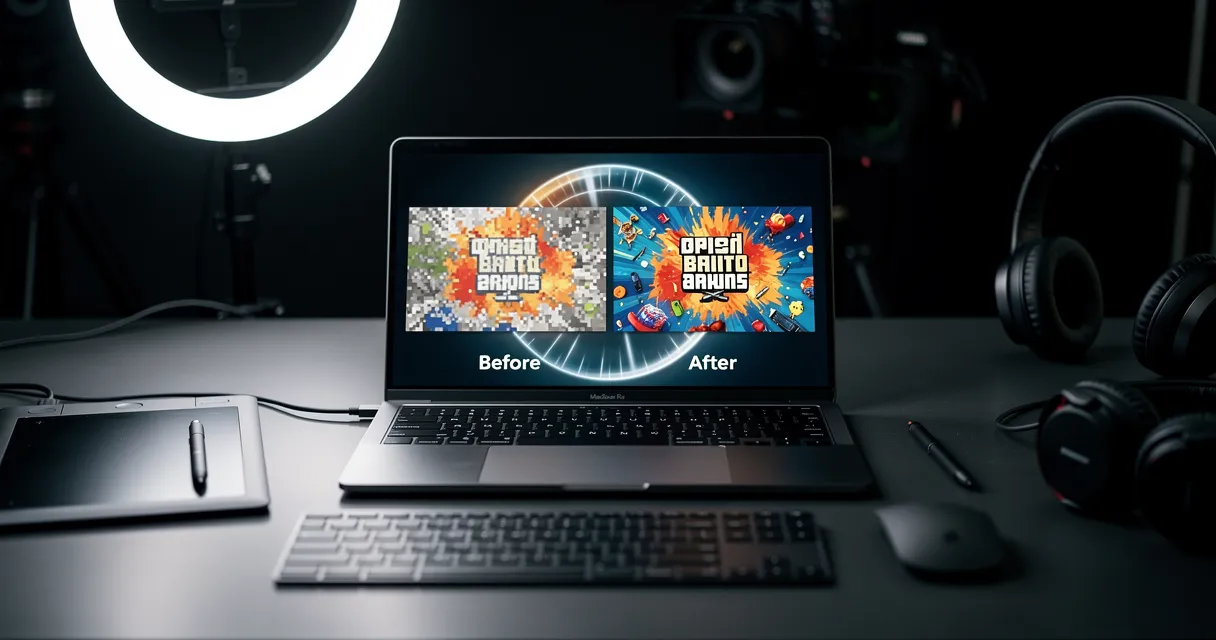
DALL-E 3 Image Enhancement: From Generation to Print
You've just generated a stunning image with DALL-E 3 in ChatGPT. It's perfect for your project—except for one problem: it's only 1024×1024 pixels. For web use, that's fine. But for printing, large format displays, or professional work, you need more resolution. The AI photo enhancer tool is purpose-built for this scenario, and if you're deciding between DALL-E and other generators the tool alternatives hub covers the main options side by side.
DALL-E 3's 1024×1024 output is a hard limit imposed by OpenAI. But with AI upscaling, you can enhance DALL-E images to 4K, 8K, and beyond while maintaining or even improving quality.
This guide shows you exactly how to upscale DALL-E 3 images for any use case—from social media to large format prints.
Understanding DALL-E 3's Resolution Limitations
DALL-E 3 has a fixed output resolution of 1024×1024 pixels (approximately 1 megapixel). This is a significant limitation for:
- Print: At 300 DPI, 1024px = only 3.4 inches (too small for most prints)
- Large displays: Looks pixelated on 4K monitors or TVs
- Professional work: Insufficient for magazines, banners, or posters
- Cropping: Any crop reduces quality below usable levels
Why the Limit Exists
OpenAI caps resolution for several reasons:
- Processing speed: Higher resolution requires exponentially more compute
- Quality control: Maintaining consistency at larger sizes is challenging
- Cost: Server costs scale with resolution
- Copyright: Limits exact reproduction of copyrighted works

Try It Yourself
Upload your image and see the AI enhancement in action. Start with 10 free credits.
When Do You Need to Upscale DALL-E Images?
Web and Digital Use
| Use Case | Required Resolution | Is DALL-E 3 Sufficient? |
|---|---|---|
| Social media posts | 1080×1080 | Yes, slightly small |
| Website headers | 1920×1080 | No, needs upscaling |
| Online portfolios | 1920×1280 | No, needs upscaling |
| Digital displays | 3840×2160 (4K) | Definitely needs upscaling |
Print Use Cases
| Print Size | At 300 DPI | At 150 DPI | Upscale Needed? |
|---|---|---|---|
| 4×6 inches | 1200×1800 | 600×900 | Yes (2-4x) |
| 8×10 inches | 2400×3000 | 1200×1500 | Yes (4x) |
| 11×14 inches | 3300×4200 | 1650×2100 | Yes (4x) |
| 16×20 inches | 4800×6000 | 2400×3000 | Yes (4-6x) |
| 24×36 inches | 7200×10800 | 3600×5400 | Yes (6-8x) |
Step-by-Step: Enhancing DALL-E 3 Images
Step 1: Generate Your Image in DALL-E 3
- Open ChatGPT Plus with DALL-E 3 access
- Write your prompt carefully—better input = better output
- Generate variations until satisfied
- Download at highest quality: Use the download button, don't screenshot
Step 2: Prepare for Upscaling
- Check the downloaded file: Should be exactly 1024×1024 pixels
- File format: PNG is preferred (lossless), JPEG is acceptable
- Note the content type: Is it photo-realistic, illustration, text-heavy?
- Determine target size: What's your final output size?
Step 3: Choose Your Upscale Factor
| Target Use | Recommended Upscale | Output Size | Quality |
|---|---|---|---|
| Web/Instagram | 2x | 2048×2048 | Excellent |
| Standard print (8×10) | 4x | 4096×4096 | Very Good |
| Large print (16×20) | 4x | 4096×4096 | Good |
| Very large print (24×36) | 6x+ | 6144×6144 | Acceptable |
Step 4: Upload to AI Upscaler
- Go to myimageupscaler.com
- Upload your DALL-E 3 image
- Select your upscale factor (2x, 4x, or custom)
- Click "Enhance"
- Wait 30-60 seconds for processing
- Download your enhanced image
Step 5: Verify and Adjust
- Zoom to 100% and check for:
- Natural-looking details
- No artifacts or halos
- Text remains readable (if applicable)
- Faces look natural (not plastic)
- Make adjustments if needed:
- Slight sharpening in photo editor
- Color correction
- Noise reduction if any appeared
DALL-E 3 Specific Enhancement Techniques
Illustration and Art Style Images
DALL-E excels at artistic styles—paintings, illustrations, digital art. These often upscale better than photo-realistic images because:
- Bold edges: Clean lines enhance well
- Deliberate brushstrokes: AI can continue patterns naturally
- No noise: Digital art is clean, no sensor noise to amplify
Recommended settings: 4x upscale, no additional sharpening needed
Photo-Realistic Images
Photo-realistic DALL-E generations need more care:
| Characteristic | Challenge | Solution |
|---|---|---|
| Skin textures | May look plastic | Use 2x or moderate 4x |
| Fine details | Hair, fabric | Check at 100% zoom |
| Faces | Can become unnatural | Avoid 6x+ for portraits |
Recommended settings: 2x for portraits, 4x for scenes
Text-Heavy Images
If your DALL-E generation includes text (signs, labels, book covers):
Critical: Use MyImageUpscaler, which is specifically trained to preserve text and logos.
Why it matters: Most upscalers blur or distort text. MyImageUpscaler maintains readability even at 4x upscale.
See the Difference
Experience crystal-clear upscaling that preserves text, logos, and fine details.
Architectural and Product Images
Clean lines and geometric shapes upscale very well:
- Buildings: Sharp edges maintain well
- Products: Good for e-commerce mockups
- Interiors: Furniture details remain crisp
Recommended settings: 4x upscale, excellent results expected
Common DALL-E Upscaling Challenges
Challenge 1: Fine Text and Labels
Problem: Text becomes unreadable after upscaling with most tools
Solution:
- Use MyImageUpscaler (text-preserving)
- Generate text at larger size in prompt if possible
- Consider adding text in post-production instead
Challenge 2: Repeating Patterns
Problem: DALL-E sometimes creates repetitive patterns that look unnatural when upscaled
Solution:
- Regenerate with variation prompts
- Use lower upscale factor (2x instead of 4x)
- Manual retouching in extreme cases
Challenge 3: Faces in Large Groups
Problem: Group scenes with many small faces may develop inconsistent features
Solution:
- Limit upscale to 2x for group scenes
- Review all faces at 100% zoom
- Accept that some background faces may be less perfect
Challenge 4: glossy/Wet Surfaces
Problem: Water, glass, and shiny surfaces can develop odd artifacts
Solution:
- Check these areas carefully at 100%
- Use minimal sharpening
- Manual retouching if needed
Comparison: DALL-E 3 vs. Other AI Image Generators
| Generator | Max Resolution | Upscale Difficulty | Best For |
|---|---|---|---|
| DALL-E 3 | 1024×1024 | Easy—clean output | General use, illustrations |
| Midjourney v6 | 2048×2048+ | Moderate—more detail | Fine art, styles |
| Stable Diffusion | Variable | Hard—often noisy | Custom models, control |
| Adobe Firefly | 2048×2048 | Easy—commercial safe | Professional work |
Print Preparation Workflow
For Standard Photo Prints (Up to 11×14)
- Generate in DALL-E 3 at 1024×1024
- Upscale 4x to 4096×4096
- Convert to 300 DPI in photo software
- Crop to desired aspect ratio
- Sharpen slightly (USM: 50%, 1.5px radius)
- Save as TIFF or high-quality JPEG (95%+)
- Send to printer
For Large Format Prints (16×20 and above)
- Generate multiple variations in DALL-E 3
- Select the sharpest generation
- Upscale 4x or 6x depending on final size
- Review at 100% for problem areas
- Retouch if needed (faces, important details)
- Convert to appropriate DPI (150-300 DPI depending on viewing distance)
- Print proof at smaller size first
- Final print after proof approval
Alternative: Generate at Larger Size from Start
Some users work around DALL-E's resolution limit by:
- Generating in sections: Prompt for left half, right half, then stitch in Photoshop
- Outpainting: Use DALL-E's outpaint feature to expand beyond 1024×1024
- Variation merging: Generate 4 variations, combine best parts in post
Reality: These techniques work but require significant time and Photoshop skills. AI upscaling is faster and often produces comparable results.
Real Example: Upscaling DALL-E Art for Print
Let's walk through a real example:
Original DALL-E 3 generation: Sci-fi book cover art
- Size: 1024×1024 pixels
- Target: 11×14 inch print at 300 DPI
- Required output: 3300×4200 pixels
Process:
- Generated book cover in DALL-E 3 with detailed prompt
- Downloaded as PNG (lossless)
- Uploaded to MyImageUpscaler at 4x
- Received 4096×4096 enhanced image in 45 seconds
- Cropped to 3300×4200 in Photoshop
- Applied very subtle sharpening (30%, 1px)
- Saved as TIFF
- Sent to print service
Result: Crisp, professional-quality print with excellent detail preservation.
Best Practices for DALL-E Enhancement
Do's
- ✅ Generate at highest quality: Always download, never screenshot
- ✅ Use appropriate upscale factors: 2x for web, 4x for print
- ✅ Verify at 100% zoom: Check critical areas carefully
- ✅ Start with clean generations: Regenerate if source has issues
- ✅ Use text-preserving tools: MyImageUpscaler for images with text
- ✅ Test before large prints: Do a small proof print first
Don'ts
- ❌ Don't screenshot: Use the download button for best quality
- ❌ Don't over-upscale: 6x+ should be rare, 8x+ almost never
- ❌ Don't oversharpen: AI enhancement already adds sharpness
- ❌ Don't ignore artifacts: Check at 100% before printing
- ❌ Don't expect miracles: Extremely large prints will be soft up close
- ❌ Don't compress excessively: Use PNG or high-quality JPEG
Tool Recommendations
For Most Users: MyImageUpscaler
Best for: All-purpose DALL-E enhancement, especially text/images with logos
Advantages:
- Fast processing (30-60 seconds)
- Text preservation (unique feature)
- Web-based, no software
- 10 free credits to test
- Excellent quality on illustrations and photos
Get started: MyImageUpscaler free trial
For Professional Workflows: Topaz Gigapixel
Best for: Extreme upscaling (6x+), batch processing
Trade-offs: Expensive, slower, desktop application required
For Occasional Use: Free Options
Several free online upscalers exist, but be cautious:
- Quality varies widely
- May add watermarks
- File size limitations
- Privacy concerns with uploads
Frequently Asked Questions
Can I upscale DALL-E images without quality loss?
No upscaling is completely lossless, but modern AI upscalers come very close. At 2x and even 4x, quality degradation is minimal for most use cases. At 6x+, you may notice softness when viewing at 100%.
What's the maximum print size for DALL-E images?
With 4x upscaling, DALL-E images can print at 11×14 inches at 300 DPI with excellent results. For larger prints (16×20, 24×36), expect some softness when viewed up close, but they look fine at normal viewing distance.
Why does text become blurry when I upscale DALL-E images?
Most AI upscalers aren't trained to preserve text—they treat it like any other visual pattern. MyImageUpscaler is specifically optimized for text and logo preservation, making it the best choice for DALL-E images containing text.
Should I upscale before or after editing in Photoshop?
Upscale first, then edit. This gives you more pixels to work with for retouching, color adjustments, and compositing. The only exception: if you need to crop significantly, consider cropping before upscaling to maximize resolution in the final area.
Can I sell upscaled DALL-E prints?
Yes, with some caveats. DALL-E 3 users own the images they generate (with OpenAI's terms). Upscaled versions are your modifications. However, you can't use DALL-E to generate copyrighted characters or logos for commercial use.
How does DALL-E upscaling compare to Midjourney?
Midjourney v6 generates at higher resolution (2048×2048+), so it needs less upscaling. However, DALL-E 3's cleaner output often upscales better than Midjourney's more detailed but sometimes noisy images. Both respond well to AI upscaling.
Is it better to generate larger images in Stable Diffusion instead?
Stable Diffusion can generate at any resolution, but requires more technical skill and hardware. For most users, DALL-E 3 + AI upscaling is faster and easier than configuring Stable Diffusion for large-format generation.
Conclusion
DALL-E 3's 1024×1024 limit doesn't have to restrict your creative vision. With AI upscaling, you can transform DALL-E generations into print-ready artwork, large format displays, and professional-quality images.
For most users, MyImageUpscaler offers the best combination of quality, speed, and ease of use—especially for images containing text or logos. Our 4x enhancement delivers excellent results for prints up to 16×20 inches, with processing complete in under a minute.
Ready to Transform Your Images?
Start with 10 free credits. No credit card required. Cancel anytime.
View Pricing
Reviewed byJoao Furtado
AI Image Upscaling Specialist
Joao is the founder of MyImageUpscaler and an AI image upscaling specialist. He tests every guide against real upscaling workflows — comparing model outputs, evaluating sharpness and artifact tradeoffs, and validating tool recommendations before publication.
- AI image upscaling
- Model comparison
- Photo restoration
- E-commerce image prep