
![How to Upscale DALL-E Images: Fix Pixelation in AI Art [2026]](https://xqysaylskffsfwunczbd.supabase.co/storage/v1/object/public/blog-images/2026/03/1773263068421-dalle-featured.webp)
How to Upscale DALL-E Images Without Losing Quality
DALL-E 3 is one of the best AI image generators out there — but every image it creates tops out at 1024x1024 pixels. That is fine for a social post. Try to print it, crop it, or use it in a client presentation, and suddenly you are staring at soft edges and visible artifacts. A dedicated DALL-E upscaler fixes that in seconds.
This guide shows you exactly how to upscale DALL-E images to 2x, 4x, or even 8x their original resolution, what settings work best for different art styles, and the mistakes that ruin your output.
Why DALL-E Images Need Upscaling
DALL-E 3 generates images at a fixed 1024x1024 resolution (or 1024x1792 / 1792x1024 for non-square). That is roughly 1 megapixel.
For context:
- Social media posts need 1080x1080 minimum — barely covered
- Website hero images need 1920x1080+ — DALL-E falls short
- Print at 300 DPI needs 3000x3000+ for a 10x10 inch print — nowhere close
- Large format print (poster, canvas) needs 6000x6000+ — forget it
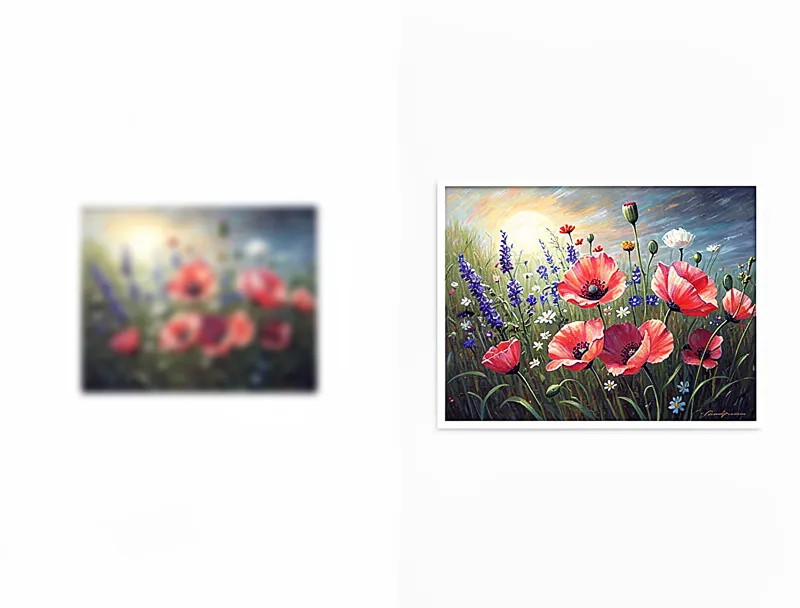
Standard resizing (bicubic, bilinear) just stretches existing pixels. You get blurry mush. AI upscaling is different — it analyzes the image and generates new detail that was not in the original.
Step-by-Step: Upscale DALL-E Art with AI
Here is the fastest way to take your DALL-E output from 1024px to print-ready resolution.
1. Download Your DALL-E Image
In ChatGPT, click the generated image and hit the download button. You will get a PNG file at the native resolution. Do not screenshot it — that loses quality before you even start.
If you used the DALL-E API, save the image from the URL response before it expires.
2. Upload to an AI Upscaler
Go to MyImageUpscaler and drag your DALL-E image onto the upload area. No account needed for your first images.
3. Choose Your Scale Factor
For DALL-E images, these scale factors work best:
| Starting Resolution | Scale | Output | Best For |
|---|---|---|---|
| 1024x1024 | 2x | 2048x2048 | Social media, web use |
| 1024x1024 | 4x | 4096x4096 | 4K resolution, presentations |
| 1024x1024 | 8x | 8192x8192 | Large prints, posters |
Our recommendation: 4x is the sweet spot for most uses. It gives you enough resolution for printing at 300 DPI up to about 13x13 inches without any visible quality loss.
4. Download and Use
The upscaled image downloads as a high-quality PNG. The whole process takes about 10 seconds per image.

Try It Yourself
Upload your image and see the AI enhancement in action. Start with 10 free credits.
Best Settings by DALL-E Art Style
Not all DALL-E images upscale equally. The style you prompted for matters.
Photorealistic Images
DALL-E 3 is remarkably good at photorealistic output. These upscale beautifully at 4x because AI upscalers are trained heavily on photographs. Skin textures, fabric details, and natural landscapes all gain convincing detail.
Tip: If your photorealistic DALL-E image looks slightly soft, run it through the AI photo enhancer first, then upscale. Enhancement sharpens existing detail; upscaling adds new pixels.
Digital Art and Illustrations
Flat color illustrations and vector-style art upscale cleanly at any scale. Hard edges stay sharp. Gradients stay smooth. You can safely go 8x on these.
Painterly and Textured Styles
Watercolor, oil painting, and impasto styles are trickier. The AI upscaler may over-sharpen intentional texture. Stick to 2x for these, and check the result before committing to a print order.
Anime and Manga
DALL-E generates decent anime-style art. For upscaling, anime-specific settings can preserve the flat shading and clean linework better than general-purpose upscaling.
DALL-E 2 vs DALL-E 3: Upscaling Differences
DALL-E 2 images are rougher. They have more visible artifacts, less coherent details, and weaker fine textures. Upscaling DALL-E 2 output:
- Start with 2x — going higher amplifies the original artifacts
- Consider running noise reduction first (the free tools include denoising)
- Expect softer results compared to DALL-E 3
DALL-E 3 images are cleaner to start with. The text rendering, fine details, and overall coherence are leagues ahead. You can confidently push 4x on nearly any DALL-E 3 output.
Common Mistakes to Avoid
1. Screenshotting instead of downloading. Screenshots compress and resize your image. Always use the download button.
2. Upscaling after heavy editing. If you edit in Photoshop first (cropping, filters, overlays), upscale the raw DALL-E output first, then edit. Upscaling post-edit amplifies compression artifacts from your editing software.
3. Using 8x on everything. Bigger is not always better. 8x on a DALL-E 2 image creates a large file full of hallucinated detail. Match your scale to your actual use case.
4. Ignoring file format. DALL-E exports as PNG. Keep it as PNG through the upscaling process. Converting to JPEG before upscaling throws away detail you cannot get back.
5. Forgetting about DPI. Resolution alone does not determine print quality. A 4096x4096 image at 72 DPI looks pixelated on a printer. Set your DPI to 300 before sending to print — here is how.
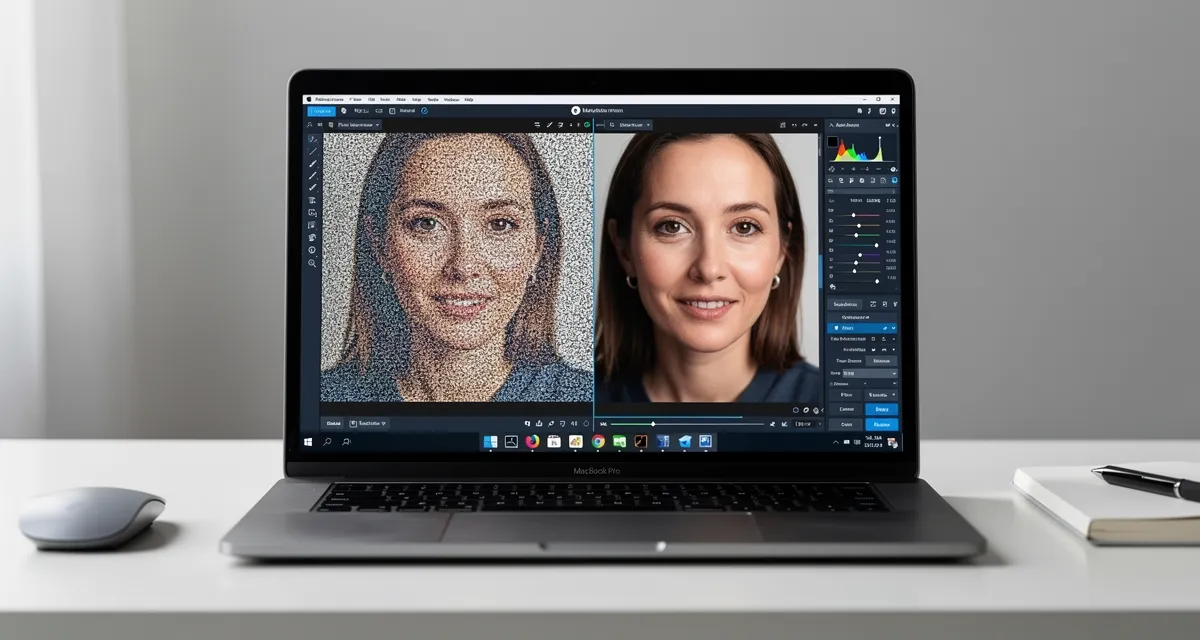
See the Difference
Experience crystal-clear upscaling that preserves text, logos, and fine details.
Conclusion
DALL-E creates stunning AI art, but the 1024px ceiling limits where you can use it. Upscaling with AI adds real detail — not just stretched pixels — so your art looks sharp at any size.
For most DALL-E images, 4x upscaling hits the ideal balance of quality and file size. Photorealistic and illustration styles upscale best; painterly styles need a lighter touch.
Upload your DALL-E image now — it takes 10 seconds, no account needed.
Frequently Asked Questions
What resolution does DALL-E 3 output?
DALL-E 3 generates images at 1024x1024, 1024x1792, or 1792x1024 pixels. These are the only options. There is no built-in way to generate higher resolution output directly from DALL-E.
Can I upscale DALL-E images for free?
Yes. MyImageUpscaler gives you 10 free credits on signup with no credit card required. Each upscale uses one credit. That is enough to upscale 10 DALL-E images at any scale factor.
What is the best scale factor for DALL-E art?
4x is the best all-around choice. It takes a 1024x1024 DALL-E image to 4096x4096 — enough for 4K displays and prints up to 13 inches at 300 DPI. Use 2x for quick web use or 8x for large format printing.
Does upscaling add detail or just stretch pixels?
AI upscaling generates new detail using neural networks trained on millions of images. It predicts what higher-resolution detail should look like based on the existing content. This is fundamentally different from traditional resizing which just copies existing pixels.
Will upscaling fix DALL-E artifacts like weird hands?
No. Upscaling enhances existing detail — it does not correct composition errors. If DALL-E gave you six fingers, upscaling gives you six high-resolution fingers. Fix artifacts in an image editor first, then upscale.
Can I upscale DALL-E images for commercial use?
The upscaling itself does not affect licensing. DALL-E 3 images generated through ChatGPT are yours to use commercially per OpenAI's terms. The upscaler simply increases resolution without changing ownership or rights.

Reviewed byJoao Furtado
AI Image Upscaling Specialist
Joao is the founder of MyImageUpscaler and an AI image upscaling specialist. He tests every guide against real upscaling workflows — comparing model outputs, evaluating sharpness and artifact tradeoffs, and validating tool recommendations before publication.
- AI image upscaling
- Model comparison
- Photo restoration
- E-commerce image prep
![Upscale Image Online Free — No Sign Up, No Watermarks [2026]](https://xqysaylskffsfwunczbd.supabase.co/storage/v1/object/public/blog-images/2026/02/1771797822106-featured-online-upscaler.webp)