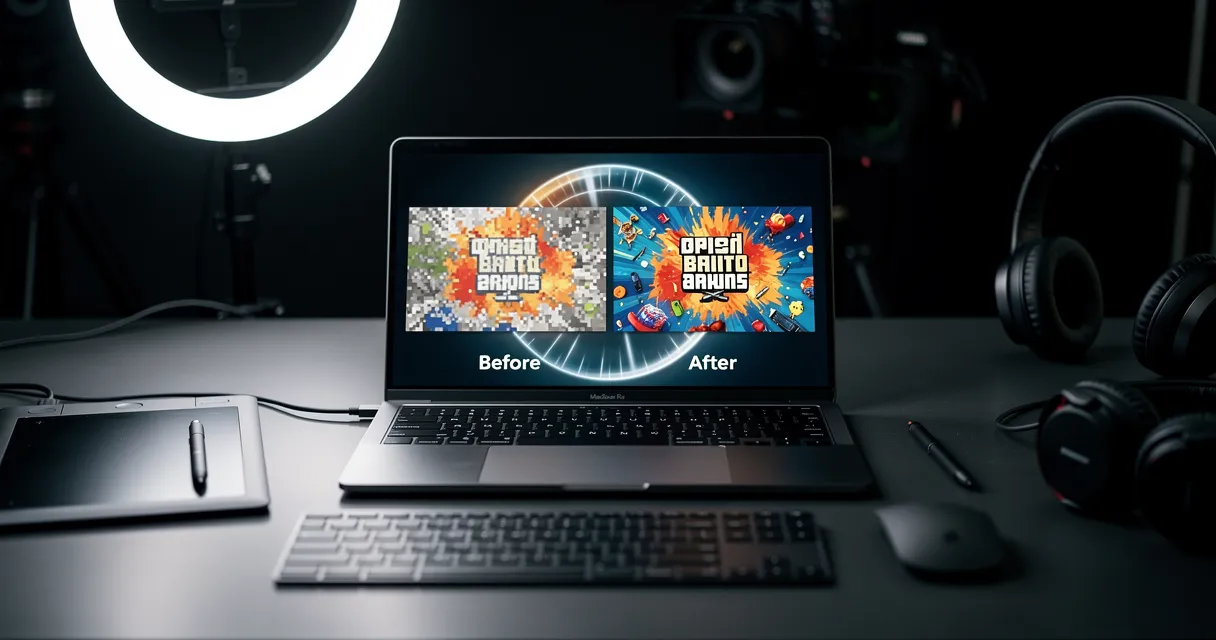
Ever tried to enlarge a small image only to end up with a blurry, pixelated mess? You're not alone. Traditional image resizing simply stretches existing pixels, which inevitably degrades quality. But with modern AI technology, there's a better way.
Understanding Why Images Lose Quality When Enlarged
When you scale up an image using traditional methods, your software has to "guess" what new pixels should look like. This process, called interpolation, has several approaches:
- Nearest Neighbor: Simply duplicates pixels, creating a blocky look
- Bilinear: Averages surrounding pixels, resulting in soft, blurry images
- Bicubic: Uses more surrounding pixels for smoother results, but still loses detail
None of these methods can add new detail—they can only work with existing information.
How AI Upscaling Changes Everything
AI upscalers work fundamentally differently. Instead of just interpolating pixels, they use deep learning models trained on millions of images to:
- Recognize patterns in your image (textures, edges, faces, text)
- Predict missing detail based on learned patterns
- Generate new pixels that look natural and sharp
This is why AI can produce results that look genuinely sharper, not just larger — with dedicated workflows now available for goals like upscaling to 4K resolution.

Try It Yourself
Upload your image and see the AI enhancement in action. Start with 5 free credits.
Step-by-Step Guide to Quality Upscaling
1. Start With the Best Source Possible
Even AI has limits. Before upscaling:
- Use the highest resolution version of your image available
- Choose lossless formats (PNG, TIFF) over compressed ones (JPEG) when possible
- Avoid images that have been upscaled multiple times
2. Choose the Right Upscaling Factor
More isn't always better. Here's a practical guide:
| Starting Resolution | Recommended Max Scale | Use Case |
|---|---|---|
| 1920x1080 | 4x | Print, large displays |
| 1280x720 | 2-4x | Web, presentations |
| 640x480 | 2x | Social media |
| Below 500px | 2x only | Limited improvement |
3. Select the Right AI Model
Different AI models excel at different content types:
- General Purpose: Good all-around performance for most images
- Photo/Portrait: Optimized for faces and skin tones
- Anime/Illustration: Preserves clean lines and flat colors
- Text/Document: Maintains sharp text and logos
myimageupscaler.com automatically detects your content type, but you can override this for specialized needs.
4. Post-Process for Perfection
After AI upscaling, consider these finishing touches:
- Sharpen lightly: A subtle unsharp mask (0.3-0.5 amount) can enhance edges
- Adjust contrast: AI upscaling sometimes reduces contrast slightly
- Check for artifacts: Look closely at faces, text, and repeating patterns
Common Upscaling Mistakes to Avoid
Over-Upscaling
Pushing beyond 4x magnification rarely produces good results. If you need a larger image, consider:
- Finding a higher-resolution original
- Using the image at a smaller display size
- Accepting some quality loss for the size you need
Wrong Input Format
JPEG compression artifacts create artifacts that AI will amplify. If possible:
- Source images in PNG or TIFF format
- If only JPEG is available, don't re-compress before upscaling
- Save your upscaled result in a lossless format
Ignoring Content-Specific Settings
A general-purpose upscaler will struggle with:
- Text: May become readable but look "AI-generated"
- Fine patterns: Can create moiré or repeating artifacts
- Faces: May alter features if not using face-aware models
Real-World Applications
E-commerce Product Photos
Online sellers often receive manufacturer images that are too small for their stores. AI upscaling lets you:
- Meet marketplace minimum resolution requirements
- Enable zoom functionality for customers
- Create consistent image sizes across your catalog
Print Production
That web image (72 DPI) needs to be printed? Here's how to calculate what you need:
Print size (inches) × Print DPI = Pixels needed
Example: 8" × 300 DPI = 2400 pixels
If your source is 800px wide, you need 3x upscaling for an 8-inch print at 300 DPI. This is based on DPI (dots per inch) standards.
Social Media Optimization
Each platform has ideal dimensions:
- Instagram Post: 1080×1080 (1:1)
- Instagram Story: 1080×1920 (9:16)
- Facebook: 1200×630
- Twitter: 1600×900
AI upscaling ensures your images look crisp across all platforms.
See the Difference
Experience crystal-clear upscaling that preserves text, logos, and fine details.
Comparing AI Upscaling Results
Here's what to look for when evaluating upscaled images:
Signs of Quality Upscaling
- Edges appear sharp, not fuzzy
- Textures look natural, not plastic
- Text remains readable and crisp
- No obvious halos around objects
Signs of Poor Upscaling
- Blurry or soft edges
- Waxy or plastic-looking skin
- Visible repeating patterns (artifacts)
- Text that looks "painted" rather than typed
Why Choose myimageupscaler.com for Image Upscaling
myimageupscaler.com is specifically designed to handle the challenges most upscalers struggle with:
Text and Logo Preservation: Our AI model is trained to recognize and preserve text clarity, making it ideal for product images, documents, and branded content.
E-commerce Optimized: We understand the specific needs of online sellers—maintaining product detail, accurate colors, and professional appearance.
No Watermarks: Your upscaled images are yours, without any branding or watermarks.
Fast Processing: Get results in 30-60 seconds, not minutes.
Getting Started
Ready to upscale your first image? Here's how:
- Visit myimageupscaler.com
- Drag and drop your image (supports JPG, PNG, WEBP)
- Select your desired scale (2x or 4x)
- Click "Enhance" and download your result
You get 10 free credits to try it out—no credit card required. You can also explore the free AI image upscaler tier before deciding on a plan.
Ready to Transform Your Images?
Start with 5 free credits. No credit card required. Cancel anytime.
View PricingConclusion
AI upscaling has revolutionized what's possible with low-resolution images. While it can't perform miracles on extremely small or heavily compressed photos, it can significantly improve most images while maintaining quality.
The key is understanding its limitations, choosing the right tool for your content type, and starting with the best source material available. With myimageupscaler.com's text-preserving AI, you can upscale product photos, documents, and branded content with confidence.
Further Reading:
Frequently Asked Questions
Quick answers for this guide
How do I upscale images without losing quality?+
Learn the best techniques and tools for upscaling images while preserving sharpness, detail, and overall quality. From AI upscalers to professional methods. Start with the highest-quality source file available, choose the smallest upscale factor that meets your target size, and inspect the result at 100% before publishing or printing.
When should I use AI upscaling for this workflow?+
Use AI upscaling when the original image is too small for the target use case but still has enough detail to guide the model. For tutorials work, pay closest attention to source image quality, upscale settings, output dimensions, and final visual inspection, especially image upscaling, AI enhancement, photo quality.
How do I avoid losing quality after upscaling?+
Upscale once from the best original, avoid repeated compression, keep important text and edges sharp, and export in a format that matches the final use. If the output shows halos, smeared texture, or distorted text, reduce the upscale factor or use a cleaner source image.

Reviewed byJoao Furtado
AI Image Upscaling Specialist
Joao is the founder of MyImageUpscaler and an AI image upscaling specialist. He tests every guide against real upscaling workflows — comparing model outputs, evaluating sharpness and artifact tradeoffs, and validating tool recommendations before publication.
- AI image upscaling
- Model comparison
- Photo restoration
- E-commerce image prep