![How to Upscale WebP Images Without Losing Quality [2026]](https://xqysaylskffsfwunczbd.supabase.co/storage/v1/object/public/blog-images/2026/03/1772834949993-webp-upscaler-featured.webp)
How to Upscale WebP Images Without Losing Quality
Upscaling WebP images used to mean blurry results and ugly compression artifacts. AI upscaling changes that — your WebP files come out sharper than the original, with real detail added, not just stretched pixels.
Whether you grabbed a screenshot from a website, exported from a design tool, or received a compressed WebP from a client, this guide shows you exactly how to upscale WebP images to any resolution without losing quality.
Why WebP Files Are Tricky to Upscale
WebP is Google's modern image format — smaller file sizes, good compression. But that compression comes at a cost: when you try to enlarge a WebP file, the compression artifacts get magnified too.
Traditional upscaling tools (like Photoshop's bicubic resampling) just copy and stretch existing pixels. The result looks soft, blurry, or blocky — especially on edges and fine details.
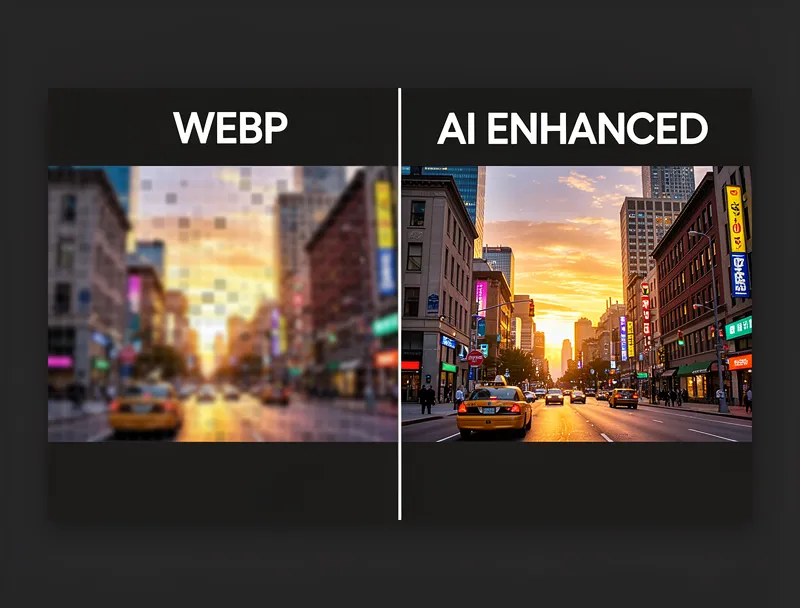
AI upscaling works differently. Instead of stretching pixels, it analyzes patterns in the image and generates new detail that makes sense for that content. Faces look sharper, text becomes readable again, and fine textures get reconstructed rather than just enlarged.

Try It Yourself
Upload your image and see the AI enhancement in action. Start with 5 free credits.
How to Upscale WebP Images: Step-by-Step
Here's the fastest way to upscale a WebP image without artifacts:
Step 1: Go to MyImageUpscaler.com
No account required. Open the tool and you're ready to upload.
Step 2: Upload your WebP file
Drag and drop your .webp file directly onto the uploader, or click to browse. Files up to 10MB are supported.
Step 3: Choose your upscale factor
Select 2x, 4x, or higher depending on your target size. For most web-to-print conversions, 4x gives you enough resolution for A4 prints at 300 DPI.
Step 4: Download your enhanced image
The AI processes your image in seconds. Download as a high-resolution PNG or WebP — whichever your workflow needs.
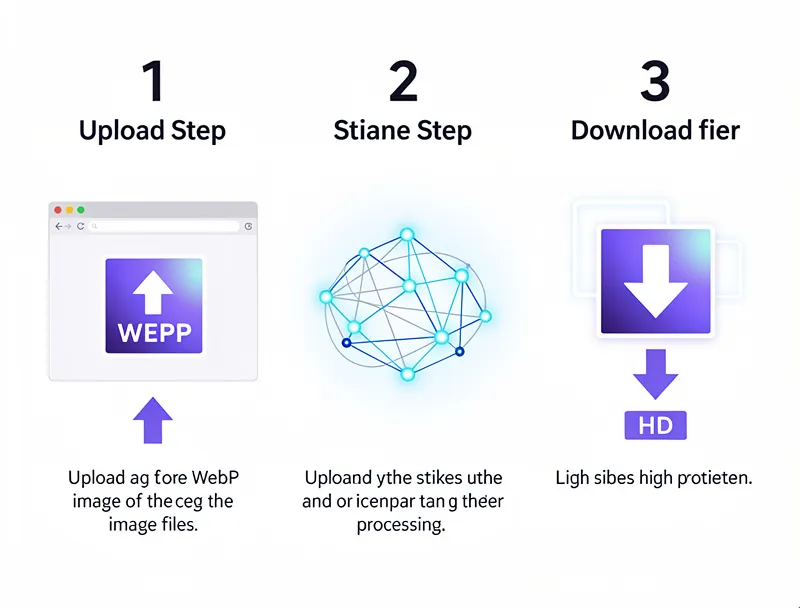
That's it. No Photoshop required, no plugin downloads, no complex settings to configure.
WebP Upscaling Use Cases
Web Screenshots and UI Mockups
If you're documenting a website or app and need print-quality screenshots, upscaling WebP screenshots 4x typically gets you to 300 DPI for A4 printing.
Design Asset Recovery
Received a WebP logo or icon that's too small for your project? Upscaling WebP images with AI preserves vector-like sharpness — ideal for brand assets you need in multiple sizes.
Product Photos from Suppliers
Many supplier product images arrive compressed as WebP at 72 DPI. Upscaling them to 300 DPI makes them suitable for e-commerce product listings where image quality directly affects conversion rates.
Blog and Social Media Assets
WebP images from stock sites are often optimized for web delivery, not social media dimensions. A quick 2x upscale before exporting to your preferred format ensures your posts look crisp on every platform.
See the Difference
Experience crystal-clear upscaling that preserves text, logos, and fine details.
WebP vs. PNG: Does Format Matter for Upscaling?
Yes and no. The AI model works the same regardless of input format. But WebP files often have more compression artifacts than the same image saved as PNG — which means the AI has slightly more "damage" to repair.
What this means in practice:
- A lossless WebP upscales just as cleanly as a PNG
- A lossy WebP (typical from websites) may show minor artifacts in heavily compressed areas
- Starting from the original source file (if available) always gives better results than upscaling a compressed export
If you have access to the original PNG or source file, use that. If WebP is all you have, the AI does a remarkably good job of recovering lost detail.
What Resolution Should You Target?
| Use Case | Recommended Upscale Factor |
|---|---|
| Social media (1080p) | 2x |
| Web display (retina) | 2x |
| Standard print (A4 at 150 DPI) | 2x–3x |
| High-quality print (A4 at 300 DPI) | 4x |
| Large format print (poster) | 6x–8x |
For most everyday needs, a 4x upscale covers you. If you're preparing files for 4K resolution display or large-format printing, go higher.
Frequently Asked Questions
Can I upscale WebP files for free?
Yes. Get 10 free credits on signup — no credit card required. Each credit upscales one image.
What's the maximum file size for WebP uploads?
The upscaler accepts files up to 10MB. Most WebP files from the web are well under this limit.
Will the upscaled image still be in WebP format?
You can download as PNG or WebP depending on your need. PNG is recommended for print workflows; WebP is fine for web use.
Does upscaling a WebP file increase file size?
Yes. A 4x upscale produces a file roughly 4–8x larger than the original, depending on content complexity and output format.
Can I upscale animated WebP files?
The upscaler currently works with static WebP images. Animated WebP files should be split into frames first.
Is there a batch option for multiple WebP files?
Yes — the free plan includes individual uploads. For batch processing, sign up for credits.
Conclusion
Upscaling WebP images no longer means accepting blurry results. With AI upscaling, you get genuine detail recovery — not just size increase — whether you're preparing files for print, improving product photos, or recovering compressed design assets.
Try it now for free — no account needed.
Upload your WebP file, choose your upscale factor, and download in seconds.
Frequently Asked Questions
Quick answers for this guide
How do I upscale WebP images without losing quality []?+
Learn how to upscale WebP images without losing quality using AI. Free online tool — no signup required. Works for screenshots, product photos, and design assets. Start with the highest-quality source file available, choose the smallest upscale factor that meets your target size, and inspect the result at 100% before publishing or printing.
When should I use AI upscaling for this workflow?+
Use AI upscaling when the original image is too small for the target use case but still has enough detail to guide the model. For guides work, pay closest attention to source image quality, upscale settings, output dimensions, and final visual inspection, especially upscale, AI, tutorial.
How do I avoid losing quality after upscaling?+
Upscale once from the best original, avoid repeated compression, keep important text and edges sharp, and export in a format that matches the final use. If the output shows halos, smeared texture, or distorted text, reduce the upscale factor or use a cleaner source image.

Reviewed byJoao Furtado
AI Image Upscaling Specialist
Joao is the founder of MyImageUpscaler and an AI image upscaling specialist. He tests every guide against real upscaling workflows — comparing model outputs, evaluating sharpness and artifact tradeoffs, and validating tool recommendations before publication.
- AI image upscaling
- Model comparison
- Photo restoration
- E-commerce image prep