8x10 Print Resolution: DPI and Pixels
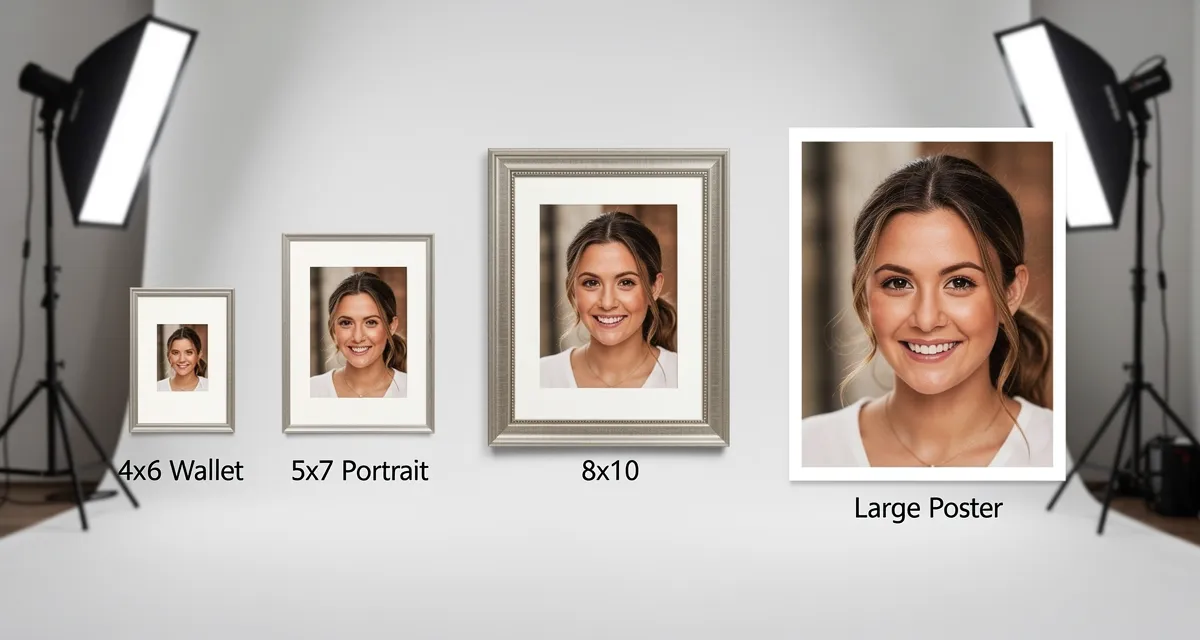
An 8x10 print needs 2400 x 3000 pixels at 300 DPI for sharp photo-lab quality. At 150 DPI, the minimum is 1200 x 1500 pixels, but use that only for casual prints or images viewed from farther away.
| 8x10 Print Quality | Pixel Size | Best For |
|---|---|---|
| 150 DPI | 1200 x 1500 px | Casual prints and distant viewing |
| 200 DPI | 1600 x 2000 px | Acceptable framed photos |
| 300 DPI | 2400 x 3000 px | Sharp portraits, gifts, and wall art |
If your image is smaller than 2400 x 3000 pixels, upscale it before printing. This guide gives you the calculator-style chart for 8x10 and every common print size.
What Does "Print Resolution" Actually Mean?
Resolution for printing comes down to two things: pixel dimensions and DPI (dots per inch).
- DPI is how many ink dots the printer lays down per inch. 300 DPI is the professional standard.
- Pixel dimensions are the raw size of your image file (e.g., 3000 × 2400 pixels).
- Divide pixels by DPI to get the physical print size. A 3000px wide image prints at 10 inches wide at 300 DPI.
Most consumer printers and labs accept 150–300 DPI. Below 150 DPI, you will see visible pixelation.
Print Resolution Chart: Exact Pixel Dimensions You Need
Use this table before placing any print order. The "Minimum" column (150 DPI) gives acceptable quality for photos viewed from a distance. The "Ideal" column (300 DPI) gives professional sharpness.
| Print Size | Minimum (150 DPI) | Ideal (300 DPI) | Use Case |
|---|---|---|---|
| 4×6 in | 600 × 900 px | 1,200 × 1,800 px | Snapshots, wallet photos |
| 5×7 in | 750 × 1,050 px | 1,500 × 2,100 px | Portraits, gifts |
| 8×10 in | 1,200 × 1,500 px | 2,400 × 3,000 px | Framed portraits, wall art |
| 11×14 in | 1,650 × 2,100 px | 3,300 × 4,200 px | Gallery prints |
| 16×20 in | 2,400 × 3,000 px | 4,800 × 6,000 px | Large wall prints |
| 18×24 in | 2,700 × 3,600 px | 5,400 × 7,200 px | Poster size |
| 24×36 in | 3,600 × 5,400 px | 7,200 × 10,800 px | Large posters, banners |
Quick rule: Multiply each dimension in inches by 300. That gives you the pixel count you need. For an 8x10, that is 8 x 300 = 2400 and 10 x 300 = 3000.
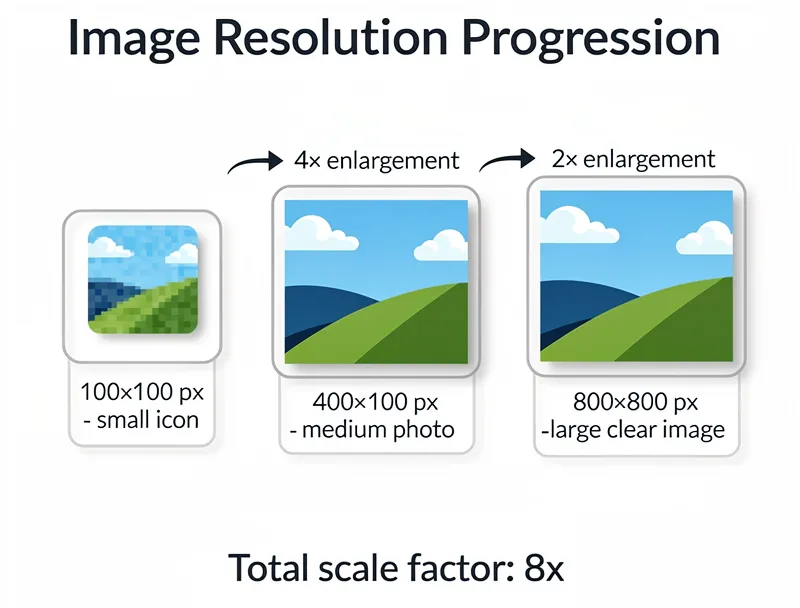
If your image is smaller than the chart: choose the next practical scale factor. A 1200 x 1500 image needs 2x for 8x10 at 300 DPI. A 900 x 1200 image usually needs 3x or 4x. Check and upscale the photo here before ordering.
For larger poster work, keep the dedicated poster size pixel chart open next to this print-size chart. For the full workflow, use the 300 DPI print upscaling guide.

Try It Yourself
Upload your image and see the AI enhancement in action. Start with 5 free credits.
My Photo Is Too Small — What Now?
This is the most common scenario. You have a great photo but the pixel count is too low for the print size you want.
Your options:
- Print smaller. Shrink your target size until the DPI stays above 150. Not ideal.
- Use AI upscaling. Add real detail and hit the required pixel count without the blurriness of basic resizing.
Basic resizing (what Photoshop calls "resampling" by default) just stretches existing pixels — it creates that unmistakable soft, blurry look. AI upscaling analyzes the image and generates the missing detail, so edges stay crisp and textures stay sharp.
How to Upscale a Photo for Printing (Step by Step)
- Check your current pixel dimensions — right-click the file, go to Properties → Details (Windows) or Get Info (Mac).
- Look up the target size in the table above. For an 8×10 at 300 DPI, you need 2,400 × 3,000 px.
- Calculate the gap — if your photo is 1,200 × 900 px, you need roughly a 3× upscale.
- Upload to MyImageUpscaler — drag and drop your photo, choose the scale factor (2×, 4×, or 8×), and download in seconds.
- Verify the result — check the pixel dimensions of the downloaded file before ordering.
For JPEG images shot on older cameras or downloaded from social media, a 2×–4× upscale usually gets you to print-ready quality for 8×10 and smaller sizes.
Large format prints like 24×36 posters often need a 4K resolution source to look sharp — if your starting photo is a typical smartphone 12MP shot (4,032 × 3,024 px), you are already close for sizes up to 16×20.
What Resolution Do Phone Cameras Actually Produce?
| Device | Typical Megapixels | Typical Dimensions | Safe Print Size at 300 DPI |
|---|---|---|---|
| iPhone 15 (standard) | 48 MP | 8,064 × 6,048 px | Up to 26×20 in |
| iPhone 15 (portrait) | 12 MP | 4,032 × 3,024 px | Up to 13×10 in |
| Samsung Galaxy S24 | 50 MP | 8,160 × 6,120 px | Up to 27×20 in |
| Older smartphones | 8–12 MP | 3,264 × 2,448 px | Up to 10×8 in |
| Social media download | 1–5 MP | 1,200 × 900 px | 4×6 in max |
Social media platforms compress images heavily. A photo that looks great on screen at 1,200 × 900 px will print blurry at anything larger than a postcard.
Tips for Print-Ready Photos
- Always check pixel dimensions first, not just file size. A 5MB JPEG can still be low resolution.
- Use PNG or TIFF for final exports if your print lab accepts them — less compression than JPEG.
- Do not zoom and screenshot a web image to get a larger file. The pixel count stays the same.
- Order a test print for large format (16×20+) before buying a full run.
- For e-commerce product photos, 300 DPI is also the Amazon and Etsy standard for zoom-quality images.
See the Difference
Experience crystal-clear upscaling that preserves text, logos, and fine details.
Conclusion
The resolution you need for an 8×10 print is 2,400 × 3,000 pixels at 300 DPI. Scale up from there for larger prints, scale down for smaller ones. When your photo does not reach that threshold, AI upscaling is the fastest way to close the gap — no quality loss, no plastic look, just sharp detail.
Check your photo and upscale it free — no signup required, results in seconds.
Frequently Asked Questions
What resolution do I need for a 4×6 print? At 300 DPI, a 4×6 print needs 1,200 × 1,800 pixels. At minimum 150 DPI, 600 × 900 pixels is acceptable for casual snapshots.
What resolution do I need for an 11×14 print? An 11×14 print at 300 DPI requires 3,300 × 4,200 pixels. Most modern smartphone photos at full resolution are sufficient, but compressed or social media downloads will fall short.
What resolution for a 20×30 poster? A 20×30 poster at 300 DPI needs 6,000 × 9,000 pixels — that is 54 megapixels. Most photographers AI-upscale to reach this, even from high-quality originals.
Is 300 DPI always necessary? For photos viewed up close (portraits, product photos), yes. For large prints viewed from several feet away (banners, posters), 150 DPI is acceptable because viewing distance compensates for lower pixel density.
Can I upscale a low-resolution photo for printing? Yes. AI upscaling tools analyze image content and generate realistic detail rather than just stretching pixels. A free upscaling tool can take a 1,200 × 900 px photo to 4,800 × 3,600 px for print-ready quality.
My photo is 72 DPI — is it too low for printing? DPI shown in file metadata is often meaningless. What matters is the actual pixel count. A photo labeled "72 DPI" at 4,000 × 3,000 pixels can still print beautifully at 13×10 inches at 300 DPI. Check the pixel dimensions, not the DPI label.
Frequently Asked Questions
Quick answers for this guide
What should I know about 8x10 print resolution DPI and pixels?+
Recommended DPI and pixel sizes for 8x10 photos, plus a quick chart for common print sizes and when to upscale. Try free now. Start by confirming the target size, format, and platform requirements, then upscale only as much as needed to meet that target without introducing artifacts.
When should I use AI upscaling for this workflow?+
Use AI upscaling when the original image is too small for the target use case but still has enough detail to guide the model. For guides work, pay closest attention to source image quality, upscale settings, output dimensions, and final visual inspection, especially print, resolution, DPI.
How do I avoid losing quality after upscaling?+
Upscale once from the best original, avoid repeated compression, keep important text and edges sharp, and export in a format that matches the final use. If the output shows halos, smeared texture, or distorted text, reduce the upscale factor or use a cleaner source image.

Reviewed byJoao Furtado
AI Image Upscaling Specialist
Joao is the founder of MyImageUpscaler and an AI image upscaling specialist. He tests every guide against real upscaling workflows — comparing model outputs, evaluating sharpness and artifact tradeoffs, and validating tool recommendations before publication.
- AI image upscaling
- Model comparison
- Photo restoration
- E-commerce image prep