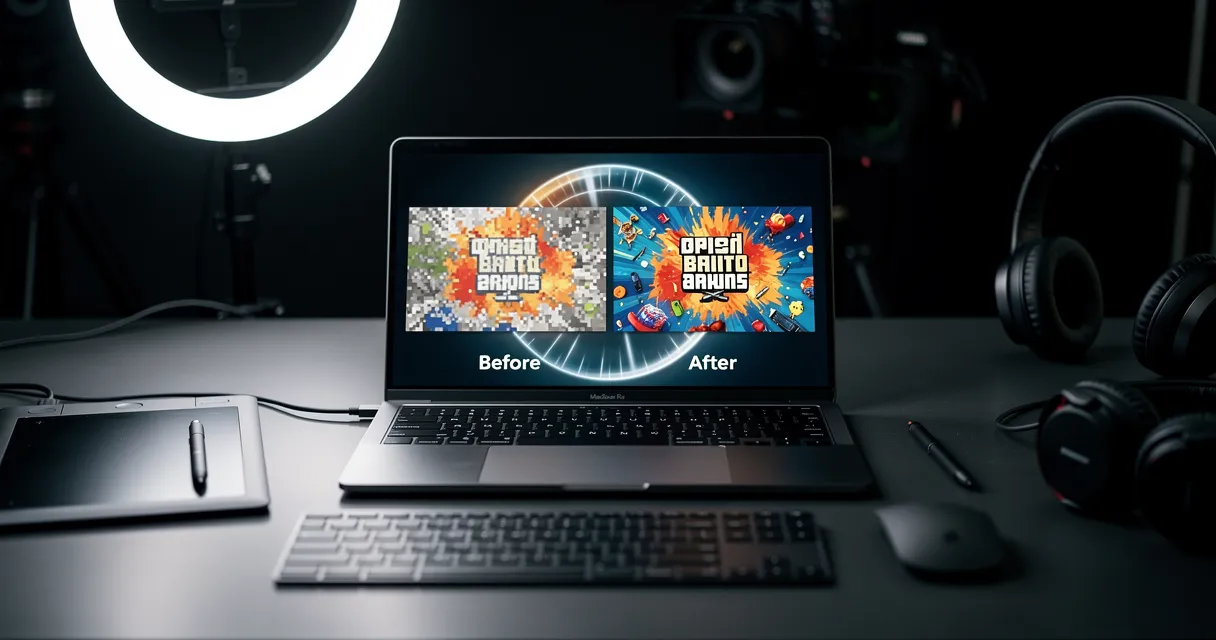
We tested the best AI image upscaler websites for 2026 on portraits, artwork, product photos, and scanned family pictures. The short version: use MyImageUpscaler for a fast free web workflow, Topaz Gigapixel for local pro control, Magnific for creative detail, Adobe Super Resolution if you already live in Lightroom, and Upscayl when you want an open-source desktop option.
This comparison ranks each AI upscaler by output quality, artifacts, free limits, speed, privacy, and best use case so you can choose the right tool before uploading an image.
Quick Answer: Best AI Image Upscaler Websites in 2026
| Need | Best fit | Why |
|---|---|---|
| Fast free online upscaling | MyImageUpscaler | Upload in the browser, upscale, and download without a heavy desktop workflow. |
| Local professional control | Topaz Gigapixel | Strong detail recovery and manual controls, but paid and hardware-dependent. |
| Creative/detail-heavy enhancement | Magnific AI | Useful for stylized detail, but can change the original image more aggressively. |
| Existing Adobe workflow | Photoshop / Lightroom Super Resolution | Convenient if you already pay for Adobe and work with RAW files. |
| Open-source desktop option | Upscayl | Free local workflow, but setup and output quality vary by image. |
Understanding AI Upscaling Technology
Before choosing a tool, you should understand how AI upscaling works. Unlike traditional methods that simply duplicate pixels, AI uses a process called Super-Resolution (SR). The AI is trained on millions of high-resolution and low-resolution image pairs, learning to recognize patterns, textures, and details. When you provide a low-resolution image, the AI uses this learned knowledge to predict and generate the missing pixels, effectively "hallucinating" realistic detail.
There are a few key approaches you'll encounter:
| Technology | How It Works | Best For |
|---|---|---|
| GANs (Generative Adversarial Networks) | Two neural networks, a "Generator" and a "Discriminator," compete. The Generator creates new pixels, and the Discriminator judges if they look real. This competition results in sharp, detailed images. | Creating very sharp, detailed results, though sometimes they can look slightly artificial or "over-processed." |
| Diffusion Models | This newer method starts with random noise and gradually refines it, step-by-step, until it becomes a clean, high-resolution image, guided by the original low-res input. | Producing highly realistic and natural-looking textures, often avoiding the "plastic" look of some GANs. |
| ESRGAN (Enhanced Super-Resolution GAN) | A popular and powerful type of GAN model, often used in open-source tools. It's known for excellent performance on a wide variety of images. | General-purpose upscaling, especially for digital art and detailed photographs. |
Understanding these concepts helps you know why some tools are better for creative tasks while others excel at realistic photo restoration.
Try the AI image upscaler with one real image before comparing every tool. You can upload, upscale, and inspect the export in seconds.

Try It Yourself
Upload your image and see the AI enhancement in action. Start with 5 free credits.
1. MyImageUpscaler
Best For: All-in-one upscaling, restoration, and batch processing for professional workflows.
MyImageUpscaler offers a powerful, well-rounded suite of tools that deliver production-ready results without the complexity of traditional desktop software. It operates entirely in your browser, so there is no installation or plugin management required. This makes it an efficient choice for creators and teams who need to enhance images quickly. The platform’s core strength is its ability to reconstruct genuine detail, avoiding the overly smooth, "plastic" look common with other AI tools. This makes it a contender for the best AI upscaler when image authenticity is critical.

The upscaling engine offers flexibility, allowing you to enlarge images from 2x up to 8x. A key feature is the smart model detection, which automatically applies the correct algorithm for portraits, graphics, or landscapes, ensuring optimized results without manual intervention.
Beyond simple enlargement, MyImageUpscaler provides a practical toolset for real-world projects. It includes a blur and noise remover, a dedicated face restoration model for old photos, and a one-click background removal tool. For teams managing large volumes of assets, the batch processing feature handles hundreds of files with consistent output, making it ideal for e-commerce catalogs or agency deliverables.
How to Use MyImageUpscaler
- Upload Your Image: Go to MyImageUpscaler.com and drag and drop your image file or click to upload.
- Select Upscale Factor: Choose your desired enlargement level (e.g., 2x, 4x). The smart model selection will automatically be applied.
- Process and Download: The AI will process the image in under 30 seconds. You can then preview the result and download the high-resolution file.
Key Features:
- Web-Based and No Installation: The entire process happens in your browser, with no software to download.
- True Detail Preservation: The AI model is trained to reconstruct realistic textures while keeping text and logos sharp.
- Comprehensive Toolset: Includes upscaling, face restoration, background removal, AVIF support, and batch processing.
- Smart Model Selection: Automatically chooses the best enhancement algorithm for your specific image type.
- Free Trial: You can test the service with 10 free credits upon signing up, no credit card required.
Limitations: As a web-based tool, processing very large batches or extremely high-resolution files may be slower than a dedicated desktop application running on a high-end computer. The maximum upscale factor is 8x, which is sufficient for most uses but less than some specialized desktop tools.
Pricing: Paid pricing plans are available for higher volume needs, and unused credits roll over each month. Visit Website: MyImageUpscaler.com
2. Adobe Photoshop / Lightroom “Super Resolution”
For professionals already integrated into the Adobe ecosystem, the built-in "Super Resolution" feature is a powerful and convenient option. Found within Adobe Camera Raw (ACR) and Lightroom, this tool uses machine learning to intelligently double the linear resolution of your images, effectively quadrupling the total pixel count. Its primary strength is its seamless integration into established professional photography and design workflows, eliminating the need for external applications or complex export-import routines.

The one-click "Enhance" function applies both Super Resolution and Raw Details, generating a new DNG file that retains the original raw data's flexibility for further editing. This non-destructive approach is a significant advantage, allowing you to make adjustments after upscaling. For those who manage large catalogs and require precise color management for print, this is often the best AI upscaler choice. The main limitation is its fixed 2x upscale factor, which may not be sufficient for all use cases. For a deeper dive into how this tool stacks up against web-based options, you can explore our Photoshop upscaler analysis.
How to Use Super Resolution in Lightroom
- Import Your Image: Open your image in Lightroom Classic or CC.
- Access Enhance Feature: Right-click on the image and select "Enhance" from the context menu.
- Apply Super Resolution: In the "Enhance Preview" dialog box, check the "Super Resolution" box. Click "Enhance."
- Save the New File: Lightroom will create a new, upscaled DNG file next to your original.
Comparison Table: Adobe vs. MyImageUpscaler
| Feature | Adobe Super Resolution | MyImageUpscaler |
|---|---|---|
| Platform | Desktop (Part of Photoshop/Lightroom) | Web-Based (No installation) |
| Max Upscale | 2x | 8x |
| Workflow | Integrated into Adobe ecosystem | Standalone, browser-based |
| Cost | Requires Adobe CC Subscription | Free credits, then subscription/credits |
| Ease of Use | Requires Adobe software knowledge | Extremely simple, 3-step process |
Limitations: The tool is locked to a 2x upscale, offering no flexibility for larger enlargements. It is also only available to users with an active Adobe Creative Cloud subscription.
- Best For: Professional photographers, designers, and anyone with a Creative Cloud subscription needing workflow integration.
- Access: Included with Adobe Photoshop and Lightroom plans, which start at $9.99/month.
- Website: https://www.adobe.com/products/photoshop-lightroom/super-resolution
3. Topaz Gigapixel 8 (Topaz Labs)
A long-standing favorite among photographers and restoration experts, Topaz Gigapixel 8 is a dedicated desktop application renowned for its high-quality results. This purpose-built AI upscaler gives you complete local control over your files, processing everything on your own machine for maximum privacy and speed. Its primary strength lies in its exceptional detail recovery and anti-artifacting technology, especially when working with faces, intricate textures, and vector-like graphics.

Gigapixel 8 offers scaling up to 16x the original pixel count, providing immense flexibility for creating large-format prints or cropping heavily from a smaller source file. The software's one-time license model is an attractive alternative to recurring subscriptions. For those focused on reviving old family photos, the tool’s ability to reconstruct fine details is a significant benefit. If this is your main goal, you can find more specialized techniques in our guide to AI photo restoration. This is one of the best AI upscaler choices if you prefer a one-time purchase and local processing.
How to Use Topaz Gigapixel
- Install the Software: Purchase, download, and install the Gigapixel application on your computer.
- Load Your Image: Open the application and drag your image file into the main window.
- Choose Model and Settings: Select an AI model (e.g., Standard, High Fidelity) and an upscale factor (up to 16x). Adjust sliders for noise reduction or blur removal if needed.
- Process and Save: Click "Save Image" to begin processing. The time will vary based on your computer's GPU.
Limitations: It requires a powerful computer, particularly a modern GPU, for optimal performance. While the one-time license is a pro for some, major version upgrades typically require a paid purchase.
- Best For: Photographers needing high-magnification upscales, digital artists, and users prioritizing local processing.
- Access: Available as a one-time purchase of $99, which includes one year of updates.
- Website: https://www.topazlabs.com/gigapixel-ai/
See the Difference
Experience crystal-clear upscaling that preserves text, logos, and fine details.
The fastest way to choose an upscaler is to test the same image in your browser, then compare detail, edge halos, watermarks, and download quality side by side.
4. ON1 Resize AI 2026
For photographers focused on creating high-quality physical prints, ON1 Resize AI 2026 presents a compelling solution that goes beyond simple enlargement. As the successor to the well-regarded Genuine Fractals, its core strength lies in preparing images for large-format printing. The software works as both a standalone application and a plugin for professional workflows, integrating directly with Photoshop, Lightroom, and Capture One. This makes it a serious contender for the best AI upscaler if your final output is destined for a gallery wall or a large commercial banner.

The platform offers AI models capable of up to 10× enlargement, with distinct "Highest Quality" and "Standard" settings to balance processing time and final detail. What sets it apart are the print-centric features like tiling for oversized prints, automatic gallery-wrap margins for canvas, and soft-proofing capabilities. These tools allow you to manage the entire print preparation process within a single environment.
How to Use ON1 Resize AI
- Open the Application or Plugin: Use ON1 Resize AI as a standalone app or as a plugin from within Photoshop or Lightroom.
- Select Your Image: Load the image you wish to print or enlarge.
- Set Dimensions and Resolution: Enter your desired final print dimensions (e.g., 24x36 inches) and target resolution (e.g., 300 DPI). The software will calculate the necessary upscale.
- Use Print-Specific Tools: Apply gallery wrap effects or tiling options if needed, then save the final file ready for your print lab.
Limitations: Its most effective AI model demands significant system resources to run smoothly. The perpetual license is a separate purchase from the main ON1 Photo RAW suite, making it an additional investment.
- Best For: Professional photographers and print shops requiring production-grade print preparation tools.
- Access: Available as a perpetual license or subscription. Check the official site for current pricing.
- Website: https://www.on1.com/products/resize-ai/
5. Let’s Enhance
Let’s Enhance is a web-based upscaler designed for high-volume, automated workflows, making it a strong contender for e-commerce stores, real estate agencies, and marketing teams. Its core strength lies in its specialized presets, which apply different AI models fine-tuned for specific content like product photos, portraits, or digital art. This allows you to apply consistent, targeted enhancements across large batches of images directly in your browser or via its API, which is a major benefit for businesses needing scalable image processing.

The platform offers multiple processing modes, including options for color and tone correction alongside upscaling. This makes it a practical tool for preparing images for web publication without needing complex desktop software.
How to Use Let's Enhance
- Create an Account: Sign up on the Let's Enhance website to get your free trial credits.
- Upload Images: Drag and drop a single image or a batch of images into the uploader.
- Choose a Preset: Select a preset that matches your image type (e.g., "Digital Art," "Photo," "Smart Enhance").
- Start Processing: Click "Start processing" and wait for the files to be ready for download.
Limitations: The final quality can sometimes be inconsistent across different image types, so you should test its various presets to find the best setting for your specific needs. Its entirely web-based nature might also be a concern for users with strict data privacy policies who prefer to keep files offline.
- Best For: E-commerce merchants, real estate marketers, and content teams needing bulk processing with specific presets.
- Access: Offers a free trial with 10 credits, then pay-as-you-go bundles or subscriptions starting at $9/month.
- Website: https://letsenhance.io
6. VanceAI Image Upscaler
VanceAI positions itself as a comprehensive suite of AI-powered image processing tools, with its upscaler being a central feature. This platform is a good fit if your needs extend beyond simple enlargement to include noise reduction, sharpening, and other enhancements. It supports upscaling up to 8× and offers dedicated modes that you can test to find the best result for a specific image. This versatility makes it a practical option for users who want an all-in-one solution for various image quality issues.

The platform provides both a web-based tool and a downloadable Windows application. The desktop version is particularly useful for handling large batches of images or very high-resolution files without browser-based constraints.
How to Use VanceAI
- Choose Your Platform: Decide whether to use the online tool for a quick upscale or download the desktop app for batch processing.
- Upload Your Image: Load your file into the chosen platform.
- Select a Model: Choose from various models like "Standard," "Anime," or "Art & CG."
- Process and Download: Start the enhancement and download the finished image.
Limitations: The free plan is quite limited, offering only three credits per month. Achieving optimal quality may require some experimentation with its different processing modes.
- Best For: Users needing a versatile toolkit for upscaling, sharpening, and denoising; businesses requiring API access.
- Access: Free plan with 3 credits. Paid web plans start at $4.95 for 100 credits, and the desktop app has separate pricing.
- Website: https://vanceai.com
7. Icons8 Smart Upscaler
For businesses and creators who need predictable costs and automation, Icons8 Smart Upscaler offers a straightforward, effective solution. This web-based tool prioritizes simplicity and integration, making it a strong choice for marketers, e-commerce store owners, and developers. It provides reliable 2x to 4x upscaling, with a maximum output resolution of 7680x7680 pixels, which is suitable for most digital and print applications. The platform's main advantage is its transparent, per-image pricing model and robust API access.

The ability to process batches of up to 500 images at once and automate tasks via its API makes Icons8 an excellent tool for high-volume workflows. This makes it a contender for the best AI upscaler for teams that need to integrate enhancement into their existing content pipelines without manual intervention.
How to Use Icons8 Smart Upscaler
- Go to the Website: Navigate to the Icons8 Smart Upscaler page.
- Upload Your Image: Drag and drop your image (up to 5 MB for the web tool).
- Upscale: The tool automatically upscales the image to 4x.
- Download: Download the resulting high-resolution image.
Limitations: Its web interface has a 5 MB file size limit and lacks advanced retouching controls found in professional desktop software. The upscaling factor is fixed, offering less control than other tools.
- Best For: Marketers, e-commerce managers, and developers needing batch processing and API integration.
- Access: Offers 3 free upscales. Paid plans include prepaid packs starting at $9 for 50 images or a subscription at $99/month for 500 images.
- Website: https://icons8.com/upscaler
8. Upscayl (Open‑Source)
For users who prioritize privacy, control, and a zero-cost solution, Upscayl presents a compelling open-source alternative. This is a desktop application that runs locally on your Windows, macOS, or Linux machine, meaning your images are never uploaded to a third-party server. It uses powerful ESRGAN-family models, such as Real-ESRGAN, allowing you to process images completely offline. This approach is ideal for handling sensitive or proprietary content and for teams who want to avoid recurring subscription fees associated with cloud-based services.

The key to getting the most out of Upscayl is model selection. Different models are optimized for different types of content, from digital art and illustrations to photographic images. While its interface and batch processing tools are simpler than many commercial applications, its core function is solid.
How to Use Upscayl
- Download and Install: Get the correct version for your operating system from the official website.
- Select Image(s): Choose a single image or a folder of images for batch processing.
- Choose a Model: Select an AI model from the dropdown list. You may need to experiment to find the best one for your image type.
- Upscayl: Click the "Upscayl" button to start processing the files locally on your machine.
Limitations: The quality is highly dependent on the model you choose and the source image, which may require trial and error. The user interface is more basic than paid alternatives, and there is no official support team.
- Best For: Privacy-conscious users, developers, and anyone comfortable with a desktop application who wants to avoid subscription costs.
- Access: Free to download and use on Windows, macOS, and Linux.
- Website: https://upscayl.org
9. Bigjpg
For artists, illustrators, and anime fans, Bigjpg has carved out a niche as a specialized tool for upscaling non-photorealistic images. While many upscalers focus on photographic detail, Bigjpg’s AI models are specifically tuned for handling the sharp lines, flat colors, and distinct gradients common in illustrations, comics, and animated content. Its straightforward web interface allows you to quickly upload an image, select the artwork or photo model, and choose an upscale factor, making it highly accessible for users without technical expertise.

The platform’s main advantage is its focused algorithm, which often produces cleaner results on graphics and line art than general-purpose photo enhancers. For those needing to prepare low-resolution fan art for print or clean up a fuzzy logo, Bigjpg is often a better AI upscaler than more complex software. For a more detailed guide on this specific use case, you can review our tutorial on how to upscale anime images with AI.
How to Use Bigjpg
- Visit the Website: Go to Bigjpg.com.
- Upload an Image: Click "Select Images" to upload your file.
- Configure Settings: Choose "Artwork" or "Photo" for the image type, select your desired upscale factor, and set the noise reduction level.
- Start and Download: Click "Start" and wait for the process to complete. Processing can be slow on the free tier.
Limitations: The free version has limitations on size and speed, with paid plans unlocking priority processing and larger resolutions. It is less effective for complex photographic textures.
- Best For: Digital artists, graphic designers, and anime fans needing to upscale illustrations or line art.
- Access: Free for limited use; paid plans start at $22 for 6 months for faster processing and larger file support.
- Website: https://bigjpg.com
10. HitPaw Online Image Upscaler / HitPaw Photo Enhancer
HitPaw offers a flexible two-part solution for upscaling that caters to both quick, casual use and more demanding offline tasks. Its browser-based tool is excellent for one-off enhancements without software installation, making it ideal for non-technical users who need a fast result. For those requiring more power, the companion desktop application, HitPaw Photo Enhancer, provides batch processing capabilities and additional AI models for sharpening and noise reduction, making it a practical hybrid choice.

The online version allows for upscaling up to 4x, which is serviceable for social media posts or web graphics. However, its real strength is its simplicity. The desktop software expands this by handling larger files and processing multiple images at once, a key feature for anyone managing a small e-commerce catalog or a folder of family photos.
How to Use HitPaw Online
- Navigate to the Tool: Open the HitPaw Online Image Upscaler in your browser.
- Upload Your File: Drag or upload the image you want to enhance.
- Select Model: Choose the AI model that best fits your image (e.g., General, Denoise, Face).
- Preview and Download: Preview the upscaled result and download the file.
Limitations: The output quality is generally good for standard images but can fall short of the nuanced results from more specialized, pro-grade tools when processing highly detailed or complex source files. The online version has file size and credit limits.
- Best For: Users needing a simple online tool for quick fixes and a desktop option for occasional batch processing.
- Access: The online tool offers limited free use. The desktop app requires a subscription or a one-time purchase, with plans starting at $17.99/month.
- Website: https://online.hitpaw.com/image-upscaler.html
11. Pixelcut AI Upscaler
Pixelcut offers a suite of creator-focused tools, with its AI Upscaler serving as a practical solution for e-commerce and marketing teams. The platform provides both an in-app upscaler and a dedicated Upscaler API for developers, making it flexible for different scales of operation. It is especially useful for standardizing image quality across various sources, such as professional product shots and user-generated content (UGC), ensuring a consistent look for your brand.

The tool allows for 2x to 4x enlargement while focusing on artifact suppression and maintaining color fidelity, which is critical for product accuracy. For businesses needing to automate enhancement, the Upscaler API presents a clear, predictable cost model. This makes Pixelcut one of the best AI upscaler options if you require both a manual app and an automated API workflow.
How to Use Pixelcut AI Upscaler
- Open the App or Website: Use the Pixelcut mobile app or go to their web-based upscaler.
- Upload Your Image: Select the image from your device or photo library.
- Choose Upscale Factor: Select either 2x or 4x enlargement.
- Download the Result: Save the enhanced, high-resolution image back to your device.
Limitations: The app's credit system can feel less straightforward than the per-image pricing of its API, and it lacks the deep retouching controls found in dedicated photo editor plugins. The upscaling is limited to 4x.
- Best For: E-commerce studios, marketing teams, and developers needing a versatile API for batch processing.
- Access: Free tier available in the app; Pro plans start with credit-based pricing; API is priced per image.
- Website: https://www.pixelcut.ai/upscaler
12. Magnific AI
Breaking from traditional upscalers, Magnific AI operates as a “generative upscaler,” making it a unique tool for creative professionals and AI artists. Instead of just sharpening existing pixels, it uses prompts and control sliders to imagine and add entirely new, plausible details to your image as it enlarges. This approach allows you to guide the final output, making it less about pure restoration and more about creative reinterpretation at a much higher resolution.

You can dial in the effect using controls for Creativity, Resemblance, and HDR, giving you command over how much the AI deviates from the source image. This makes it the best AI upscaler for generating fantastical, hyper-detailed art or transforming low-resolution concepts into finished pieces.
How to Use Magnific AI
- Subscribe and Log In: Sign up for a paid plan, as there is no free trial.
- Upload an Image: Provide your base image.
- Add Prompts and Adjust Sliders: Write a text prompt describing the desired details and style. Adjust the "Creativity" and "Resemblance" sliders to control how much new detail is generated versus how closely it follows the original.
- Generate and Refine: Generate the upscaled image. You may need to tweak the settings and regenerate a few times to get the desired result.
Limitations: Its strength is also its weakness; it is not suited for situations where strict fidelity to the original photo is paramount, such as e-commerce or archival work. Access is subscription-based, with no free trial and a restrictive refund policy, making it a considered investment.
- Best For: AI artists, concept designers, and creatives wanting to add imaginative detail during upscaling.
- Access: Subscription plans start at $39/month.
- Website: https://magnific.ai
Top 12 AI Image Upscalers — Feature & Performance Comparison
| Product | Core features | Quality & UX | Best for | Unique selling points | Pricing & access |
|---|---|---|---|---|---|
| MyImageUpscaler (Recommended) | Browser-based AI upscaling (up to 8x), photo enhancement, face restoration, background removal, AVIF, batch & smart model selection | Real-detail reconstruction (not over-smoothed); text/logo sharp; ~30s per image; no install; 10 free credits | Creators, e‑commerce, agencies, archivists | Smart model auto-selection; large-batch browser workflow; preserves realistic texture | 10 free credits no card; affordable pay plans; credits roll over |
| Adobe Photoshop / Lightroom “Super Resolution” | Integrated Super Resolution in Camera Raw; Raw/DNG support; non‑destructive workflow | Reliable color/print pipeline; fixed 2× upscale; seamless Adobe UX | Photographers and pros already in Adobe ecosystem | Native Lightroom/Photoshop integration; raw edits preserved | Requires Creative Cloud subscription |
| Topaz Gigapixel 8 | Local desktop upscaling (up to 16×); strong anti‑artifacting | High-quality detail recovery for faces/textures; GPU-accelerated; offline privacy | Photographers, restorers, designers needing top single-image quality | Desktop/local processing; one-time license option | Paid license; paid upgrades between versions |
| ON1 Resize AI 2026 | AI upscaling up to 10×; standalone + plugins; print tools (tiling, soft proofing) | Print-focused output; good Adobe/Capture One integration; higher system requirements | Print shops, large-format and gallery print workflows | Specialized print pipeline features and tiling/gallery-wrap tools | Perpetual license (separate from ON1 Photo RAW) |
| Let’s Enhance | Web upscaler with presets, API, batch processing | Easy onboarding; suitable for bulk e‑commerce; quality varies by content | Merchants, content teams, marketplaces | Clear pricing bundles; API for automation; e‑commerce presets | Pay-as-you-go bundles and subscriptions; clear pricing page |
| VanceAI Image Upscaler | Upscale up to 8×; web + Windows apps; denoise/sharpen; API | Versatile toolkit; desktop plan allows larger images; free tier limited | Agencies, general-purpose teams, users needing desktop access | Desktop PC plan with no size limits; broad image-tool suite | Credits-based plans; limited free credits/month |
| Icons8 Smart Upscaler | 2×–4× upscaling; up to 7680×7680 px; batch and API; Mac app | Predictable, simple UX; web file-size caps | Marketers, store owners, teams needing predictable costs | Transparent per-image pricing and prepaid packs; API | Per-image pricing; prepaid packs; web file-size limits |
| Upscayl (Open‑Source) | Offline ESRGAN-family models; cross-platform desktop | Free and local (no uploads); quality depends on model & tuning; simpler UI | Privacy-conscious users, hobbyists, devs preferring OSS | Open-source, local processing, no recurring fees | Free (open-source) |
| Bigjpg | Models tuned for anime/artwork and photos; web/desktop/mobile | Strong for linework and flat colors; simple interface; variable web reliability | Illustrators, anime/comic artists, graphic designers | Specialized artwork/anime models; server region selector | Paid plans to remove limits and increase speed |
| HitPaw Online / Photo Enhancer | Online 2×–4×; desktop “Magic Upscaler”; de-noise & sharpen; batch on desktop | Fast and easy for quick fixes; desktop for larger batches; quality below top pros | Non-technical users needing quick fixes | Companion desktop app for offline/batch work | Online credits and file-size caps; desktop paid features |
| Pixelcut AI Upscaler | 2×–4× with artifact suppression; app with team seats; Upscaler API | Creator-focused app UX; predictable API pricing examples; free testing tier | E‑commerce studios, social teams, developers using API | Integrated app + API; team seats and credit-based plans | Free tier in app; credits for API (clear per-image cost) |
| Magnific AI | Promptable generative upscaling with sliders for Creativity/Resemblance; high-megapixel targets | Produces stylized/high-detail outputs; not always source-faithful; no free trial | AI artists and designers seeking creative upscaling | Generative detail beyond traditional SR; fine creative controls | Subscription/credit-based only; no free trial |
How to Choose the Best AI Upscaler for You
You have now explored the deep and varied field of AI image upscaling, from powerful desktop applications to convenient web-based services. The best AI upscaler is not a single, one-size-fits-all answer. The right choice depends entirely on your specific project needs, technical comfort, budget, and desired outcome.
The key takeaway is to match the tool to the task. If you are a professional photographer working with RAW files, a desktop application like Topaz Gigapixel 8 or the integrated Super Resolution in Adobe Photoshop offers unparalleled fine-tuning. For graphic designers who require consistent quality for print, ON1 Resize AI provides robust, specialized algorithms. These tools demand an investment in both cost and system resources but deliver professional-grade results.
On the other hand, for e-commerce sellers needing to quickly process hundreds of product photos or social media managers who need fast, quality enhancements without software installation, web-based tools are a more practical solution. Services like Let's Enhance offer strong batch processing workflows, while tools like Magnific AI push the boundaries of creative re-imagination. For those on a tight budget or who believe in community-driven software, an open-source option like Upscayl presents a compelling alternative.
Making Your Final Decision
As you weigh your options, consider these critical factors before committing to a platform:
- Workflow Integration: How does this tool fit into your existing process? A plugin for Photoshop is perfect for Adobe users, while a web-based tool with an API might be better for automated systems.
- Cost vs. Frequency: Are you upscaling images daily or just a few times a month? A subscription or credit-based model like MyImageUpscaler's offers flexibility for intermittent use, whereas a one-time purchase is more economical for heavy, long-term users.
- File Type and Size: Ensure the upscaler supports your primary file formats (e.g., RAW, TIFF, PNG) and can handle the large file sizes that result from 4x, 8x, or even 16x enlargement.
- Artistic vs. Authentic: Do you need to preserve the original image with perfect fidelity, or are you open to the AI interpreting and adding new, plausible details? Your choice here is fundamental.
If you find the process of choosing and using a tool too time-consuming, or if your needs are specifically for e-commerce, you might consider a dedicated service. For instance, if you're seeking a professional team to handle your image enhancements for an online store, you can order enhanced product shots directly, bypassing the need to manage the software yourself.
Frequently Asked Questions (FAQ)
What is the best AI upscaler for free? For a completely free and open-source option, Upscayl is an excellent choice, as it runs locally on your computer. For a high-quality free trial without installation, MyImageUpscaler is the best option, offering 10 free credits to test its full capabilities.
Is AI upscaling better than Photoshop? It depends. Adobe Photoshop's "Super Resolution" is a powerful AI upscaler integrated directly into a professional workflow, but it is limited to a 2x upscale. Standalone AI upscalers like MyImageUpscaler or Topaz Gigapixel can offer higher magnification (4x, 8x, or more) and different AI models that may produce better results for specific image types.
Can AI truly increase image resolution? Yes, but it's important to understand how. AI does not recover lost information. Instead, it uses its training to generate new, plausible pixels that create the appearance of higher resolution. The results look significantly better than traditional bicubic or nearest-neighbor scaling.
Does AI upscaling work on all types of images? Most AI upscalers work on a variety of images, including photographs, digital art, and graphics. However, the best results often come from tools with specialized models. For example, Bigjpg is excellent for anime and illustrations, while MyImageUpscaler automatically selects a model based on whether it detects a portrait, landscape, or graphic.
Are web-based upscalers safe to use? Reputable web-based upscalers like MyImageUpscaler use secure connections and have clear privacy policies. However, if you are working with highly sensitive or proprietary content, a desktop application like Topaz Gigapixel or Upscayl that processes images locally may be a better choice, as your files never leave your computer.
Ready to see the difference for yourself without any commitment? MyImageUpscaler offers a simple, web-based solution that requires no software installation and gives you 10 free credits to start. It’s the perfect way to test the power of AI upscaling on your own images and see why it’s a leading choice for fast, quality enhancements. Try MyImageUpscaler today.
Related Upscaling Guides
- For clean free exports, compare free AI image upscalers with no watermark.
- For print work, use the 300 DPI image upscaling calculator.
- For blurry sources, see the free AI image sharpener comparison.
- For video workflows, review the Topaz Video AI 2026 update.
Frequently Asked Questions
Quick answers for this guide
How do I choose the right AI image upscaler websites 12?+
We tested 12 AI image upscaler websites for quality, artifacts, free limits, speed, privacy, and best use case before you upload. Compare tools by output sharpness, watermark policy, signup requirements, file limits, export quality, and whether the result holds up when inspected at 100%.
When should I use AI upscaling for this workflow?+
Use AI upscaling when the original image is too small for the target use case but still has enough detail to guide the model. For blog work, pay closest attention to source image quality, upscale settings, output dimensions, and final visual inspection, especially best ai upscaler, image upscaling, ai photo enhancer.
How do I avoid losing quality after upscaling?+
Upscale once from the best original, avoid repeated compression, keep important text and edges sharp, and export in a format that matches the final use. If the output shows halos, smeared texture, or distorted text, reduce the upscale factor or use a cleaner source image.

Reviewed byJoao Furtado
AI Image Upscaling Specialist
Joao is the founder of MyImageUpscaler and an AI image upscaling specialist. He tests every guide against real upscaling workflows — comparing model outputs, evaluating sharpness and artifact tradeoffs, and validating tool recommendations before publication.
- AI image upscaling
- Model comparison
- Photo restoration
- E-commerce image prep